Strategy Health Center Console is an interface to manage a Health Center System and perform Health Center functions such as analyzing logs, diagnosing any problems with Strategy systems.
Launching the Health Center Console
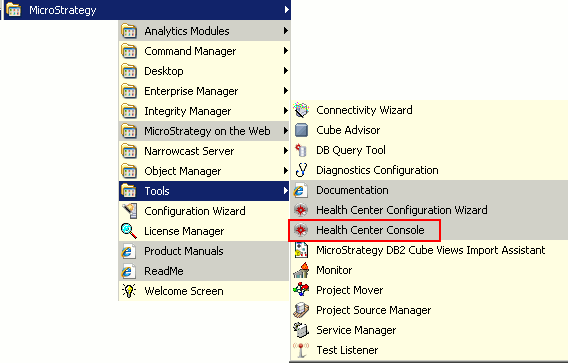
NOTE: Users must have administrative privileges on the Health Center machine to be able to run the Health Center Console.
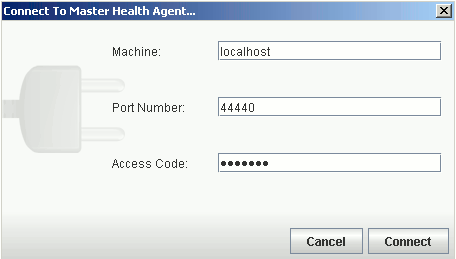
After the Health Center Console is launched, it prompts to connect to Master Health Agent. In the Machine Name and Port fields, type the name and port number of the Master Health Agent machine. If the Master Health Agent has an access code, in the Access Code field, type the password. Next, click Connect. The Health Center Console is connected to the specified Master Health Agent, and has access to all Health Agents that have been added to that Master Health Agent's Health Center system.
The main window of the Health Center Console after connecting to a Master Health Agent:
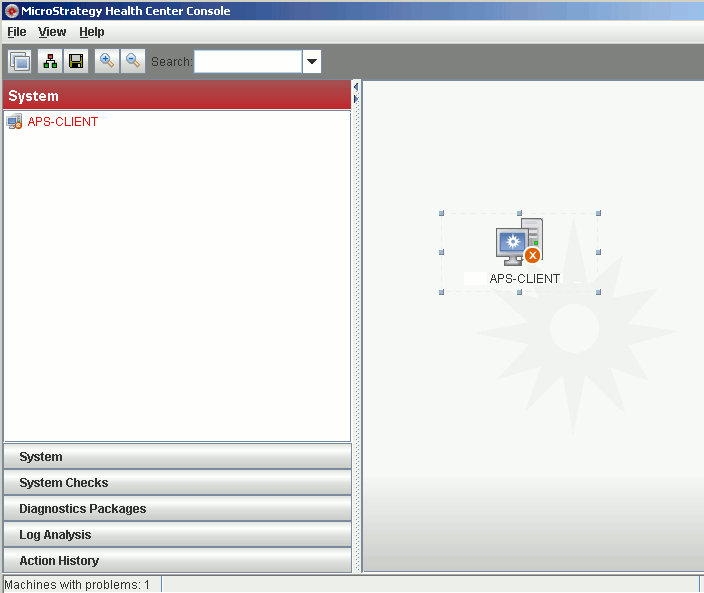
The Health Center Console consists of a navigation pane on the left and a main pane on the right. Select the panel that users want to use from the bottom of the navigation pane. Depending on the panel that you select, different Health Center functionality is available. Users can select from:
Managing Master Health Agent and Health Agent
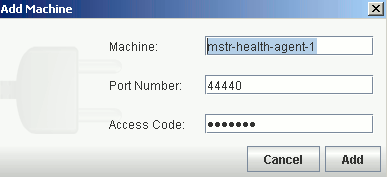
Once users have connected to a Master Health Agent in the Health Center Console, users can add additional Health Agent machines to the Health Center system. When users have added a Health Agent to the system, the Master Health Agent can then perform tasks such as scheduling system checks or viewing log files for that machine.
To add a Health Agent to a Health Center System:
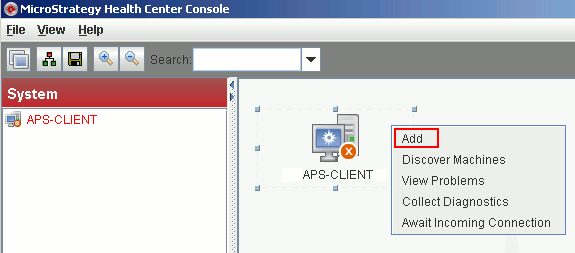
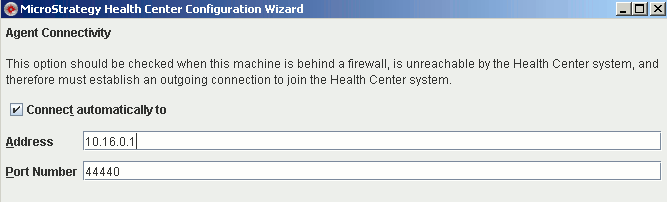
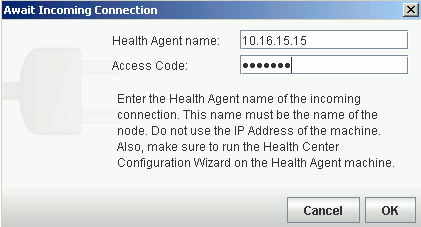
If a Health Agent machine is behind a firewall from the Master Health Agent, the Master Health Agent may not be able to connect directly to the Health Agent. In this case, users must configure the Master Health Agent to receive a connection from the Health Agent.
Follow steps below to add a Health Agent behind a firewall:
Instead of adding Health Agents to the Health Center system one at a time, users can use Health Center to discover Strategy components elsewhere in the network. users provide information about the Strategy components on this machine, such as Intelligence Server or Desktop, and Health Center scans the network for other machines that those components are aware of. If those other machines have been configured as Health Agents, users can then add them to the Health Center system.
To discover Health Agents in the Strategy network,
Diagnosing and fixing problems
One of the main purposes of Health Center is to diagnose any problems with users' Strategy systems. Health Center does this by performing system checks on the Master Health Agent and on all Health Agents in the Health Center system to identify any problems. In many cases, Health Center also provides users with the ability to fix the problems immediately.
NOTE: A system check is a Health Center scan of a specific component of a Strategy product or machine configuration. System checks can report errors or potential errors, and in many cases can provide ways to fix these problems. For more information on available system checks, see the tech note below:
KB32551 A list of supported system checks for MicroStrategy Health Center
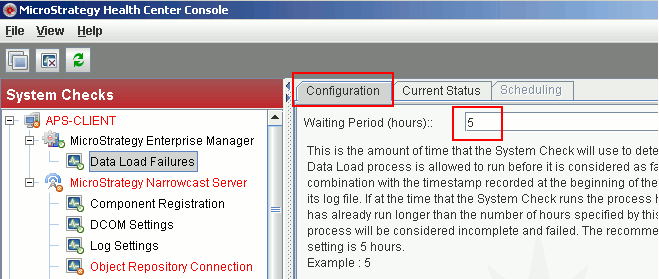
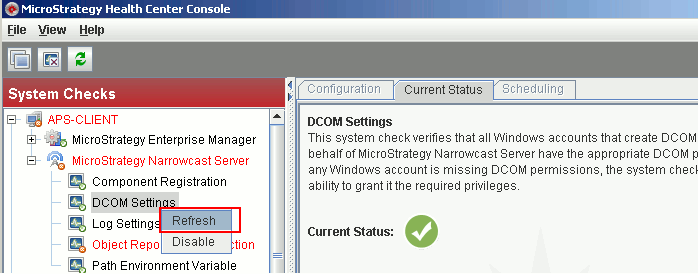
Users can execute these system checks manually from the Health Center Console, or users can schedule them to automatically run daily or weekly at a specified time. The Master Health Agent handles the scheduling, and at the appropriate times it triggers the scheduled system checks on all Health Agents in the system.
To manually execute a system check:
Analyzing system information
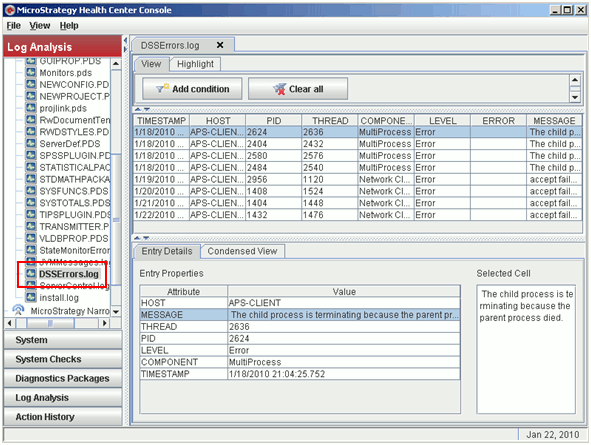
In the Health Center Console, users can review the Strategy log files to get more information about the possible causes of any errors in the Strategy system. For example, if Intelligence Server returns an Out Of Memory error, users can look in the DSSErrors.log file to see what tasks have used more memory than expected.
All Strategy system components record information about low-level system activity in log files. This information can include system errors, memory usage, starting and stopping services, and so on. The log files for all the machines in Health Center system are listed on the Log Analysis panel. To view the contents of a log file in the main pane of the Health Center console, double-click that file.
Creating and sending Diagnostic Packages
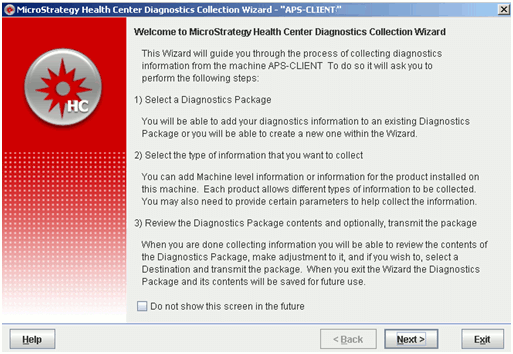
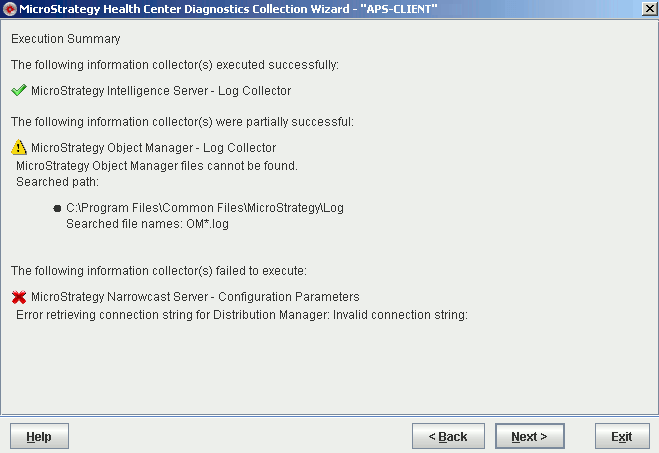
If a problem in the system cannot be resolved by the actions suggested by Health Center, the next step is often to contact Strategy Technical Support. Health Center can collect all the relevant information into a single diagnostics package, which can then be delivered to Strategy Technical Support.
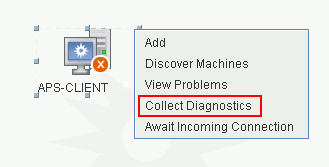
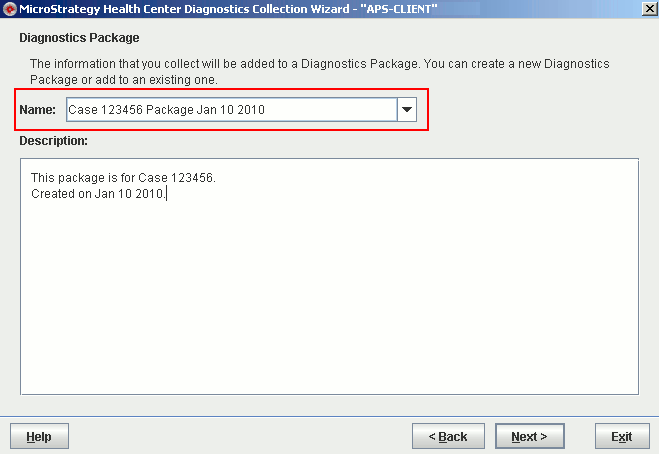
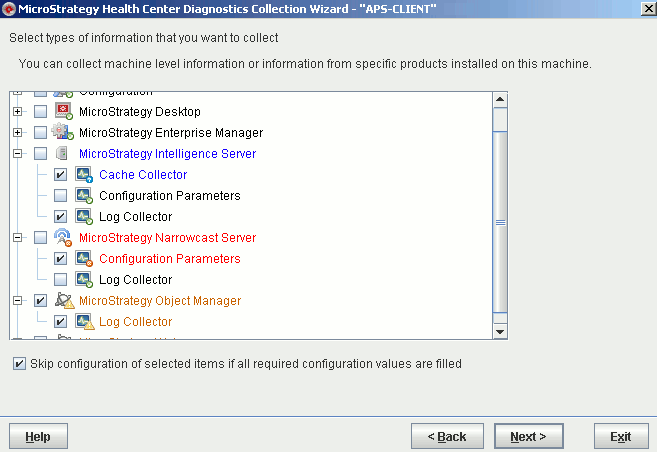
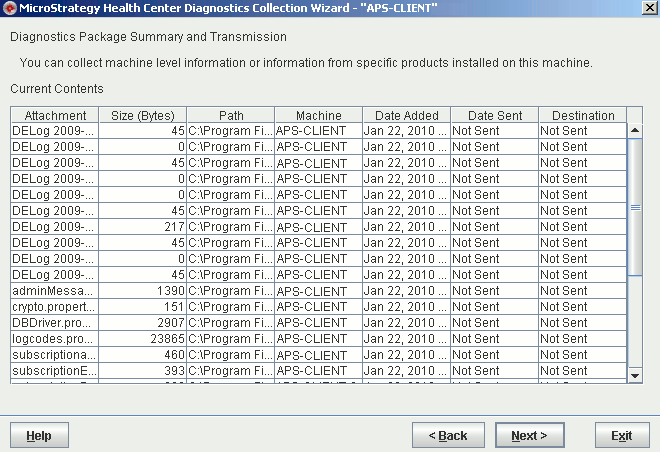
A diagnostics package contains system information, including log files, collected from one or more Health Agent machines. When users create a diagnostics package, users can choose what machines to include log files from, and what log files to include in the package.
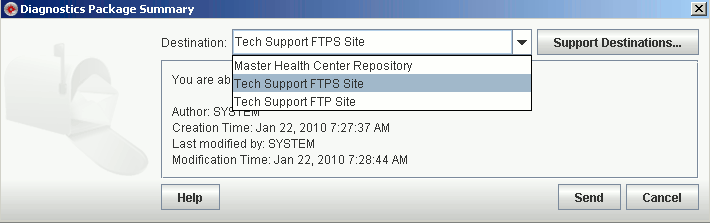
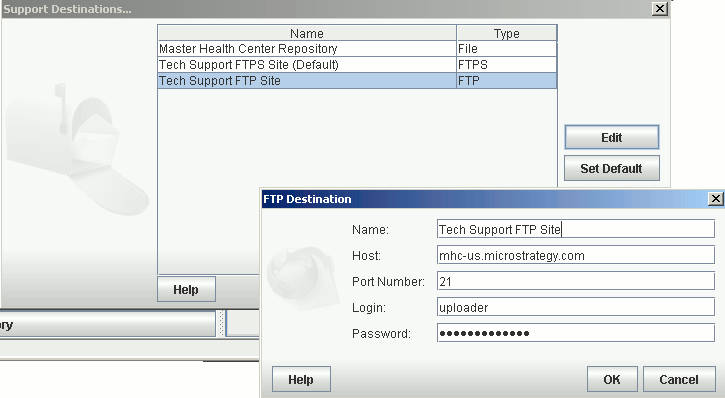
Once users have created a diagnostics package, users can save it as a ZIP file, or send it directly to Strategy Technical Support over FTP. users can use either standard FTP mode, or an encrypted FTP mode (FTPS) that makes use of SSL.
Note: Health Center does not support transmitting diagnostics packages using secure FTP (SFTP), that is, FTP over SSH.
To create a diagnostics package,