EducationSoftwareStrategy.com
StrategyCommunity

Knowledge Base

Product

Community

Knowledge Base

TopicsBrowse ArticlesDeveloper Zone

Product

Download SoftwareProduct DocumentationSecurity Hub

Education

Tutorial VideosSolution GalleryEducation courses

Community

GuidelinesGrandmastersEvents
x_social-icon_white.svglinkedin_social-icon_white.svg
Strategy logoCommunity

© Strategy Inc. All Rights Reserved.

LegalTerms of UsePrivacy Policy
  1. Home
  2. Topics

KB325774: How to concatenate two attribute forms by using derived attributes in MicroStrategy 10.x


Community Admin

• Strategy


This article explains how to concatenate attribute forms on the fly by creating derived attributes in MicroStrategy 10.x.

OVERVIEW
Prior to Strategy 10.x it was possible to concatenate two attribute forms by creating derived metrics as described in KB42082: How to use derived metrics to concatenate two attribute forms of the report in MicroStrategy 9.3.
 
Starting with Strategy 10.x it is possible to concatenate attribute forms on the fly by creating derived attributes.
 
STEPS TO IMPLEMENT
The following steps can be used to concatenate two attribute forms. The steps below use objects from the Strategy Tutorial project as an example.
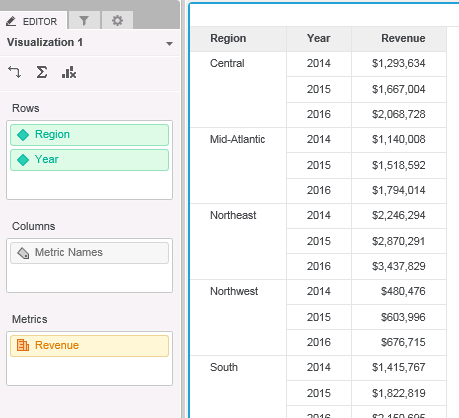
  • In Strategy Web create a new Visual Insight dashboard with the Year attribute, Region attribute and the Revenue metric.
ka04W000000OfpmQAC_0EM4400000025Mn.jpeg
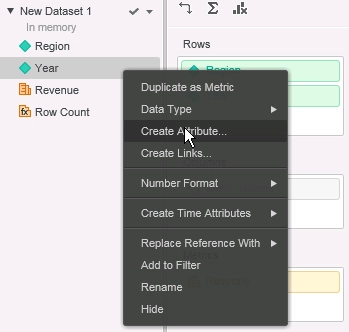
  • Create a new derived attribute by right mouse clicking an object in the dashboard and selecting the option to Create Attribute
ka04W000000OfpmQAC_0EM4400000025N0.jpeg
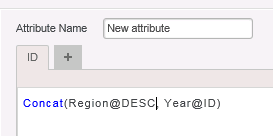
  • In the derived attribute editor, concatenate the desired attribute forms by using the "Concat" function
ka04W000000OfpmQAC_0EM4400000025Mr.jpeg
  •  
    
    Concat(Region@DESC, Year@ID)

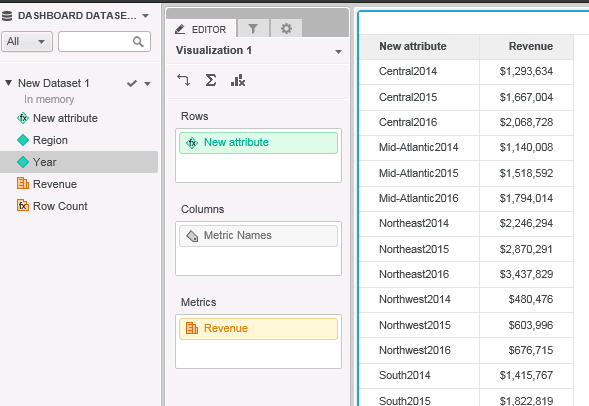
  • It is then possible to add the newly created derived attribute to the visualization on the dashboard
ka04W000000OfpmQAC_0EM4400000025Mp.jpeg

Comment

0 comments

Details

Knowledge Article

Published:

June 13, 2017

Last Updated:

June 13, 2017