EducationSoftwareStrategy.com
StrategyCommunity

Knowledge Base

Product

Community

Knowledge Base

TopicsBrowse ArticlesDeveloper Zone

Product

Download SoftwareProduct DocumentationSecurity Hub

Education

Tutorial VideosSolution GalleryEducation courses

Community

GuidelinesGrandmastersEvents
x_social-icon_white.svglinkedin_social-icon_white.svg
Strategy logoCommunity

© Strategy Inc. All Rights Reserved.

LegalTerms of UsePrivacy Policy
  1. Home
  2. Topics

KB33872: After changing the Intelligence Server name or IP address in the projectsources.xml file, an error occurs when refreshing or re-executing a report in MicroStrategy Office


Community Admin

• Strategy


After changing the Intelligence Server name or IP address in the projectsources.xml file, an error occurs when refreshing or re-executing a report in MicroStrategy Office.

SYMPTOM
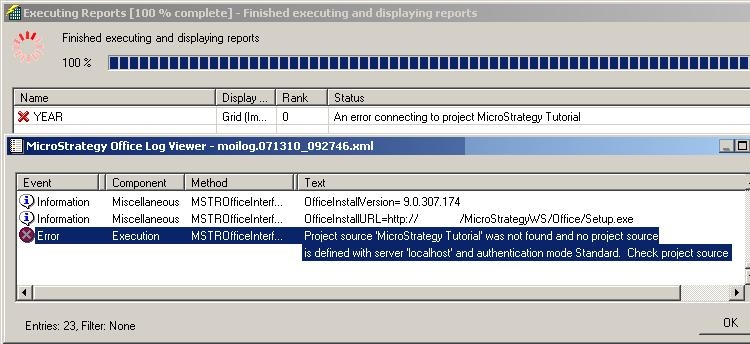
When attempting to refresh or re-execute a report in Strategy Office 9.4.1 and above, users receive the following messages from the Strategy Office console and errors log:
ka04W00000148RuQAI_0EM4400000027vs.jpeg

 
Sample Code/Error


An error connecting to project Project Name
Error.  Project source 'Project Name' was not found and no project source is defined with server 'localhost' and authentication mode standard. Check project source


CAUSE
This error usually occurs after the administrator has made a change such as replacing the Intelligence Server name or IP address in the projectsources.xml file, located at C:\Program Files\Strategy\Web Services\projectsources.xml. The existing Strategy Office documents are set to persist the report information including the Server, project, and report names. After a server name or IP address change, the persisted information does not match anymore, causing the error.
 
ACTION
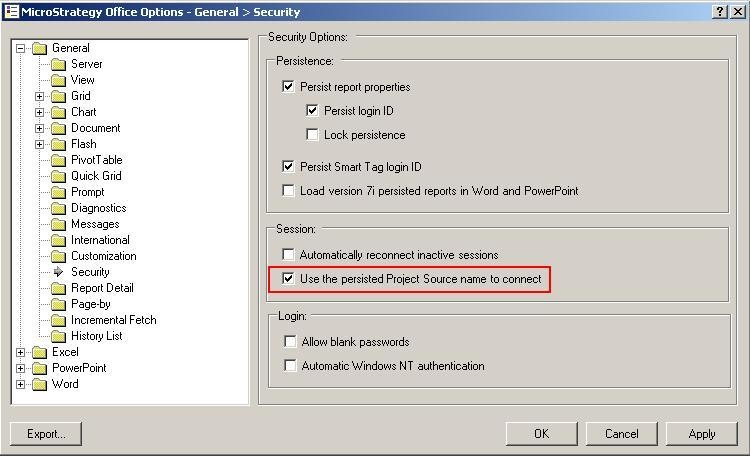
Each Strategy Office end user should modify their Office Configuration and enable the setting under: General > Security: Use the persisted Project Source name to connect, like shown in the image below.


ka04W00000148RuQAI_0EM4400000027vy.jpeg

For more information on this setting refer to tech note KB19191: How to use the persisted project source name to refresh report using MicroStrategy Office 9.x
WORKAROUND
If the administrator decides that it is impossible to have every user implement this change manually, follow these steps to implement it automatically at the Web Services Server level, and have it override the settings at the user level.

  1. Find the moimain.dll.config file located in the Web Services machine under Program Files\Strategy\Web Services\Office\moimain.dll.config
    Note: if the file doesn’t already exist, create a default one in a text editor.
    The contents of the file by default looks like this:
      Sample Code/Error


    <?xml version="1.0"?>
    <configuration>
      <appSettings>
      </appSettings>
    </configuration> 


  2. Add the following line: 
     

    Sample Code/Error


    <add key="Use PS Name" value="1" enable="0" override="1" />


    The resulting file should look like this:
     

    Sample Code/Error

    
    <?xml version="1.0"?>
    <configuration>
      <appSettings>
        <add key="Use PS Name" value="1" enable="0" override="1" />
      </appSettings>
    </configuration>


Once this has been implemented, every client machine that connects to this Web Services machine will have the particular setting ‘Use the persisted Project Source name to connect’ enabled without needing users to change it themselves.


Comment

0 comments

Details

Knowledge Article

Published:

May 23, 2017

Last Updated:

July 8, 2022