KB35793 explains how to create a mobile subscription with Alert Push Notification. However, Alert Push Notification needs to be enabled first before user can receive any notifications on the Mobile devices. In order to enable Alert Push Notification, customer needs to follow the steps below:
First, Customer needs to apply Apple Developer ID from Apple.
Second, Customer should follow the instructions on Apple iOS Provisioning Portal to complete the following two items (User needs login to iOS Provisioning Portal using Apple Developer ID: http://developer.apple.com/ios/manage/overview/index.action)
- Recompile Strategy iPad app using the Developer ID
- Generate Push Notification certificate using the Developer ID
Third, after certificate is generated, user needs to install Push Notification Certificate on Intelligence Server
- NOTE: Push Notification certificate needs to be generated with an unique Apple Developer ID. (This is required by Apple)
To install the Push Notification Certificate, user needs to go to the following location and double click on MobileAPNSForIPad
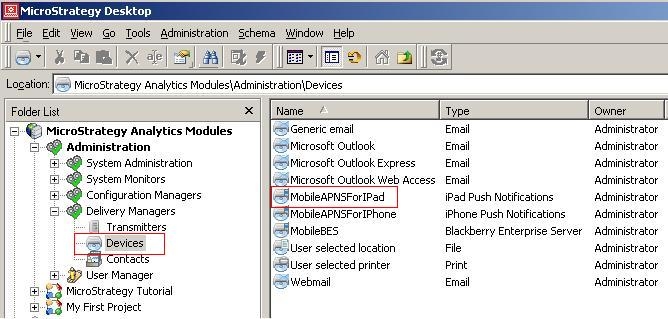
The Device editor will pop up.
1. Put: gateway.push.apple.com as the IP address/Server Name in a production environment.
Put: gateway.sandbox.push.apple.com as the IP address/Server Name in a development environment.
NOTE: Intelligence Server needs access to gateway.push.apple.com and gateway.sandbox.push.apple.com in order to push messages to Apple
2. Under Provider Certificate, point to the location of the Push Notification Certificate
NOTE: The certificate file has to be generated via Apple's Previsioning Portal with a valid Apple Developer ID or Enterprise ID.
Make sure to convert the .p12 format to .pem format.
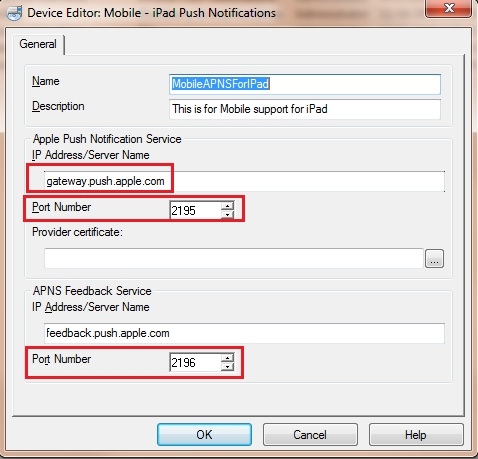
Also NOTE: The two ports highlighted above needs to be open to send and receive messages from Apple Push Notification Services
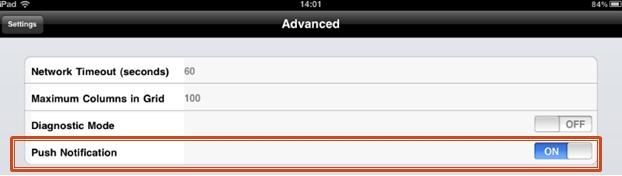
Finally, on iPad device, turn on the Push Notification setting under Advance Setting page.