EducationSoftwareStrategy.com
StrategyCommunity

Knowledge Base

Product

Community

Knowledge Base

TopicsBrowse ArticlesDeveloper Zone

Product

Download SoftwareProduct DocumentationSecurity Hub

Education

Tutorial VideosSolution GalleryEducation courses

Community

GuidelinesGrandmastersEvents
x_social-icon_white.svglinkedin_social-icon_white.svg
Strategy logoCommunity

© Strategy Inc. All Rights Reserved.

LegalTerms of UsePrivacy Policy
  1. Home
  2. Topics

KB36062: How to deploy and configure the Google Maps connector plugin in MicroStrategy Web


Community Admin

• Strategy


How to deploy and configure the Google Maps connector plugin in MicroStrategy Web.

Where can I use Google Maps in Strategy Web?

Strategy Web supports Google Maps in:

  • Report Services Documents executed in DHTML mode:

ka04W00000148GmQAI_0EM440000002WfP.jpeg
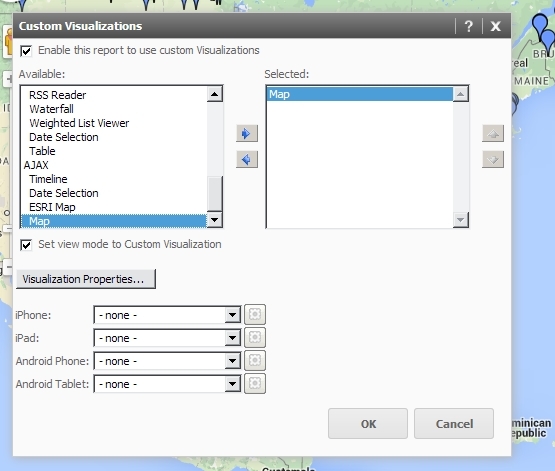
  • Reports set to use the Map Custom Visualization:

ka04W00000148GmQAI_0EM440000002WfS.jpeg

NOTE: Google Maps are not supported in Report Services Documents executed in Flash mode, including Analyses created in Visual Insight. Refer to KB47215 for details on why this is not available.

How do I obtain a Google Maps Key?

To use Google Maps in Strategy Web, a free Google Maps JavaScript API V3 key must be obtained. You can learn more about this key and obtain one from the vendor resource here: https://developers.google.com/maps/web/
Once you have obtained a key, the Google Maps widget must be deployed and configured in your Strategy Web environment before you can use it on reports and documents.

How do I configure my Strategy Web environment to support Google Maps?

Follow the steps below to configure your Strategy Web environment to support Google Maps:

  • Deploy the Google Connector Plugin into your Strategy Environment. Navigate to your Strategy installation directory. On 64-bit Windows machines, this directory is located here by default: C:\Program Files (x86)\Strategy
  • Navigate into GISConnectors > GoogleMap. Here, there will be two folders: ConnectorForGoogleMap and ConnectorForGoogleMap_ASP.
    • If your Strategy Web environment is JSP, open the ConnectorForGoogleMap folder. Here, there will be a second ConnectorForGoogleMap folder. Copy this folder into your Strategy plugins folder, which by default is located in your parent Strategy Web directory\plugins
    • If your Strategy Web environment is ASP, open the ConnectorForGoogleMap_ASP folder. Here, there will be a second ConnectorForGoogleMap folder. Copy this folder into your Strategy plugins folder, which by default is located in your parent Strategy
  • Within the ConnectorForGoogleMap plugin, navigate to the googleConfig.xml file located here: ConnectorForGoogleMap\WEB-INF\xml\config\google
  • Open the googleConfig.xml file in any text editor. By default, the configuration file will contain the following lines:
     
    
    <gc>
        <mk isPremier="true">InvalidPremierKey</mk>    
    </gc>

  • Between the <mk> nodes, input your alphanumeric JavaScript API V3 key obtained from Google. If you do not have a key, refer to the above section "How do I obtain a Google Maps Key?"
  • Set the isPremier parameter to false
  • An example of a correctly configured googleConfig.xml file is shown below:
     
    
    <gc>
        <mk isPremier="false">mykey12345</mk>    
    </gc>

  • Finally, restart the web server for the changes to take effect. Now, the option for Map will be available in the Custom Visualization editor for Strategy Web reports, the DHTML Map widget will be avilable for Strategy Web Report Services Documents, like shown below:

ka04W00000148GmQAI_0EM440000002WfT.jpeg

Comment

0 comments

Details

Knowledge Article

Published:

July 18, 2017

Last Updated:

July 18, 2017