EducationSoftwareStrategy.com
StrategyCommunity

Knowledge Base

Product

Community

Knowledge Base

TopicsBrowse ArticlesDeveloper Zone

Product

Download SoftwareProduct DocumentationSecurity Hub

Education

Tutorial VideosSolution GalleryEducation courses

Community

GuidelinesGrandmastersEvents
x_social-icon_white.svglinkedin_social-icon_white.svg
Strategy logoCommunity

© Strategy Inc. All Rights Reserved.

LegalTerms of UsePrivacy Policy
  1. Home
  2. Topics

KB39114: How to gather the crash log for an Android Device by using the Dalvik Debug Monitor Server (DDMS) tool from Android SDK in MicroStrategy Mobile 9.2.1m and above?


Community Admin

• Strategy


This document shows how to gather the crash log for an Android Device by using the Dalvik Debug Monitor Server (DDMS) tool from Android SDK in MicroStrategy Mobile 9.2.1m and above?

Step 1: In order to obtain the crash logs for an Android device it is necessary to download the Android SDK which will trigger the DDMS monitor. Refer to  KB39040: How to install Android SDK tool to trigger Dalvik Debug Monitor Server (DDMS) monitor in MicroStrategy Mobile 9.2.1m.  for how to install Android SDK on your machine for enabling DDMS monitor.
 
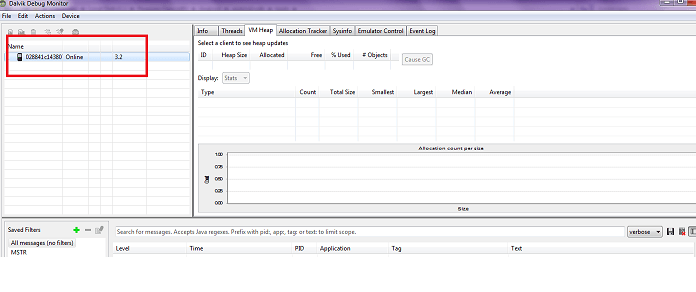
Step 2: Once you have the Android SDK installed and DDMS monitor up, you can see the device connected in the DDMS tool.
 

ka04W00000147xuQAA_0EM440000002ALb.png

EXAMPLE:
 
Step 3: The DDMS tool logs every activity taking place in the Android device, so make sure you run the Strategy Mobile App in the android device connected in order for the tool to log the error.
 
Step 4: Log can be saved depending on the criteria of the issue. It will be good to save the verbose as well as the error log separately and send it to Strategy Technical Support for troubleshooting.
 

ka04W00000147xuQAA_0EM440000002ALc.png

Comment

0 comments

Details

Knowledge Article

Published:

April 11, 2017

Last Updated:

April 11, 2017