EducationSoftwareStrategy.com
StrategyCommunity

Knowledge Base

Product

Community

Knowledge Base

TopicsBrowse ArticlesDeveloper Zone

Product

Download SoftwareProduct DocumentationSecurity Hub

Education

Tutorial VideosSolution GalleryEducation courses

Community

GuidelinesGrandmastersEvents
x_social-icon_white.svglinkedin_social-icon_white.svg
Strategy logoCommunity

© Strategy Inc. All Rights Reserved.

LegalTerms of UsePrivacy Policy
  1. Home
  2. Topics

KB41443: How to enable the quick search for MicroStrategy Web


Community Admin

• Strategy


How to enable the quick search for MicroStrategy Web.

How to enable the Quick Search feature for Strategy Web
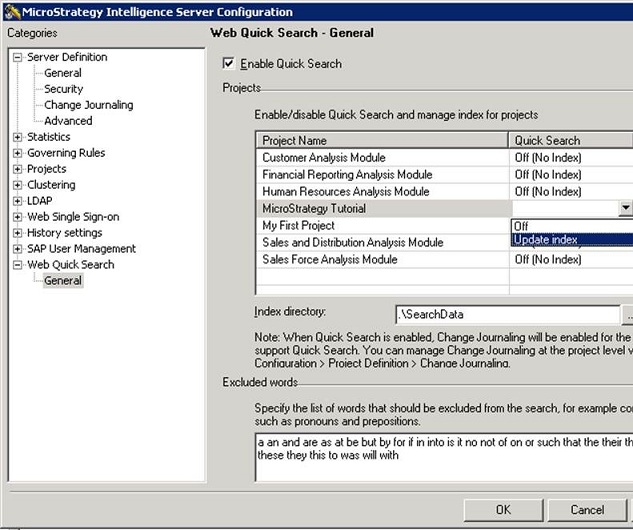
1. This feature must be enabled in Strategy Developer: Right-click on the project source ->Configure Intelligence Server -> Web Quick Search, then check the box for 'Enable Quick Search' -> 'Update Index'
ka04W00000148TWQAY_0EM4400000026yS.jpeg

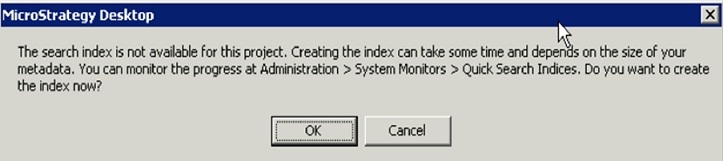
2. After selecting Update index, user is prompted with the following message - click OK
ka04W00000148TWQAY_0EM4400000026yV.jpeg

3. Restart the Intelligent Server and Web server
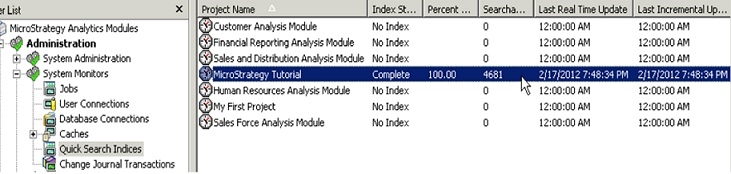
4. To view the progress of Index Update / Creation, go to Administration -> System Monitors -> Quick Search Indices
 

ka04W00000148TWQAY_0EM4400000026yQ.jpeg


For information on how to How to Disable Quick Search, refer to the following article: KB40303: How to disable Quick Search in MicroStrategy Web


Comment

0 comments

Details

Knowledge Article

Published:

May 1, 2017

Last Updated:

May 1, 2017