EducationSoftwareStrategy.com
StrategyCommunity

Knowledge Base

Product

Community

Knowledge Base

TopicsBrowse ArticlesDeveloper Zone

Product

Download SoftwareProduct DocumentationSecurity Hub

Education

Tutorial VideosSolution GalleryEducation courses

Community

GuidelinesGrandmastersEvents
x_social-icon_white.svglinkedin_social-icon_white.svg
Strategy logoCommunity

© Strategy Inc. All Rights Reserved.

LegalTerms of UsePrivacy Policy
  1. Home
  2. Topics

Constructing URL API to run a Report Services Document (RSD) with a specific panel selected in MicroStrategy Web 9.4.x (for non-Express mode)


Community Admin

• Strategy


Description

The following example demonstrates how to construct the URL API to run a Report Services document with specific panel in a panel stack. This example refers to Strategy Web 9.4.x for non-Express mode:


.NET Version
http://<web server>:port/Strategy/asp/Main.aspx?
evt=2048001
&src=Main.aspx.2048001
&documentID=9B64FC2540D96A137F4C7BBDE70EF090
&evt=2048076
&src=Main.aspx.rwd.rwframe.rwb.2048076
&psKey=W252
&pKey=W254
&evtorder=2048001%2c2048076
&2048076=1
&2048001=1

Please adjust the link accordingly if you are using J2EE web server.
Notes:
 
For steps on how to construct the URL for documents executing in Express view mode for 9.x version or Presentation mode for 10.x, refer to KB45218.
Two events are executed using URL API in whole progress. Refer to the following section in Strategy Developer Zone (MSDZ) to understand how to execute multiple events using the URL API and how to contruct the URL syntax in J2EE version:
https://www2.microstrategy.com/producthelp/Current/WebSDK/Content/topics/urlapi/Executing_Multiple_Events_Using_the_URL_API.htm

Parameters

The parameters below are required to execute a document:


evt=2048001
&src=Main.aspx.2048001
&documentID=

The parameters below are required to assign the panel in a specific panel stack:

&evt=2048076
&src=Main.aspx.rwd.rwframe.rwb.2048076
&psKey=
&pKey=

The parameters below are used to determine the execution order when using multiple events: 

&evtorder=2048001%2c2048076
&2048076=1
&2048001=1

Refer to KB38841 to understand how to find panel key and panel selector key.
 
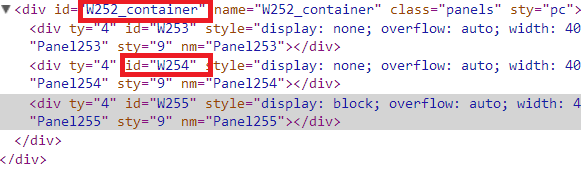
This is a sample of the panel stack key and panel key when viewing in Google Chrome Developer tool:

  1. Run the document in Editable mode and enable Chrome Developer tool by Ctrl+Shift+I.
  2. Choose Element and click the icon with arrow to select an element.
     
ka0PW0000000ix7YAA_0EM44000000REKU.png
  1. Click on the Panel Stack.
  2. Scroll on the content to locate content similar to below:

Here the Panel Stack key is W252 and the Panel key is W254 and W255.
 

ka0PW0000000ix7YAA_0EM4400000026qw.png

Learning Resources


Interested in learning more about APIs or SDK? Visit the Developer Zone of the Learning Center on Community!
Or visit our Documentation pages for more product information.


Comment

0 comments

Details

Knowledge Article

Published:

March 30, 2017

Last Updated:

February 13, 2024