EducationSoftwareStrategy.com
StrategyCommunity

Knowledge Base

Product

Community

Knowledge Base

TopicsBrowse ArticlesDeveloper Zone

Product

Download SoftwareProduct DocumentationSecurity Hub

Education

Tutorial VideosSolution GalleryEducation courses

Community

GuidelinesGrandmastersEvents
x_social-icon_white.svglinkedin_social-icon_white.svg
Strategy logoCommunity

© Strategy Inc. All Rights Reserved.

LegalTerms of UsePrivacy Policy
  1. Home
  2. Topics

KB42890: Common Troubleshooting Steps for Microsoft Internet Explorer in MicroStrategy Web


Community Admin

• Strategy


Common Troubleshooting Steps for Microsoft Internet Explorer in MicroStrategy Web.

Strategy Web 9.x certifies several versions of Microsoft Internet Explorer. However, certain issues can still occur in Strategy Web 9.x that could be caused by the 3rd party aspect of the browser that is not part of the default installation of Internet Explorer. The most common pointer for an issue being related to an Internet Explorer setting and not Strategy Web includes:

  • Issues that are reproducible only in one client machine.
  • Issues that are reproducible only in Internet Explorer but not other supported browsers.
  • Issues that are reproducible only in the customer's environment but not when tested in-house by Strategy Technical Support.

For this reason, Strategy Technical Support may ask customers to troubleshoot the browser settings further in order to find the cause of the problem.
 
ACTION:
 
To troubleshoot Internet Explorer, try the following steps.
Note: The following troubleshooting steps are provided in no particular order.
  1. Clear temporary Internet files and cookies
  2. Manually delete the application objects and temporary files
  3. Turn Compatibility View Off (IE8 and newer only)
  4. Turn Protected Mode Off
  5. Add Strategy Web to the Trusted Sites
  6. Turn on Active X
  7. Try using Internet Explorer with no Add-ons
  8. Enable automatic logon (for Windows authentication)
  9. Enable Windows Integrated Authentication
  10. Reset Internet Explorer
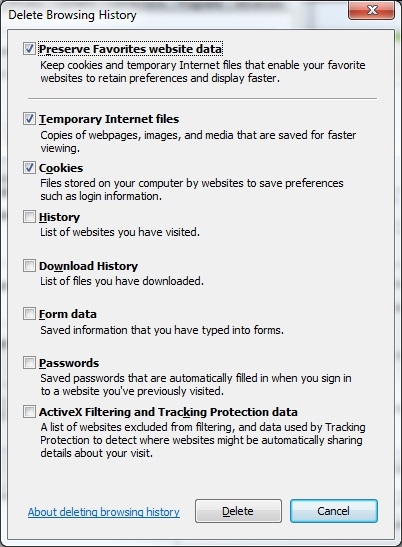
  • Clear temporary Internet files and cookies.
     
    • Tools > Internet Options > Browsing History
    • Click on the Delete button > check Temporary Internet Files and Cookies.
       
ka04W00000148lBQAQ_0EM4400000026lH.jpeg
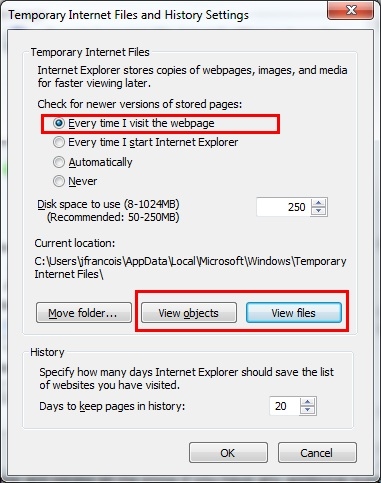
  • Manually delete the application objects and temporary files.
     
    • Tools > Internet Options > Settings
    • Select the option 'Every time I visit the webpage' for the setting 'Check for newer versions of the webpage'
    • Click on the 'View Objects' and 'View Files' buttons.
    • Select all the objects in the folders and delete them.
       
ka04W00000148lBQAQ_0EM4400000026l5.jpeg
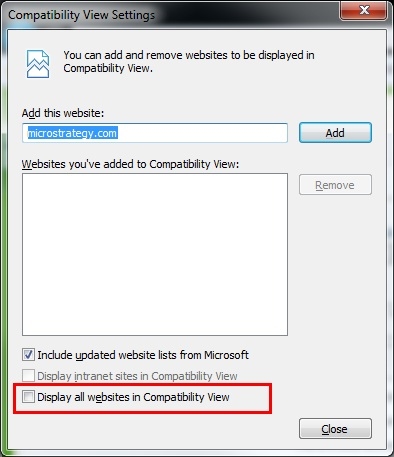
  • Turn Compatibility View Off (IE8 and newer only).
     
    • Tools > Compatibility View settings
    • Uncheck the 'Display all websites in Compatibility View' option.
       
ka04W00000148lBQAQ_0EM4400000026l3.jpeg
    •  
      Note: Strategy does not support Compatibility View mode. It has not, and will not, undergo the certification process for support. Strategy only performs the certification process on the browsers in their native standards. Please see KB43020 for more information.
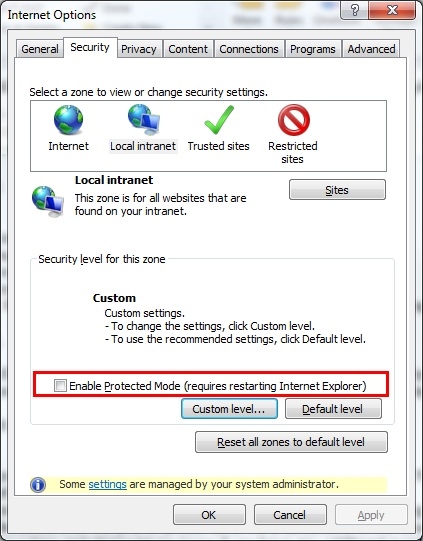
  • Turn Protected Mode Off.
     
    • Tools > Internet Options > Security
    • Uncheck the 'Enable Protected Mode' checkbox.
       
ka04W00000148lBQAQ_0EM4400000026l7.jpeg
    •  
      Note: The Protected mode option may be grayed out by the administrator of the machine. Contact the network manager for information on how to enable it.
       
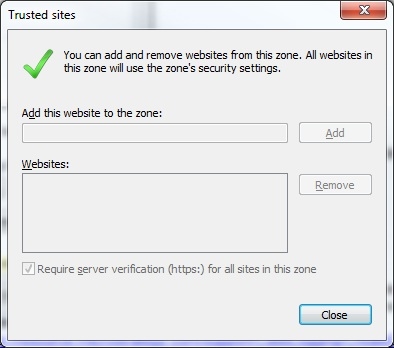
  • Add Strategy Web to the Trusted Sites.
     
    • Tools > Internet Options > Security > Trusted Sites
    • Click on the 'Sites' button then type in the URL to Strategy Web. 
       
ka04W00000148lBQAQ_0EM4400000026lC.jpeg
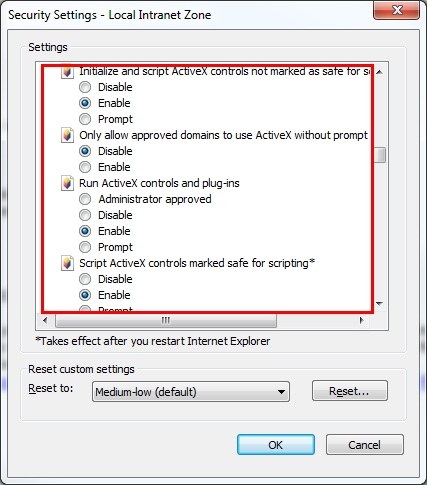
  • Turn on Active X.
     
    • Tools > Internet Options > Security > Local Intranet (or Internet)
    • Click on the 'Custom level...' button then scroll down to the Active X controls section.
    • Enable the following settings:
       
      • 'Initialize and script ActiveX controls...'
      • 'Run ActiveX controls and plug-ins'
      • 'Script ActiveX controls marked safe for scripting'
         
ka04W00000148lBQAQ_0EM4400000026l6.jpeg
      •  
        Note: If necessary, temporarily enable all activeX controls available.
         
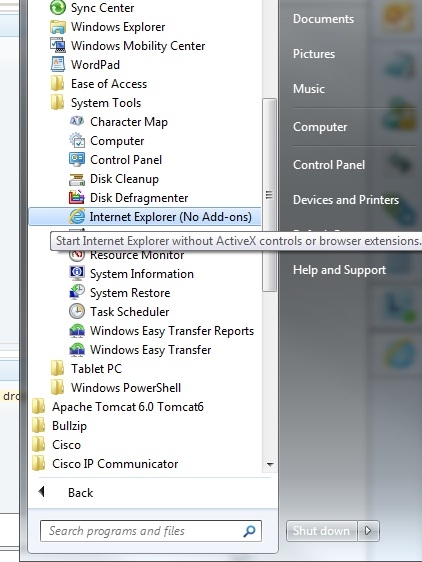
  • Try using Internet Explorer with no Add-ons.
     
    • Start Menu > All Programs > Accessories > System Tools > Internet Explorer (No Add-ons) 
       
ka04W00000148lBQAQ_0EM4400000026l4.jpeg
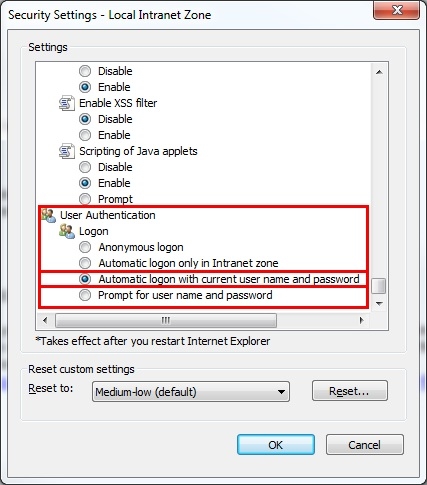
  • Enable automatic logon (for Windows authentication).
     
    • Tools > Internet Options > Security > Local Intranet (or Internet)
    • Click on the 'Custom level' button then scroll down to the 'User Authentication' section
    • Select the option 'Automatic logon with current user name and password'
       
ka04W00000148lBQAQ_0EM4400000026lF.jpeg
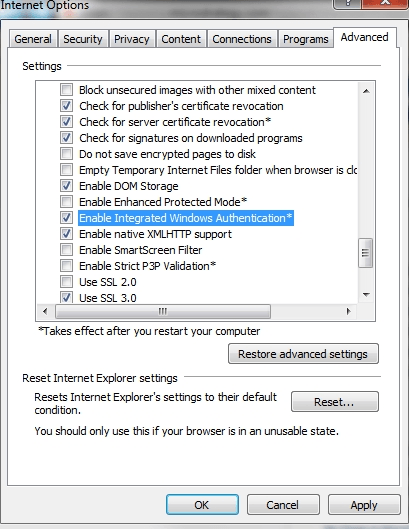
  • Enable Windows Integrated Authentication
    • Tools > Internet Options > Advanced
    • Check the option 'Enable Integrated Windows Authentication'
    • Restart the browser
                     
                       
ka04W00000148lBQAQ_0EM4400000026l8.png
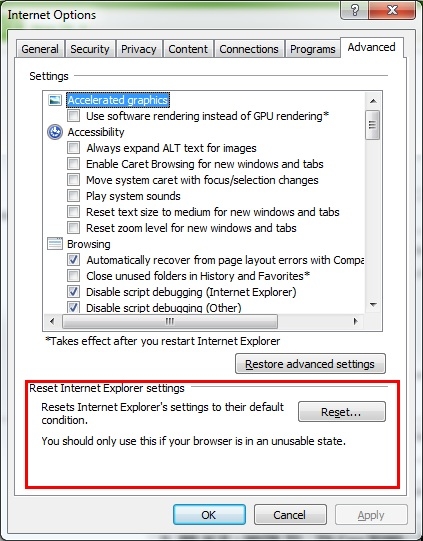
  • Reset Internet Explorer.
     
    • Tools > Internet Options > Advanced
    • Click on the Reset button. (Note: It is not necessary to clear the browser's bookmarks.)
       
ka04W00000148lBQAQ_0EM4400000026lT.jpeg

 
Third Party Software Installation Warning:
 
The third-party product(s) discussed in this technical note are manufactured by vendors independent of Strategy. Strategy makes no warranty, express, implied or otherwise, regarding these products, including their performance or reliability.


Comment

0 comments

Details

Knowledge Article

Published:

April 10, 2017

Last Updated:

April 10, 2017