SUMMARY:
During trouble-shooting cases involving database or ODBC errors, sometimes it may be useful, or even necessary, to look into ODBC trace logs. This document outlines the procedure for enabling Open Database Connectivity (ODBC) tracing on a machine.
STEPS TO ENABLE TRACING:
1. Access the 64-bit ODBC Data Source Administrator interface on the machine. This is usually located at Start -> Settings -> Control Panel -> Administrative Tools. NOTE: This might not appear in Windows 7 and Windows 2008

or
Open up file explorer and navigate to C:\Windows\System32 and click on odbcad32.exe

2. Below is Windows 2012 version of the 64-bit ODBC Data Source Administrator (64-bit).

3. Click on the 'Tracing' tab as shown below.
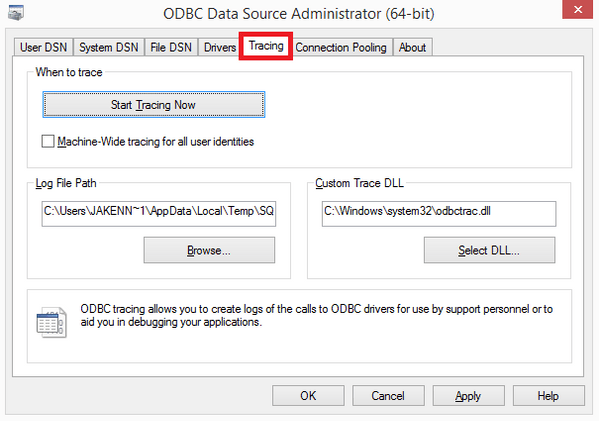
4. Select the name and the path of the trace file under 'Log File Path' by clicking on the browse button.
5. Click the 'Start Tracing Now' box in the 'When to trace' section.
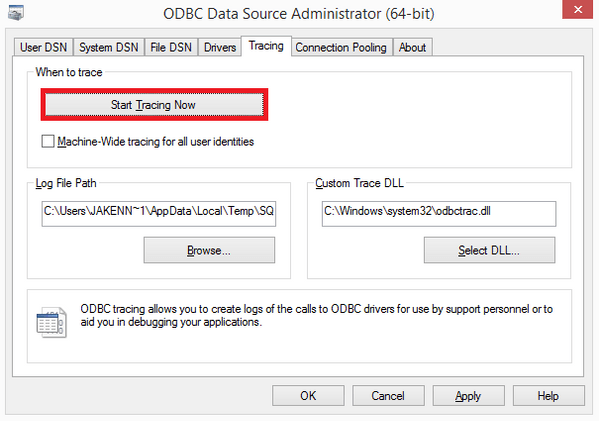
6. The option should now display 'Stop Tracing Now'. This means ODBC tracing is enabled.

7. Click on 'OK' to submit the settings.
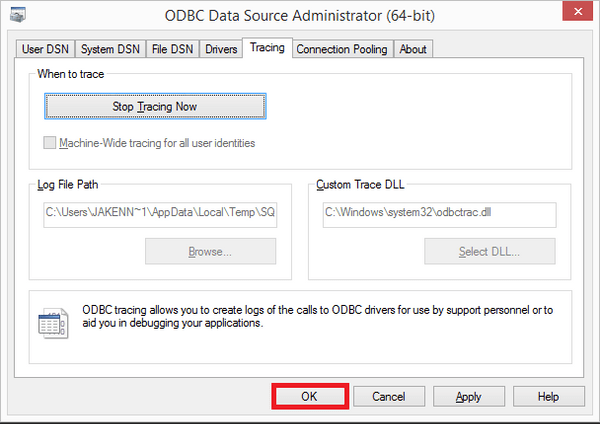
8. The ODBC tracing generates large log files. It is best to disable the tracing once the requisite testing is complete. Click the 'Stop Tracing Now' button to disable ODBC tracing.

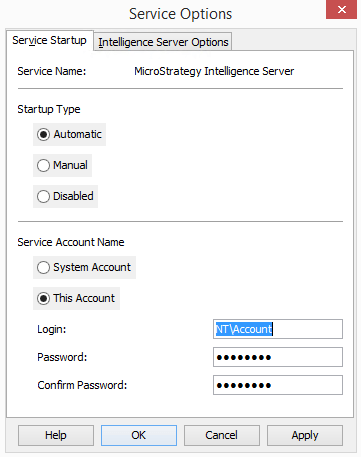
Note: If users are trying to get ODBC trace for 3-tier or 4-tier operations i.e. for SQL being passed by the Strategy Intelligence Server, make sure that the Strategy Intelligence Server is running under a NT user account and not the local system account as shown below.
Found under Sevices Manager named 'Strategy Intelligence Server' or the Options button under Strategy Service Manager.
On Unix
There are two way to enable the 64-bit ODBC Administrator tracing on a UNIX platform
1. Editing the odbc.ini file. For instructions on how to do this, refer to Strategy Knowledge Base document:KB11979 - How to turn on/turn off ODBC tracing in MicroStrategy Intelligence Server Universal 9.x
2. Through ODBC Administrator from within Strategy Control Center.
Third Party Software Installation
TO LEARN MORE:
KB8699: How to enable 32-bit Open Database Connectivity (ODBC) tracing?
KB427400: How to enable ODBC tracing for Teradata 14 drivers in Unix/Linux
WARNING:
The third-party product(s) discussed in this technical note is manufactured by vendors independent of Strategy. Strategy makes no warranty, express, implied or otherwise, regarding this product, including its performance or reliability.
