KB38216 has listed the available locations to change PDF export options in Strategy Developer and Web.
However, there are multiple PDF headers like project header, page header and report headers.
This technote would mainly focus on how these headers work in PDF export and how to change the font if needed.
The below factors is mainly considered.
Below factors are not considered:
Summary of all PDF headers

The content in above image is also provided as excel attachment at the bottom.
※1 PDF options page in report level means below page after choosing to export one report to PDF.
Only Project Header option is not available in this page.

※2 In Web preference page, it is possible to choose to apply the change to all projects.
But per in house testing, this works for page header and report header, but NOT working for project header.

※3 The Page header in Developer and that in Web can be taken as independent. They have different logic when taking effect for report created in Developer or Web.
For font setting in Web, as there is no direct option, a workaround is to input HTML/CSS code.
Below is one example:
<font face="IPAexGothic">
{&Report}(or other header content)
</font>
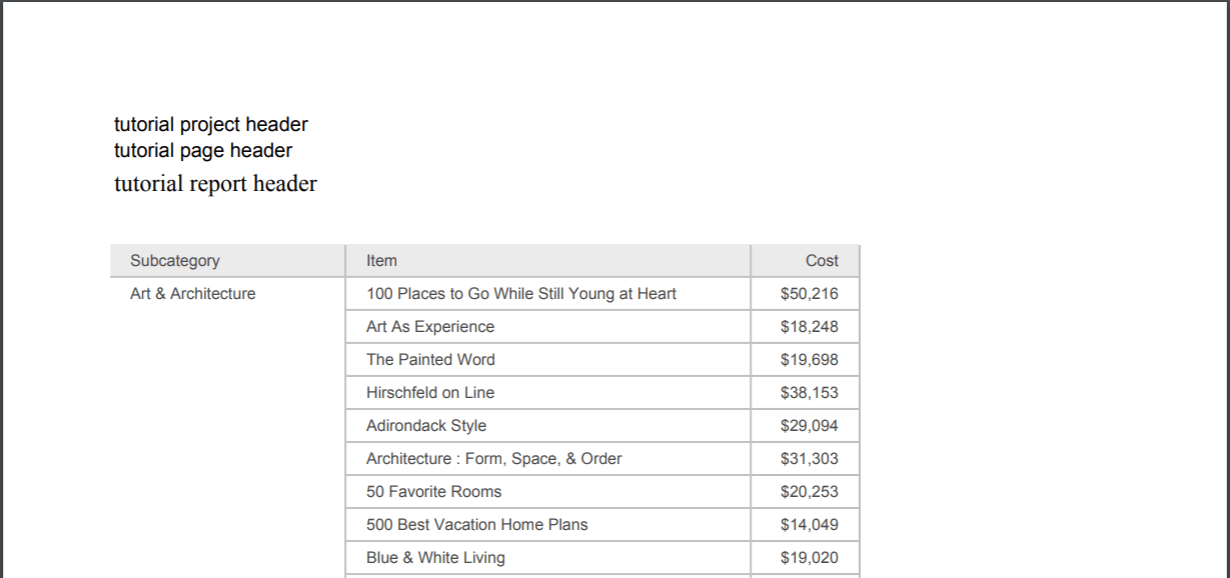
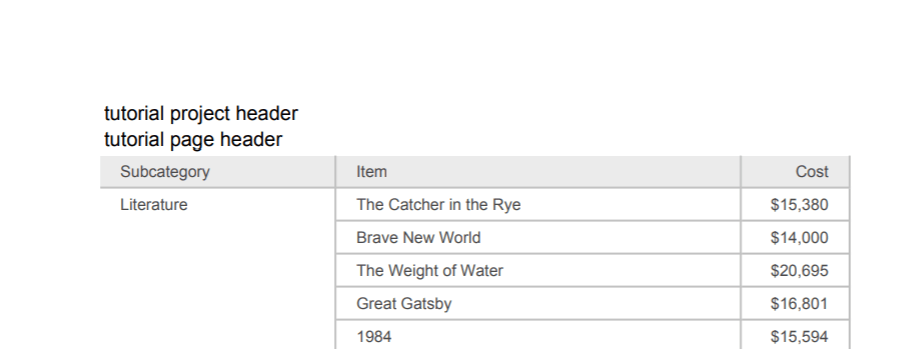
※4 Check below samples to see how the headers are displayed.
In the 1st page of exported PDF, all headers are output.
Starting from 2nd page and above, only project header and page header would be output.
KB439304
