EducationSoftwareStrategy.com
StrategyCommunity

Knowledge Base

Product

Community

Knowledge Base

TopicsBrowse ArticlesDeveloper Zone

Product

Download SoftwareProduct DocumentationSecurity Hub

Education

Tutorial VideosSolution GalleryEducation courses

Community

GuidelinesGrandmastersEvents
x_social-icon_white.svglinkedin_social-icon_white.svg
Strategy logoCommunity

© Strategy Inc. All Rights Reserved.

LegalTerms of UsePrivacy Policy
  1. Home
  2. Topics

KB439801: How to configure MicroStrategy 9.x/10.x to change password for login of Salesforce.com using Transaction and XQuery Report


Tianfeng (Jimmy) Jiang

Quality Engineer, Principal • MicroStrategy


This Knowledge Base article shows how to configure MicroStrategy 9.x/10.x to change password for login of Salesforce.com using Transaction and XQuery Report

The following article shows how to update data in Salesforce with Strategy Transaction and XQuery report:
KB39222: How to configure MicroStrategy 9.x/10.x to write data back to Salesforce.com using Transaction Report
This article shows how to configure Strategy 9.x/10.x to change password for login of Salesforce.com using Transaction and XQuery Report with steps below:
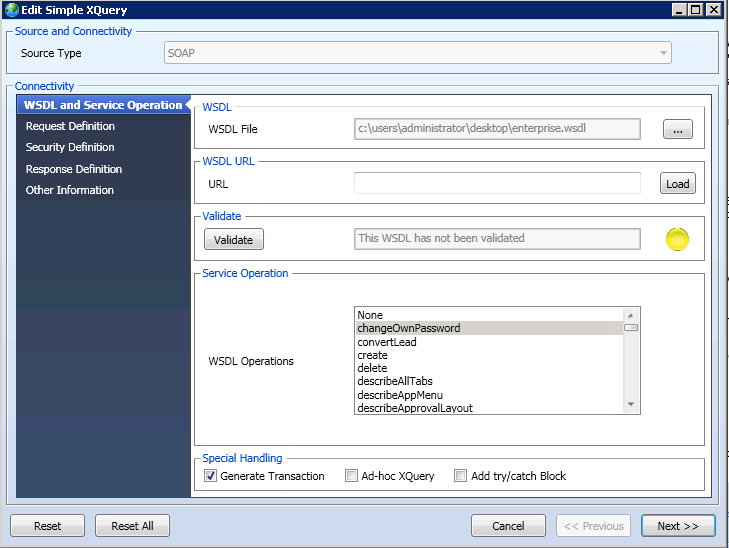
  • Open XQuery Editor and Generator, select SOAP as the source type, upload the WSDL file, select "changeOwnPassword" for WSDL Operations, and select "Generate Transaction".
    NOTE: WSDL file must be obtained from Salesforce or system administrator. Also there are multiple Saleforce APIs. SOAP is used in the example below. Refer to the following link for more information on usage of other types of APIs:
    http://www.salesforce.com/us/developer/docs/api/Content/sforce_api_quickstart_intro.htm

ka04W000001IqkJQAS_0EM44000000YVDo.png
  • ​
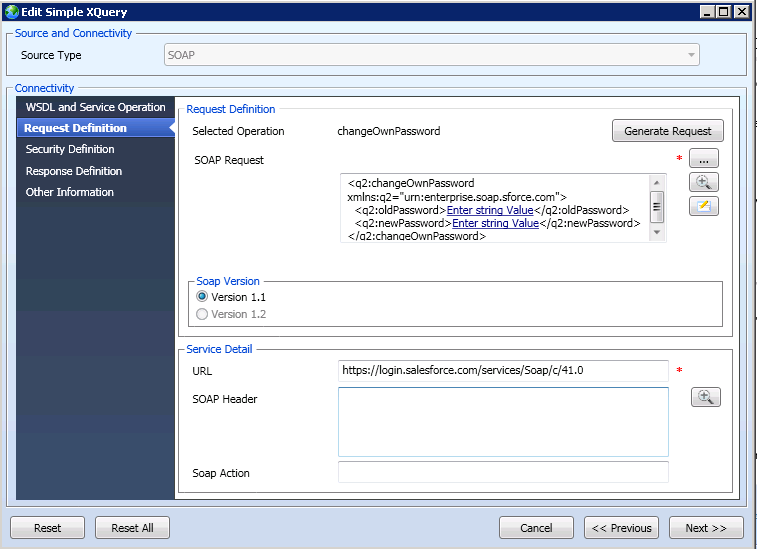
  • In Request Definition, keep SOAP Request default and remove anything in SOAP Header as shown below:
ka04W000001IqkJQAS_0EM44000000YVDt.png
  • SOAP Request: 
    
    <q2:changeOwnPassword xmlns:q2="urn:enterprise.soap.sforce.com">
      <q2:oldPassword>Enter string Value</q2:oldPassword>
      <q2:newPassword>Enter string Value</q2:newPassword>
    </q2:changeOwnPassword>
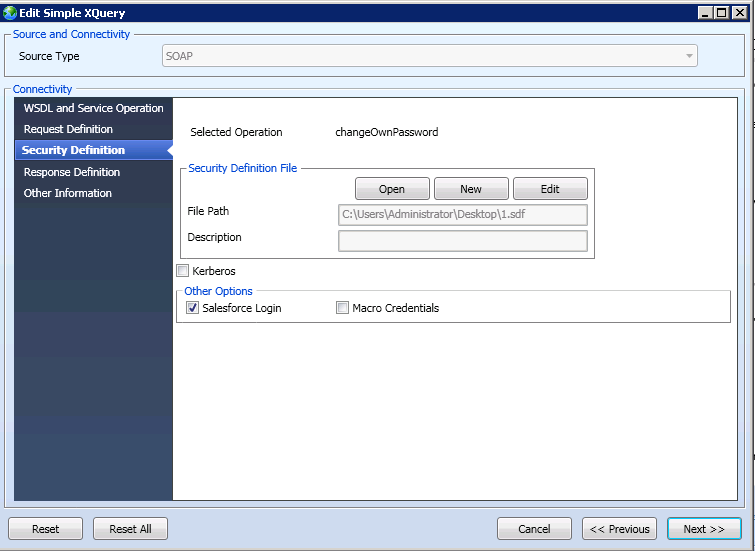
     
  • In Security Definition, create a new security definition file with Salesforce login and password. Make sure "Salesforce Login" is checked as shown below:
ka04W000001IqkJQAS_0EM44000000YVE3.png
ka04W000001IqkJQAS_0EM44000000YVE8.png
  • Note: Password should be the Password of Salsforce login + Security Token. For more details, refer to KB39516: "LOGIN_MUST_USE_SECURITY_TOKEN: Invalid username, password, security token; or user locked out." error appears when attempting to execute XQuery report against Salesforce data source in MicroStrategy Developer 10.x
  • In Response Definition, keep the response default.
ka04W000001IqkJQAS_0EM44000000YVED.png
  • Sample Response Text:
    
    <q1:changeOwnPasswordResponse xmlns:q1="urn:enterprise.soap.sforce.com">
      <q1:result></q1:result></q1:changeOwnPasswordResponse>
    

  • Click Next and then Finish.
  • Drag and drop results column and click on Generate button in Tool bar to generate sample XQuery:
ka04W000001IqkJQAS_0EM44000000YVEI.png
ka04W000001IqkJQAS_0EM44000000YVEN.png
  • In Strategy Developer, create one transaction report with XQuery database instance. Copy the XQuery above and paste it into Freeform SQL editor. 
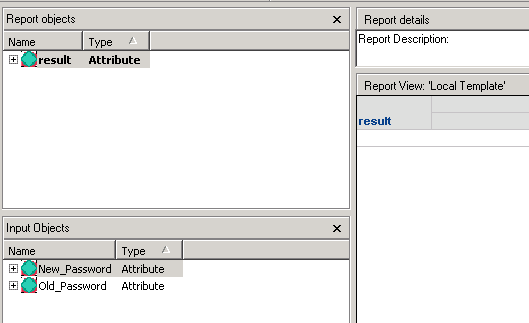
    Insert Transaction to $payload2 and use two attribute forms with text data type to map to tag oldPassword and newPassword as shown below:
ka04W000001IqkJQAS_0EM44000000YVEh.png
  • Add an output attribute form and the transaction report looks like below:
ka04W000001IqkJQAS_0EM44000000YVEm.png
  • The final XQuery script is as shown below:
     
    
    declare namespace q1= 'urn:enterprise.soap.sforce.com';
    import module namespace util = 'http://www.zorba-xquery.com/zorba/util-functions';
    declare copy-namespaces no-preserve, no-inherit;
    declare namespace mstr-soap = 'http://www.Strategy.com/xquery/soap-functions';
    declare function mstr-soap:post($args) external;
    (: Function to login to SalesForce.com and get the server URL and session ID :)
    declare function local:sflogin($username as xs:string, $password as xs:string)
    
    
    {
    let $uri := ('https://login.salesforce.com/services/Soap/c/41.0')
    let $soap-version := element SOAPInfo {element SOAPVersion { 'SOAP11' }, element SOAPAction { ' ' }}
    let $soap-custom-header := (' ')
    let $payload := concat('<login xmlns="urn:enterprise.soap.sforce.com"><username>', $username, '</username><password>', $password,'</password></login>')
    let $ws-secu := (' ')
    let $header := ( )
    let $args := ($uri, $soap-version, $ws-secu, $soap-custom-header, $payload, $header)
    let $loginresponse := mstr-soap:post($args)
    return $loginresponse
    };
    
    let $username := ('123@abc.com')
    let $password := ('djabckngnabsundidnedsnvkghjee1')
    let $sfloginresponse := local:sflogin($username, $password)
    let $sessionId := $sfloginresponse//*:sessionId
    (: SOAP end point URL obtained from salesforce login :)
    let $uri2 := $sfloginresponse//*:serverUrl
    (: SOAP Action if any :)
    let $soap-version2 := element SOAPInfo {element SOAPVersion { 'SOAP11' }, element SOAPAction { ' ' }}
    let $ws-secu2 := (' ')
    (: SOAP Header - currently only one header can be sent, send session id:)
    let $soap-custom-header2 := concat('<SessionHeader xmlns="urn:enterprise.soap.sforce.com"><sessionId>', xs:string($sessionId ), '</sessionId></SessionHeader>')
    
    (: SOAP payload, actual query goes here:)
    let $payload2 := ('<q2:changeOwnPassword xmlns:q2="urn:enterprise.soap.sforce.com">
    [Begin Transaction]
      <q2:oldPassword>[Old_Password@ID]</q2:oldPassword>
      <q2:newPassword>[New_Password@ID]</q2:newPassword>
    [End Transaction]
    </q2:changeOwnPassword>')
    
    let $header2 := ( )
    (: put all arguments in one sequence :)
    let $args2 := ($uri2, $soap-version2, $ws-secu2, $soap-custom-header2, $payload2, $header2)
    
    (: fire SOAP request and get a response :)
    let $queryresponse := if(exists($sfloginresponse)) then mstr-soap:post($args2 ) else ()
    
    
    return 
    <Table><ColumnHeaders>
    <ColumnHeader  name='result' type='xs:string' />
    </ColumnHeaders>
    <Data>{for $ancestor in $queryresponse//q1:changeOwnPasswordResponse
    return <Row>
    <result>{fn:data($ancestor/q1:result)}</result>
    </Row>}</Data></Table>
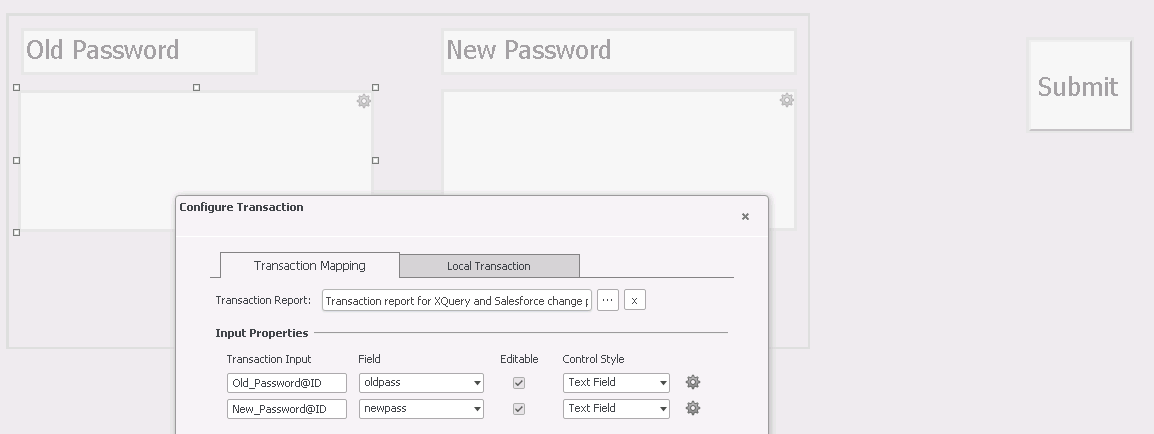
    

  • Create transaction document as shown below:
ka04W000001IqkJQAS_0EM44000000YVEr.png
ka04W000001IqkJQAS_0EM44000000YVEw.png


Note: An email with new security token should be received once the password is changed.  KB439801


Comment

0 comments

Details

Knowledge Article

Published:

March 1, 2018

Last Updated:

December 31, 2018