The following page shows how to use an XQuery source to authenticate users for a Strategy project in Strategy 9.x and 10.x:
Using an XQuery source to authenticate users for a MicroStrategy project
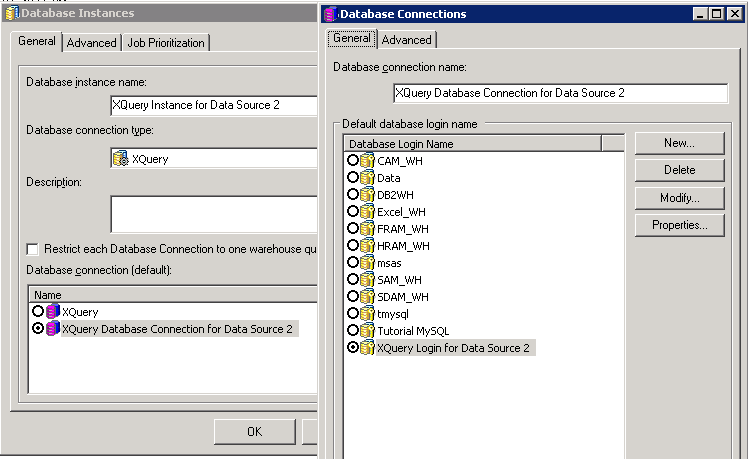
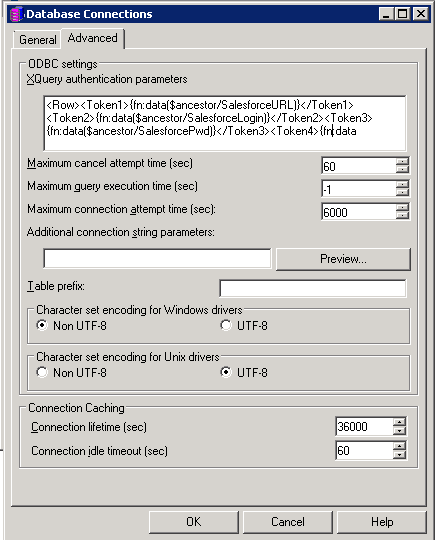
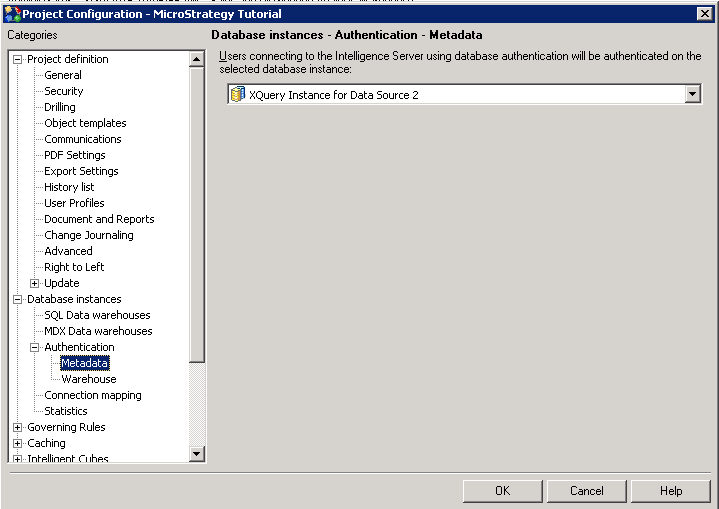
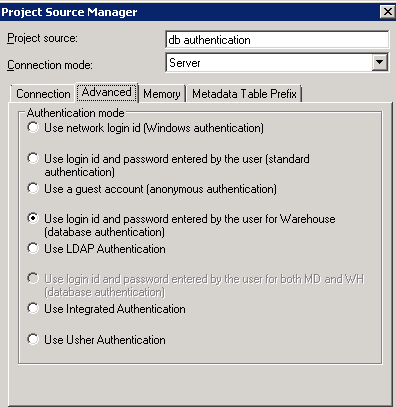
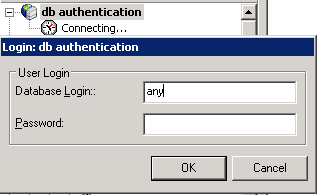
By using database authentication, you can authenticate against a XQuery source when users log in to a project, and save any tokens returned by the authentication process. These tokens can then be used in XQuery reports for the duration of a given user's Strategy session. This authentication technique has the added benefit of keeping your Strategy project secure by authenticating upon login, while allowing the use of tokens to avoid the need to include authentication details in every XQuery report.
The steps below show one example on how to configure Strategy environment to support authenticating XQuery reports for a given project.
Prerequisites
Data Source 1:
This is one REST Web service which could return URL and credentials for Data Source 2 ( one Salesforce data source) with XQuery 1 below.
URL: http://abcdefg.corp.Strategy.com:8080/polls/
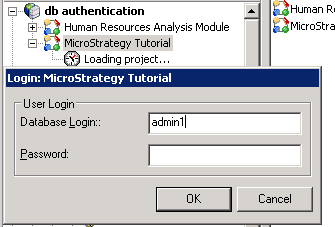
Login: admin1
Password: XXXXXX
XQuery 1:
declare copy-namespaces no-preserve, no-inherit;
declare namespace mstr-rest = 'http://www.Strategy.com/xquery/rest-functions';
declare function mstr-rest:post($uri,$payload,$header) external;


let $uri := ('http://abcdefg.corp.Strategy.com:8080/polls/')
let $header := ( )
let $payload := ( )
let $result := mstr-rest:post($uri,$payload,$header)


return
<Table><ColumnHeaders>
<ColumnHeader  name='Token1' type='xs:string' />
<ColumnHeader  name='Token2' type='xs:string' />
<ColumnHeader  name='Token3' type='xs:string' />
<ColumnHeader  name='Token4' type='xs:string' />
</ColumnHeaders>
<Data>{for $ancestor in $result/SalesforceDataSource
order by $ancestor/SalesforceURL
return <Row>
<Token1>{fn:data($ancestor/SalesforceURL)}</Token1>
<Token2>{fn:data($ancestor/SalesforceLogin)}</Token2>
<Token3>{fn:data($ancestor/SalesforcePwd)}</Token3>
<Token4>{fn:data($ancestor/SalesforceToken)}</Token4>
</Row>}</Data></Table>
Data Source 2:
This is one Salesforce data source which could be accessed with XQuery 2 below.
URL: https://login.salesforce.com/services/Soap/c/41.0
Login: abc@Strategy.com
password:password123
Token: UOkfI8Eqojq32pepqFZXHS4nQ
XQuery 2:
declare namespace q1= 'urn:enterprise.soap.sforce.com';
declare namespace r= 'urn:sobject.enterprise.soap.sforce.com';
import module namespace util = 'http://www.zorba-xquery.com/zorba/util-functions';
declare copy-namespaces no-preserve, no-inherit;
declare namespace mstr-soap = 'http://www.Strategy.com/xquery/soap-functions';
declare function mstr-soap:post($args) external;
(: Function to login to SalesForce.com and get the server URL and session ID :)
declare function local:sflogin($username as xs:string, $password as xs:string)


{
let $uri := ('https://login.salesforce.com/services/Soap/c/41.0')
let $soap-version := element SOAPInfo {element SOAPVersion { 'SOAP11' }, element SOAPAction { ' ' }}
let $soap-custom-header := (' ')
let $payload := concat('<login xmlns="urn:enterprise.soap.sforce.com"><username>', $username, '</username><password>', $password,'</password></login>')
let $ws-secu := (' ')
let $header := ( )
let $args := ($uri, $soap-version, $ws-secu, $soap-custom-header, $payload, $header)
let $loginresponse := mstr-soap:post($args)
return $loginresponse
};

let $username := ('abc@Strategy.com')
let $password := ('password123UOkfI8Eqojq32pepqFZXHS4nQ')
let $sfloginresponse := local:sflogin($username, $password)
let $sessionId := $sfloginresponse//*:sessionId
(: SOAP end point URL obtained from salesforce login :)
let $uri2 := $sfloginresponse//*:serverUrl
(: SOAP Action if any :)
let $soap-version2 := element SOAPInfo {element SOAPVersion { 'SOAP11' }, element SOAPAction { ' ' }}
let $ws-secu2 := (' ')
(: SOAP Header - currently only one header can be sent, send session id:)
let $soap-custom-header2 := concat('<SessionHeader xmlns="urn:enterprise.soap.sforce.com"><sessionId>', xs:string($sessionId ), '</sessionId></SessionHeader>')

(: SOAP payload, actual query goes here:)
let $payload2 := ('<q5:query xmlns:q5="urn:enterprise.soap.sforce.com">
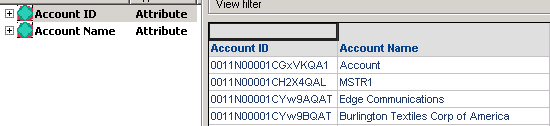
  <q5:queryString>SELECT ID, Name FROM ACCOUNT</q5:queryString>
</q5:query>')

let $header2 := ( )
(: put all arguments in one sequence :)
let $args2 := ($uri2, $soap-version2, $ws-secu2, $soap-custom-header2, $payload2, $header2)

(: fire SOAP request and get a response :)
let $queryresponse := if(exists($sfloginresponse)) then mstr-soap:post($args2 ) else ()

return
<Table><ColumnHeaders>
<ColumnHeader  name='AccountId' type='xs:string' />
<ColumnHeader  name='AccountName' type='xs:string' />
</ColumnHeaders>
<Data>{for $ancestor in $queryresponse//q1:queryResponse/q1:result/q1:records
order by $ancestor/r:Id
return <Row>
<AccountId>{fn:data($ancestor/r:Id)}</AccountId>
<AccountName>{fn:data($ancestor/r:Name)}</AccountName>
</Row>}</Data></Table>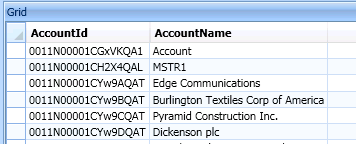
STEPS:
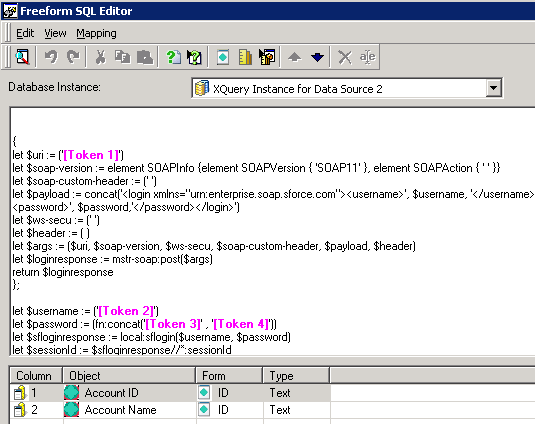
declare namespace q1= 'urn:enterprise.soap.sforce.com';
declare namespace r= 'urn:sobject.enterprise.soap.sforce.com';
import module namespace util = 'http://www.zorba-xquery.com/zorba/util-functions';
declare copy-namespaces no-preserve, no-inherit;
declare namespace mstr-soap = 'http://www.Strategy.com/xquery/soap-functions';
declare function mstr-soap:post($args) external;
(: Function to login to SalesForce.com and get the server URL and session ID :)
declare function local:sflogin($username as xs:string, $password as xs:string)


{
let $uri := ('[Token1]')
let $soap-version := element SOAPInfo {element SOAPVersion { 'SOAP11' }, element SOAPAction { ' ' }}
let $soap-custom-header := (' ')
let $payload := concat('<login xmlns="urn:enterprise.soap.sforce.com"><username>', $username, '</username><password>', $password,'</password></login>')
let $ws-secu := (' ')
let $header := ( )
let $args := ($uri, $soap-version, $ws-secu, $soap-custom-header, $payload, $header)
let $loginresponse := mstr-soap:post($args)
return $loginresponse
};

let $username := ('[Token2]')
let $password := (fn:concat('[Token3]','[Token4]'))
let $sfloginresponse := local:sflogin($username, $password)
let $sessionId := $sfloginresponse//*:sessionId
(: SOAP end point URL obtained from salesforce login :)
let $uri2 := $sfloginresponse//*:serverUrl
(: SOAP Action if any :)
let $soap-version2 := element SOAPInfo {element SOAPVersion { 'SOAP11' }, element SOAPAction { ' ' }}
let $ws-secu2 := (' ')
(: SOAP Header - currently only one header can be sent, send session id:)
let $soap-custom-header2 := concat('<SessionHeader xmlns="urn:enterprise.soap.sforce.com"><sessionId>', xs:string($sessionId ), '</sessionId></SessionHeader>')

(: SOAP payload, actual query goes here:)
let $payload2 := ('<q5:query xmlns:q5="urn:enterprise.soap.sforce.com">
  <q5:queryString>SELECT ID, Name FROM ACCOUNT</q5:queryString>
</q5:query>')

let $header2 := ( )
(: put all arguments in one sequence :)
let $args2 := ($uri2, $soap-version2, $ws-secu2, $soap-custom-header2, $payload2, $header2)

(: fire SOAP request and get a response :)
let $queryresponse := if(exists($sfloginresponse)) then mstr-soap:post($args2 ) else ()

return
<Table><ColumnHeaders>
<ColumnHeader  name='AccountId' type='xs:string' />
<ColumnHeader  name='AccountName' type='xs:string' />
</ColumnHeaders>
<Data>{for $ancestor in $queryresponse//q1:queryResponse/q1:result/q1:records
order by $ancestor/r:Id
return <Row>
<AccountId>{fn:data($ancestor/r:Id)}</AccountId>
<AccountName>{fn:data($ancestor/r:Name)}</AccountName>
</Row>}</Data></Table>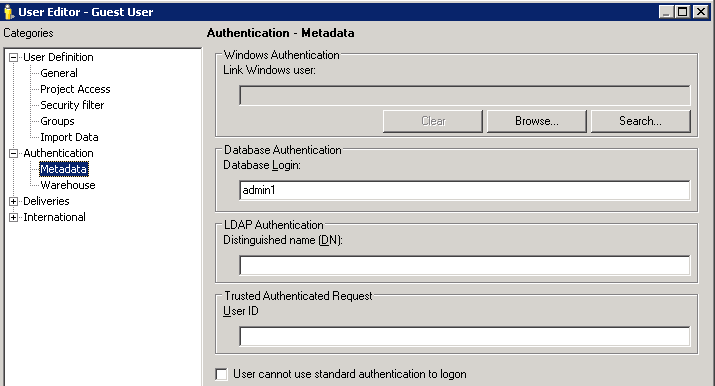
KB439928
