Starting with the release of Strategy ONE (March 2024), dossiers are also known as dashboards.
When exporting a dossier to a PDF, some visualizations, like maps, do not render well and show the following error message in the exported PDF file:
Failed to display visualization because failed to get pluginsVisList.
This error message can appear for two reasons: (1) if the Export Engine can't access the Web server or (2) if Windows Authentication Mode is enabled.
You must resolve the error based on the root cause. To determine if the error appears because the Export Engine can't access the Web server due because the Web server name can't be resolve to an IP address, follow the steps below:
ping <webServer-host>
ping: unknown host <webServer-host>, then proceed to step 3.
<webServer-host> <The Real IP Address of webServer-host>
If you did not receive an error, the cause may be because you have Windows Authentication enabled. If you can, change from Windows Authentication to Anonymous Authentication. For instructions, see KB440132.
If you cannot use Anonymous Authentication, see the following workarounds.
If the above Export Engine solution did not work or you cannot utilize Anonymous Authentication, see the following workarounds:
By default, the Export Engine retrieves its resources from the Web or Library server. Beginning in Strategy 2019 Update 2, if it's not possible to pull resources from the Web or Library server, you can have the Export Engine redirect its web resource request to the Export Engine side.
Once redirected, the Export Engine loads resources, such as plugins (custom widgets and image layouts) and map keys, from the resources folder that is pre-installed in the root folder of the PDF Export Service.
For instructions, see New Customization Property for the Export Engine Service.
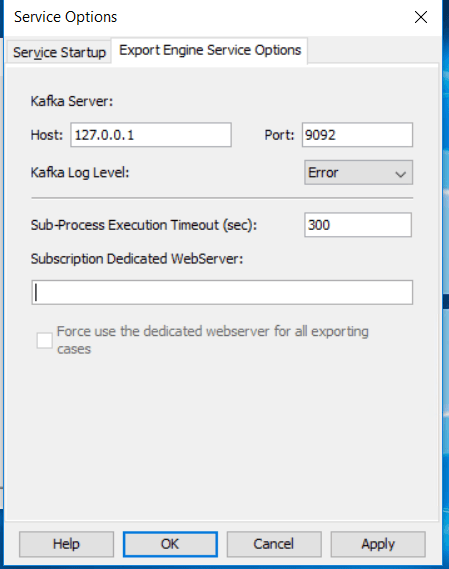
If you need to use Windows Authentication, you can create a second application in IIS that is set up with Anonymous Authentication. Then you can push the PDF Export Engine to the second application while the primary application is still configured with Windows Authentication.
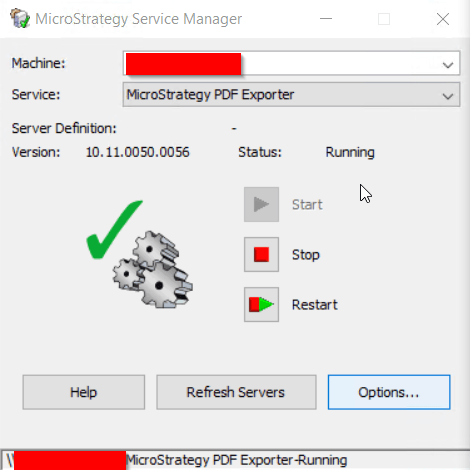
To set this system up, use the following instructions:
http://[web server]/MicroStrategy/asp/Main.aspx
http://[web server]/[second application name]/asp/Main.aspx
KB442054
