Fiddler is a free Web Debugging Proxy which logs all HTTP (S) traffic between client machine and Web server -- in this case Strategy Mobile App for Android and Strategy Mobile server. It can be used to monitor incoming or outgoing data and inspect the HTTP (S) traffic. Android devices need to be configured to connect through the Fiddler proxy server by using a 3rd party application, as the proxy configuration on the Network configuration does not rule Applications.
OBSERVATION:
Android devices need to be "rooted' to capture application traffic using Fiddler as a proxy. Mainly, the mobile users access the root (Superuser) credential underlying the Android operating system. However, it is not recommended due to several reasons such as warranty voiding, security concerns, etc. This should be applied only on a test device after checking with the manufacturer and service provider, or on an Android Virtual Device generated with Android SDK AVD. This example uses the Proxydroid App available in the Play Store (https://play.google.com/store/apps/details?id=org.proxydroid&hl=en) to enable Proxy capabilities on Android device.
Preparation of Fiddler web debugger
By default Fiddler does not accept connections from remote machines. It is therefore necessary to enable this option in the first step. For this purpose in the main menu navigate to: Tools -> Fiddler Options -> Connections tab and check the "Allow remote computers to connect" option, as shown:
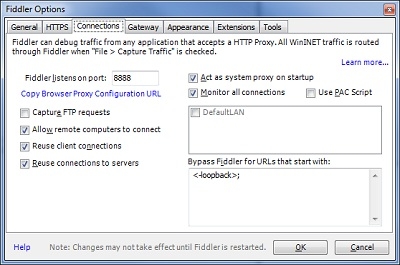
Please note that Fiddler listens on a particular TCP port and by default it is 8888. This port has to be available and cannot be blocked by firewalls or any other software. Once configured, please restart Fiddler for changes to take effect.
Preparation of Android device
Open the proxy application - in this scenario Proxydroid and configure the following parameters Proxy Switch mode, IP address or hostname and port:
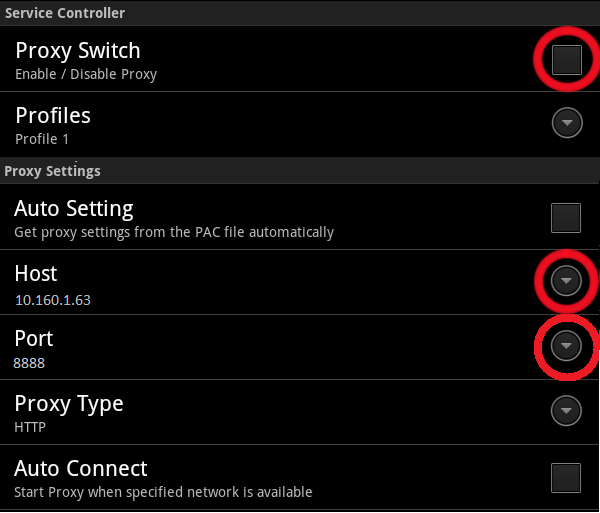
Once it is enabled, a cloud icon will be available on the notification bar.
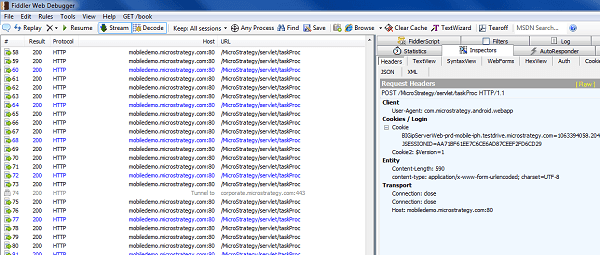
Now, Fiddler will start capturing the HTTP (S) traffic from any Android device activity, as shown:
NOTE:
For more information on using Fiddler to capture HTTP (S) traffic on iOS, please refer to the Strategy Technical Note:
Third Party Software Installation WARNING:
The third-party product(s) discussed in this technical note is manufactured by vendors independent of Strategy. Strategy makes no warranty, express, implied or otherwise, regarding this product, including its performance or reliability.
