SYMPTOM:
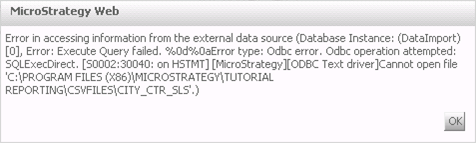
In Strategy Web 9.3.1 - 10.x, the following error occurs when creating an Intelligent Cube by importing data from multiple data sources:
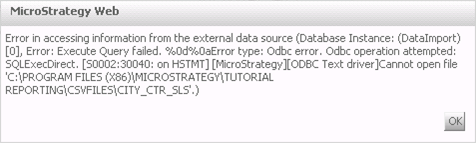
Error in accessing information from the external data source (Database Instance: (DataImport)
, Error: Execute Query failed. %0d%0aError type: Odbc error. Odbc operation attempted:
SQLExecDirect. Cannot open file
'xxxxxxxx'.)
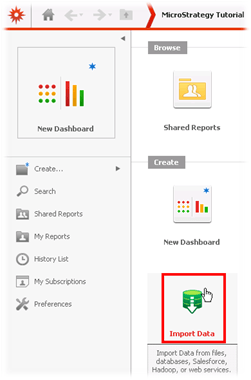
2) Click on the Database option:
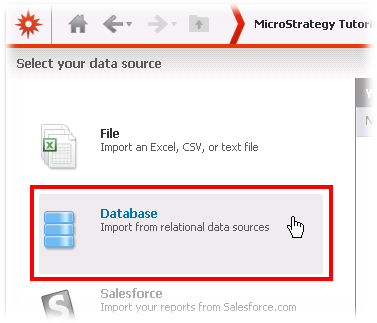
3) Under the Database connections panel, click on the Tutorial Data connection, so under the Available tables panel, double click or drag and drop the CITY_CTR_SLS table into the Import Data editor area, as shown:
4) Under the Database connections panel, click on the CSV Data Source connection, so under the Available ables panel, double click or drag and drop the DAY_CTR_SLS table into the Import Data editor area, as shown:

5) Create a relationship between both tables by dragging and dropping the CALL_CTR_ID column from table CITY_CTR_SLS over the column with the same name in the DAY_CTR_SLS table to obtain the result below:
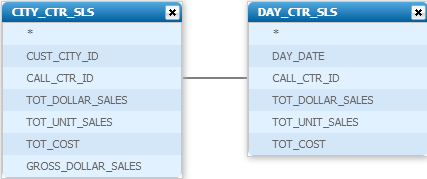
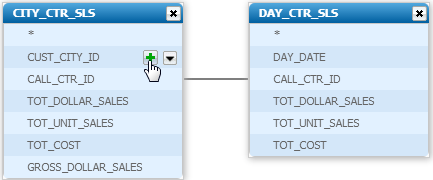
6) Add any column into the Intelligent Cube definition by clicking on the Add option:


7) Click on the Publish button, attribute a name to the Intelligent Cube to be published and click on OK, then the referred error message appears:
CAUSE:
It is working as designed. Currently, the Data Import feature does not support multiple data sources when creating an Intelligent Cube.
ACTION:
An enhancement request has been logged to the Strategy Technology team. Strategy will continue to investigate and post updates as soon as they are available.
WORKAROUND:
As workaround, follow the steps below in order to present data from different Intelligent Cubes into a single document:
1) Generate an Intelligent Cube for each data source
2) Create a regular report based on each Intelligent Cubef
3) Create a document using the referred reports as datasets
OBSERVATION: For additional information on joining data from different datasets, in this case Intelligent Cube reports, into a single virtual dataset, refer to the Report Services Document Creation Guide Strategy product manual.
NOTE:
For further information on joining data from multiple datasets in a document, refer to the Strategy technical notes:
