EducationSoftwareStrategy.com
StrategyCommunity

Knowledge Base

Product

Community

Knowledge Base

TopicsBrowse ArticlesDeveloper Zone

Product

Download SoftwareProduct DocumentationSecurity Hub

Education

Tutorial VideosSolution GalleryEducation courses

Community

GuidelinesGrandmastersEvents
x_social-icon_white.svglinkedin_social-icon_white.svg
Strategy logoCommunity

© Strategy Inc. All Rights Reserved.

LegalTerms of UsePrivacy Policy
  1. Home
  2. Topics

KB45643: "Can not find the LDAP user/group" error appears when attempting Windows Authentication in MicroStrategy Web


Community Admin

• Strategy


This article describes a potential root cause of the error message "Can not find the LDAP user/group" when users try to login MicroStrategy Web using Windows authentication.

SYMPTOM:
In Strategy Web 9.x or 10.x, users who are trying to log in using Windows Authentication may see the error below:

ka04W000000uGAlQAM_0EM440000002HJA.png


The Web Server encountered an unknown runtime error.

(Can not find the LDAP user/group. Please contact the administrator.)
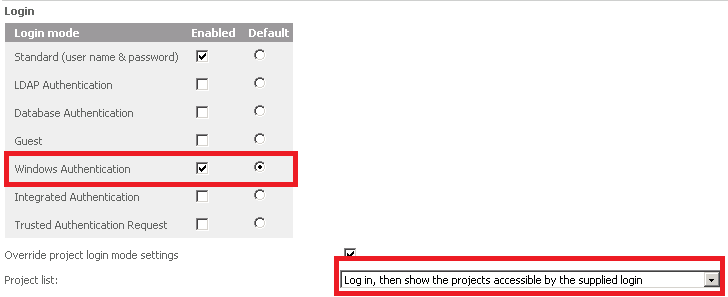
 

This error may occur even though the user can access Strategy Developer 9.x or 10.x with the same Windows user. However, this error only occurs when the Default Server Properties in the Strategy Web Admin page is set to "Log in, then show the projects accessible by the supplied login" and Windows Authentication is the default selection, as show below:
 

ka04W000000uGAlQAM_0EM440000002HJG.png


CAUSE:
One reason for this error is that the user's Windows profile is corrupt in the Windows client machine of the user with the problem. A way to determine if this is the case is by testing access of other windows users into Strategy Web 9.x or 10.x to find a user that can log in correctly. If two users have been identified, one that works and one that fails, perform the following test.
 
Consider the user with the problem as User A with Machine A and the user that logs in correctly as User B with Machine B.

  1. Have User A log into Machine B and attempt to log into Strategy Web using windows authentication.
  2. Have User B log into Machine A and attempt to log into Strategy Web using windows authentication.

Note down the results of both tests. If the issue only occurs for User A in Machine A, this points to the windows profile of User A being corrupted in Machine A.
 
ACTION:
Delete and recreate both, the Windows user profile and the Strategy user at the same time, rather than independently as follows.

  1. Delete the Strategy user in Strategy Developer 9.x or 10.x.
  2. Delete the Windows profile from client machine.
    Note: Contact the machine administrator for help if needed with this step.
  3. Clear caches as per tech note KB42534: How to clear the various caches interacting with MicroStrategy Web .
  4. Recreate both the Windows profile of the user in the client machine and then the Strategy user and link it again to the windows account.

WORKAROUND:
The user can also choose to change the Default Server Properties to "Show all the projects connected to the Web Server before the user logs in", as shown below:
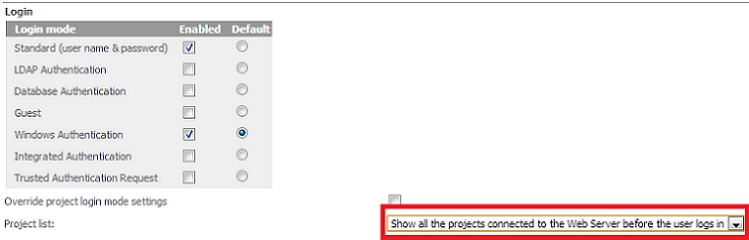
 

ka04W000000uGAlQAM_0EM440000002HJE.png


Comment

0 comments

Details

Knowledge Article

Published:

June 12, 2017

Last Updated:

June 12, 2017