EducationSoftwareStrategy.com
StrategyCommunity

Knowledge Base

Product

Community

Knowledge Base

TopicsBrowse ArticlesDeveloper Zone

Product

Download SoftwareProduct DocumentationSecurity Hub

Education

Tutorial VideosSolution GalleryEducation courses

Community

GuidelinesGrandmastersEvents
x_social-icon_white.svglinkedin_social-icon_white.svg
Strategy logoCommunity

© Strategy Inc. All Rights Reserved.

LegalTerms of UsePrivacy Policy
  1. Home
  2. Topics

KB47766: How to setup a trust relationship for MicroStrategy Office against an Intelligence Server cluster.


Community Admin

• Strategy


In order to configure trusted authentication for MicroStrategy Web Services, an additional step is required in order to establish a trust relationship between MicroStrategy Web Services and two or more Intelligence Server nodes in a clustered environment.

INTRODUCTION
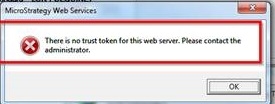
In order to configure trusted authentication for Strategy Web Services, an additional step is required in order to establish a trust relationship between Strategy Web Services and two or more Intelligence Server nodes in a clustered environment. Otherwise, users may encounter the following error message:
 

ka04W00000148Q5QAI_0EM440000002632.jpeg

 
Sample Code/Error


There is no trust token for this web server. Please contact the administrator.
 
For steps on how to enable trusted authentication for Strategy Office / Web Services, refer to KB41359 - How to configure Trusted Authentication for MicroStrategy Office 9.2.x and later.
 
In a non-clustered environment, a trust token is generated to uniquely identify a trusted web server. This trust token is stored in the metadata on Intelligence Server side. The web server stores the token for the Intelligence Server in a token file, called ".token" under the Strategy Web Services root deployment directory. 
 
As outlined in technical note KB41359, a session with Intelligence Server must be established before a trust relationship can be created through the Strategy Office configuration interface. The reason for this being the need to write the token into the metadata.
 
In a clustered environment, this initial session to create a trust relationship is established on any of the Intelligence Server nodes thanks to Intelligence Server load balancing. Therefore, when creating the trust relationship the token file will be named according to the Intelligence Server of the current session.
 
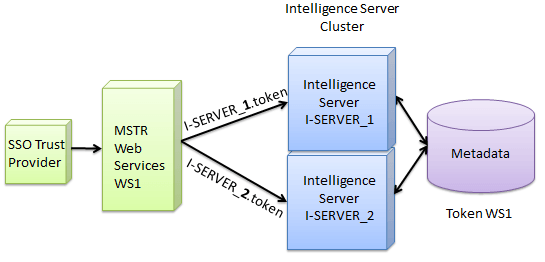
For example, when creating an initial session on WS1 using Standard authentication, a Strategy session was created on Intelligence Server node 2 (I-SERVER_2). When creating the trust relationship through Strategy Office, the token for WS1 will be written into the common metadata for both Intelligence Server nodes. However, the token file created on the web server will be named I-SERVER_2.token.
 

ka04W00000148Q5QAI_0EM44000000262x.png

 
As a consequence, when attempting to create a session using trusted authentication and this session goes to Intelligence Server 1 (I-SERVER_1) no valid token file will be found. Thus it is required to copy the .token file on the web server and rename the copy to reflect the machine name of the other Intelligence Server node(s). Since each Intelligence Server node runs on the same metadata database, the token file content is identical for all Intelligence Server nodes.
 
ACTION
1. Follow steps to create a trust relationship as per KB41359 - How to configure Trusted Authentication for MicroStrategy Office 9.2.x and later. 
2. Locate .token file under the Web Services deployment path.
3. Create a copy of the .token file. Rename the copy to reflect the machine name of the other Intelligence Server node(s).


Comment

0 comments

Details

Knowledge Article

Published:

April 3, 2017

Last Updated:

April 3, 2017