EducationSoftwareStrategy.com
StrategyCommunity

Knowledge Base

Product

Community

Knowledge Base

TopicsBrowse ArticlesDeveloper Zone

Product

Download SoftwareProduct DocumentationSecurity Hub

Education

Tutorial VideosSolution GalleryEducation courses

Community

GuidelinesGrandmastersEvents
x_social-icon_white.svglinkedin_social-icon_white.svg
Strategy logoCommunity

© Strategy Inc. All Rights Reserved.

LegalTerms of UsePrivacy Policy
  1. Home
  2. Topics

KB482927: In Platform Analytics, the "Account Password Expiration Date" Column is Set to "1/1/1970 12:00:01 am" ​​​​​​​When the User Password is Configured to Never Expire


Jing (Sally) Cheng

Senior Principal Consultant • MicroStrategy


Starting with the release of Strategy ONE (March 2024), dossiers are also known as dashboards.

Description

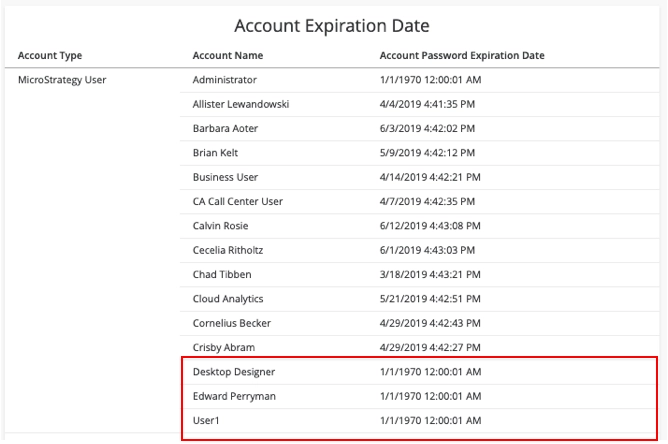
When using the Platform Analytics project, the Account Password Expiration Date attribute is set to a default value of "1/1/1970 12:00:01 am" when a user is created with the password expiration set to "Never" in the user editor. 
 

ka0PW0000001JWEYA2_0EM44000000gVE8.jpeg


Steps to Reproduce


  • From Strategy Developer, log in to the Project Source for the Intelligence Server which is being monitored by Platform Analytics
  • Navigate to Administration > User Manager
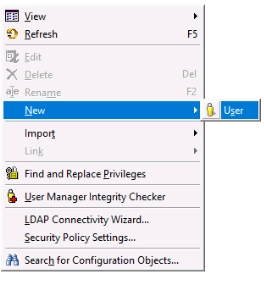
  • Right-click and create a new User
ka0PW0000001JWEYA2_0EM44000000gVDt.jpeg
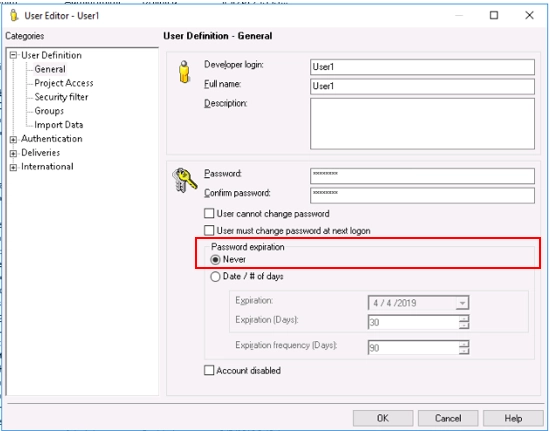
  • In the user editor, set the password expiration to Never
ka0PW0000001JWEYA2_0EM44000000gVDy.jpeg
  • In the Platform Analytics project, create a new report, including the Account attribute, choosing to have the 'Password Expiration Date' attribute form displayed within the report
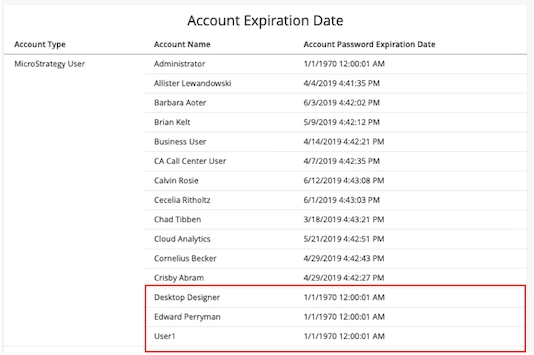
  • Execute the report. Notice that for all users with the password expiration set to 'never,' the date is populated with a value of "1/1/1970 12:00:01 am" 
ka0PW0000001JWEYA2_0EM44000000gVES.jpeg


Why is this happening?

When a user does not have an expiration date specified, the column will be populated with the default value for the columns datatype and settings, which is currently "1/1/1970 12:00:01 am". This can be interpreted as set the password was set to never expire. 
An enhancement request has been logged to Strategy to enable creating thresholds to metrics, attributes, and derived objects at the dataset level in a dossier.
 

Solution

To have the data display as you would expect within a report or dossier, follow these steps: 
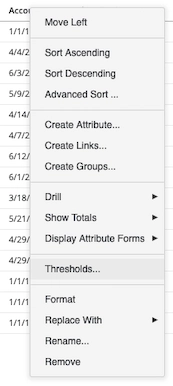
  • From the dossier grid or report, right-click the Account Expiration Date attribute form and choose "Thresholds..."
ka0PW0000001JWEYA2_0EM44000000gVEh.jpeg
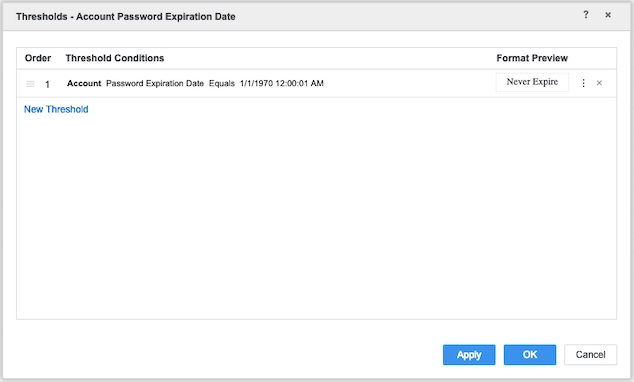
  • In the Thresholds editor, define a threshold when the expiration date matches the default date value to replace the text with "Never Expire".
ka0PW0000001JWEYA2_0EM44000000gVF1.jpeg
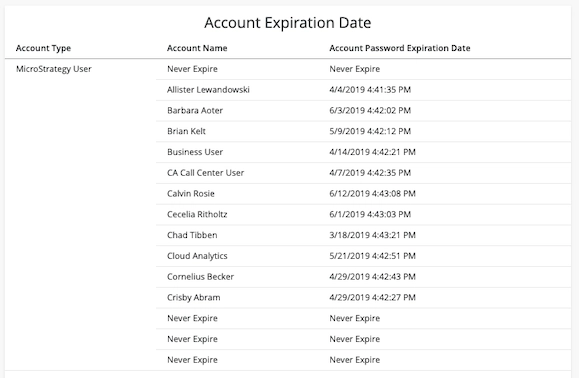
  • The column will now be updated to reflect the threshold results.
ka0PW0000001JWEYA2_0EM44000000gVF6.jpeg


Relevant Knowledge Base Articles

KB482928 In Platform Analytics, the "Account Password Expiration Frequency" Column is Set to "90" When the User Password is Configured to Never Expire.
​​​​​​​
 
KB482927


Comment

0 comments

Details

Knowledge Article

Published:

March 5, 2019

Last Updated:

March 21, 2024