Starting with the release of Strategy ONE (March 2024), dossiers are also known as dashboards.
The following example uses Strategy Tutorial warehouse.
1. Open Strategy Web.
2. Create a new dossier and create a dataset:
a. Add data, click “New Data” and choose “Databases”.
b. Click “Select Tables”, choose data source “Tutorial Data” and select tables “STATE_REGION_MNTH_SLS” and “STATE_SUBCATEG_MNTH_SLS”.
c. Click “Finish” to save the dataset and choose “Connect Live” mode.
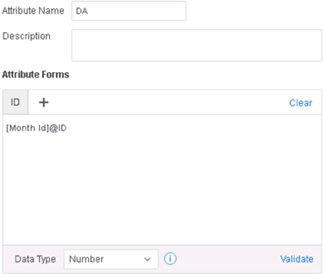
3. Create a new derived attribute “DA”.
a. Right click on “Month Id” and choose “Create Attribute…”.
b. Rename the metric as “DA” and use “[Month Id]@ID” in formula.
c. Validate the formula and save the attribute.
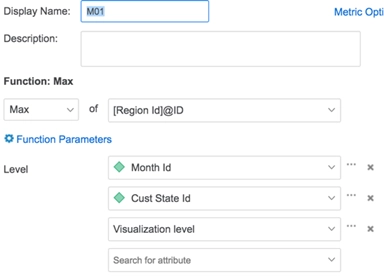
4. Create a new derived metric “M01”.
a. Right click on a metric and choose “Create Metric…”.
b. Rename the metric as “M01” and use function “Max” of formula “[Region Id]@ID”.
c. Add “Month Id”, “Cust State Id”, “Visualization level” in the Level.
d. Save the metric.
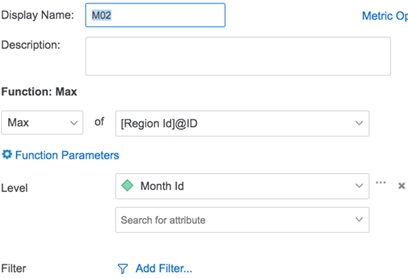
5. Create a new derived metric “M02”.
a. Right click on metric and choose “Create Metric…”.
b. Rename the metric as “M02” and use function “Max” of formula “[Region Id]@ID”.
c. Add “Month Id” in the Level.
d. Save the metric.
6. Add attributes “Month Id”, “Cust State Id” and metric “M01” to the visualization.
7. Right click on visualization menu, choose “Edit Filter…” to add 2 filters to the visualization.
a. Filter attribute DA to be in List of 201003.
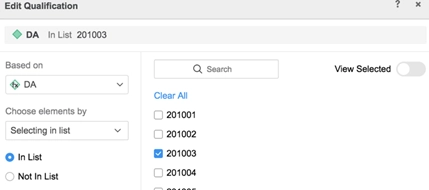
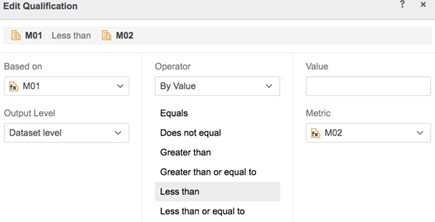
b. Filter metric M01 to have value less than metric M02. Also set Output Level to “Dataset level”.
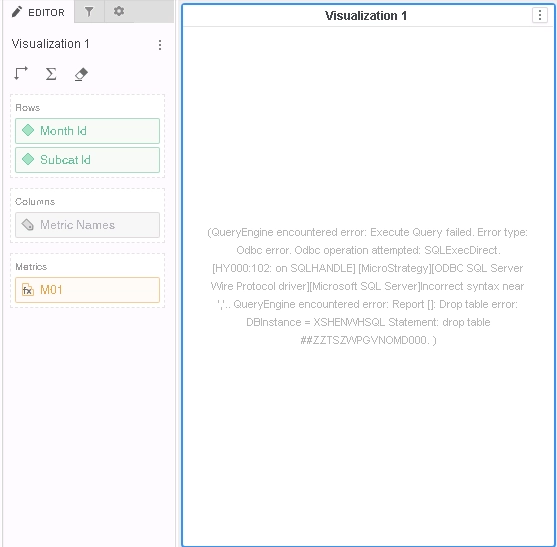
8. QueryEngine error is displayed on the visualization.
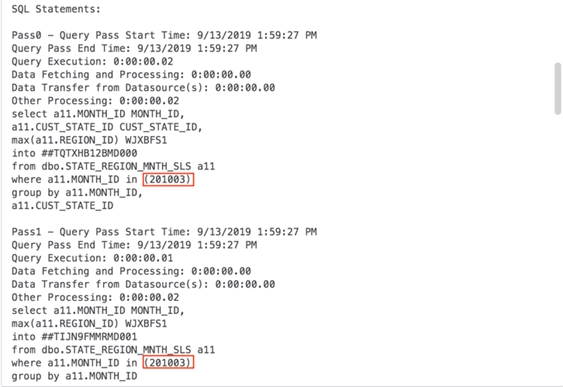
9. Check the CSI in the Query Detail and the users can see incomplete queries.
...
...
select	a12.[SUBCAT_ID]  SUBCAT_ID,
	a12.[MONTH_ID]  MONTH_ID,
	a11.[REGION_ID]  REGION_ID,
	a12.[CUST_STATE_ID]  CUST_STATE_ID,
	a11.[REGION_ID]  WJXBFS1
into ##ZZTSZWPGVNOMD000
from	dbo.STATE_REGION_MNTH_SLS	a11
	join	dbo.STATE_SUBCATEG_MNTH_SLS	a12
	  on 	(a11.[CUST_STATE_ID] = a12.[CUST_STATE_ID] and
	a11.[MONTH_ID] = a12.[MONTH_ID])
where	a12.[MONTH_ID] in (, 0)

create index ##ZZMD00_i on ##ZZMD00 (SUBCAT_ID, MONTH_ID, REGION_ID, CUST_STATE_ID)

select	a11.[MONTH_ID]  MONTH_ID,
	max(a11.[REGION_ID])  WJXBFS1
into ##ZZMD01
from	dbo.STATE_REGION_MNTH_SLS	a11
where	a11.[MONTH_ID] in (, 0)
group by	a11.[MONTH_ID]
...
...
This is a known defect before Strategy 2020.
The cause of this issue is because the Live Connect mode has wrong logic in Metric Qualification and Derived Attributes, which lead to errors in SQL syntax.
To resolve this defect, please upgrade to Strategy 2020 or above, and set Data Engine Version setting to 12.
The project level setting Data Engine Version can only be enabled through Workstation. For more details on enabling the setting, see Change Data Engine Version .
After applying the fix, correct SQL is generated.
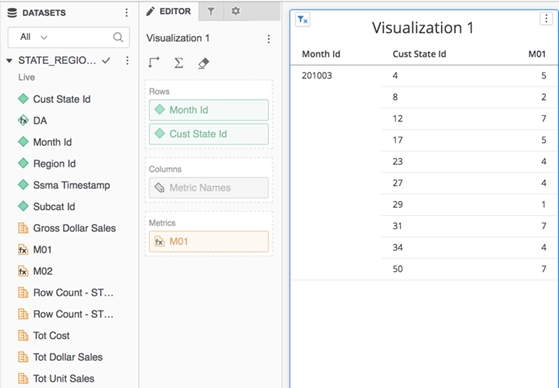
Data can also be displayed in the visualization correctly.
Strategy Internal Reference number for this technical note is KB483618 and DE125153.
