EducationSoftwareStrategy.com
StrategyCommunity

Knowledge Base

Product

Community

Knowledge Base

TopicsBrowse ArticlesDeveloper Zone

Product

Download SoftwareProduct DocumentationSecurity Hub

Education

Tutorial VideosSolution GalleryEducation courses

Community

GuidelinesGrandmastersEvents
x_social-icon_white.svglinkedin_social-icon_white.svg
Strategy logoCommunity

© Strategy Inc. All Rights Reserved.

LegalTerms of UsePrivacy Policy
  1. Home
  2. Topics

KB484902: SQL changes from implicit to explicit table creation before inserting data with text filter


Qinyi Chen

Quality Engineer, Principal • Strategy


For enhanced security, starting from MicroStrategy version 2021, all SQL executions containing text inputs from filters, search conditions, and text prompts are secured through parameterized queries. To support parameterized queries, the engine modifies table creation method from "implicit table creation" to "explicit table creation" for certain warehouses/gateways. This causes some SQL mismatch when users compare SQL between MicroStrategy versions using Integrity Manager.

Description

The SQL changes can be observed when the following conditions are met:
 

  • Strategy platform is upgraded to version 2021 
  • The query contains a text condition (e.g., filter, search, prompts) in the WHERE clause 
  • The warehouse used for the report is one of the following: 
  • Oracle 
  • Azure Synapse 
  • DB2 
  • Teradata 
  • Teradata Vantage 
  • MongoDB 
  • SAP Hana 
  • Snowflake 
  • IBM IAS 
  • Exasol 
  • MemSQL 

When the conditions are met, you can notice the following changes. 
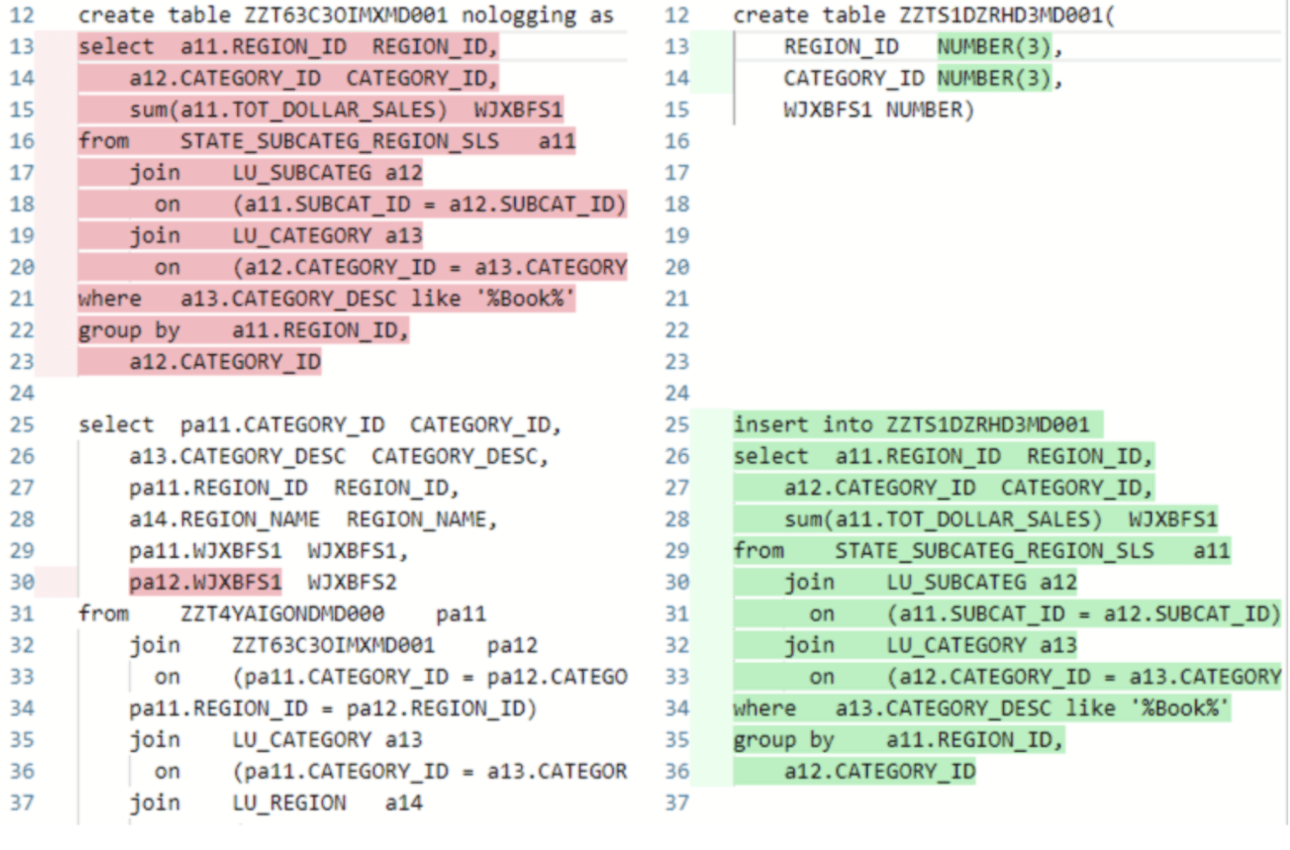
ka0PW0000000uAHYAY_0EM4W000001LDQM.jpeg

For example, take the Oracle syntax, where previously, the SQL on the left uses an implicit table creation syntax of “

create table [table name] nologging as select [columns] from … where [with a text filtering condition]
,” in which we create the table at the same time of inserting data into it. Now, the new query, on the right, uses an explicit table creation syntax, which separates the SQL into two parts. In the first part, the table is created, and in the second part, data is inserted with a text filter. 

Why is this happening?  

This change is to support our new feature, secure text input through parameterized queries. Some databases, like Oracle, will only support parameterized queries with explicit table creation . To prevent execution failure, the engine converts all implicitly created temp tables into explicitly created tables, whenever a text condition (text filter, prompt, search, etc.) is used.  
Although the explicit table creation is to prevent failure when the text filter is parameterized, the engine uses explicit table creation when the parameterized queries are not turned on. 

Solution 

In general, there is no action needed since the SQL change is expected, and data change and performance degradation are not expected.
However, in certain corner cases where this change may be a suspect for performance degradation, administrators can change the following settings to confirm:
 

  • Turn off parameterized query according to this article
  • Turn off the Parameterized Query Explicit Table Creation setting for your warehouse database connection type following the steps:
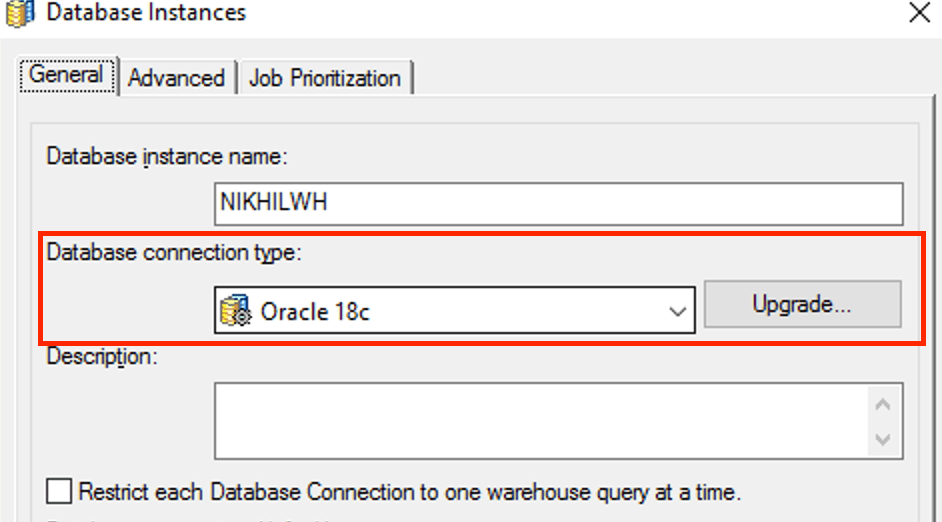
    • Identify the database connection type, for example, the type of the following database instance is Oracle 18c:
ka0PW0000000uAHYAY_0EM4W000001LDsf.jpeg
    • Pinpoint the section for the database connection type in the
      DATABASE.PDS
      file on the Windows machine on which you are running Developer. Before making any changes to this file, make sure you save a copy.
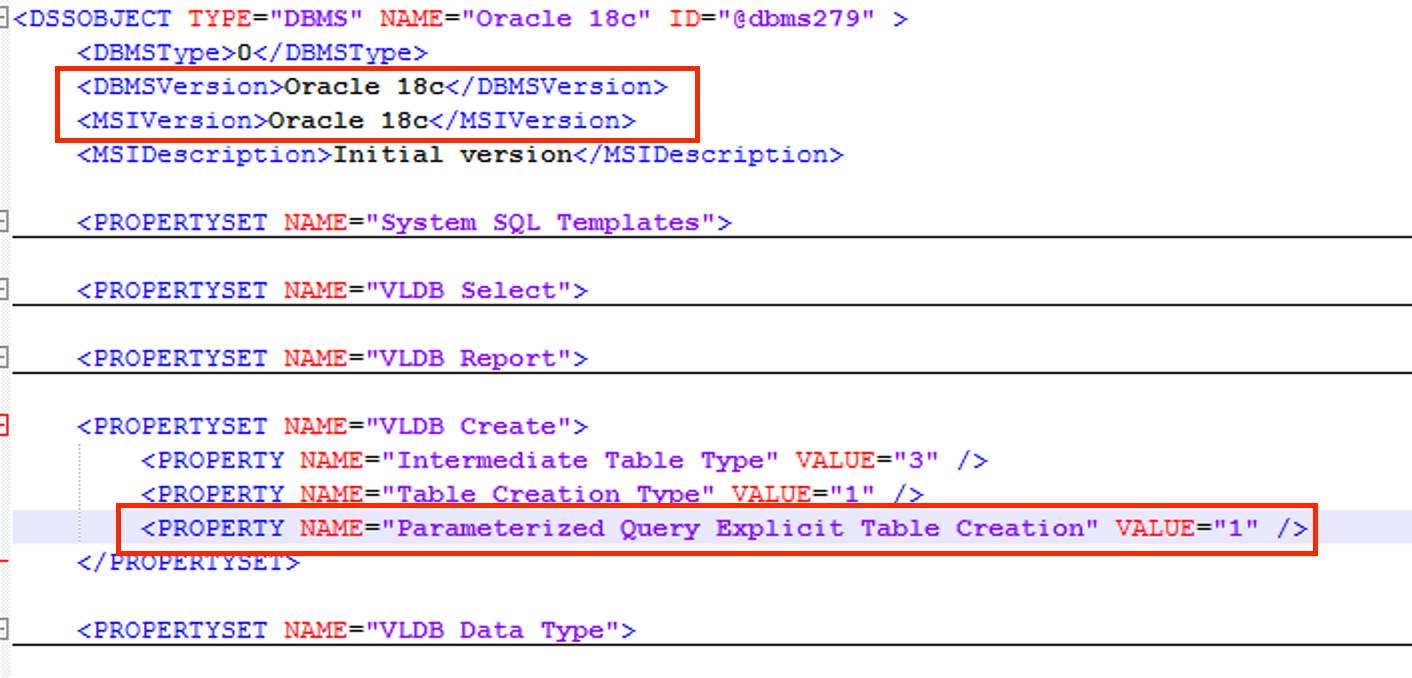
    • Under
      VLDB Create
      , find
      <PROPERTY NAME="Parameterized Query Explicit Table Creation" VALUE="1" />
      . Change the
      VALUE="1"
      to 
      VALUE="0"
      , and save the file.
ka0PW0000000uAHYAY_0EM4W000001LDtE.jpeg
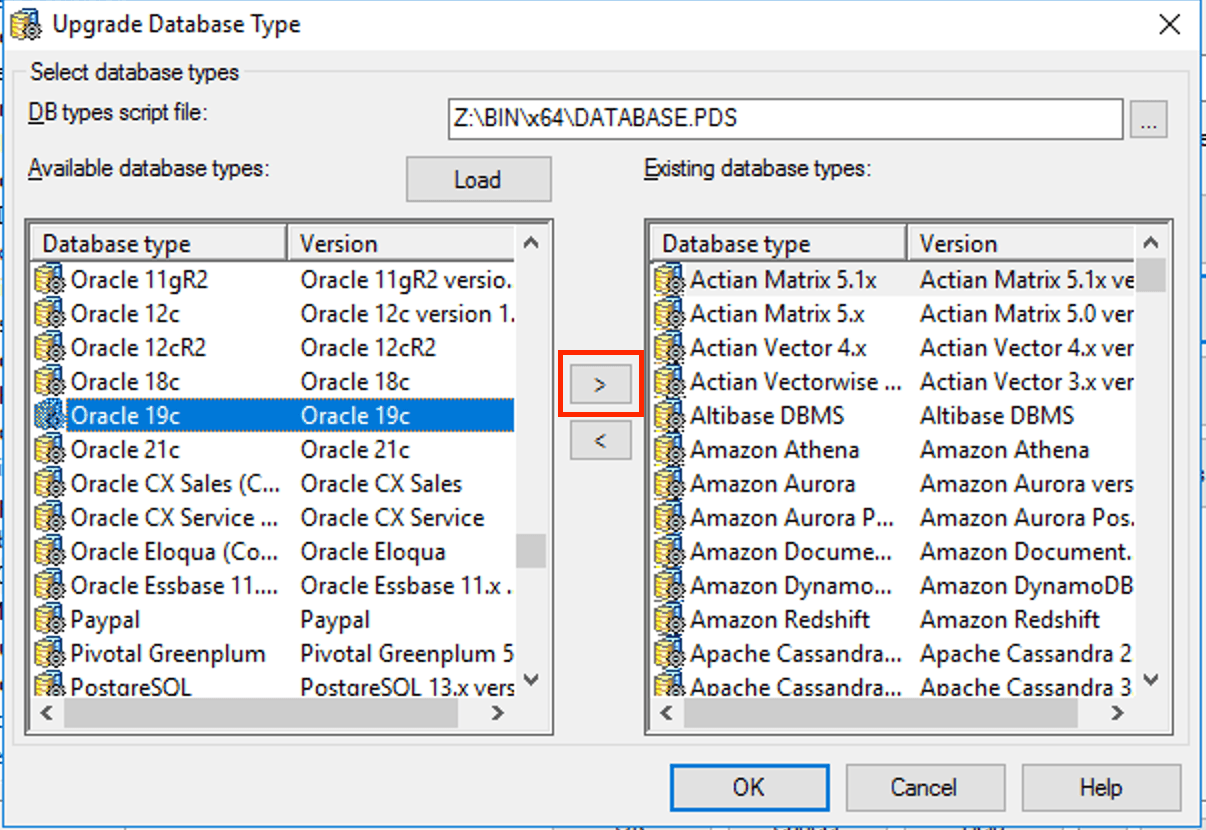
    • Go back to the GUI in Step 1, click the Upgrade button next to the connection type, and click Load next to Available database types.
    • Move the updated connection type to the right side and click yes when prompted.
ka0PW0000000uAHYAY_0EM4W000001LDtx.jpeg
    • Click OK until you exit out of the Project Configuration.
    • Restart the Intelligence Server.

Now if you rerun the report, the queries generated should be the same as before the upgrade.
Strategy Internal Reference number for this technical note is KB484902 and US343190.


Comment

0 comments

Details

Knowledge Article

Published:

March 3, 2021

Last Updated:

February 26, 2024