EducationSoftwareStrategy.com
StrategyCommunity

Knowledge Base

Product

Community

Knowledge Base

TopicsBrowse ArticlesDeveloper Zone

Product

Download SoftwareProduct DocumentationSecurity Hub

Education

Tutorial VideosSolution GalleryEducation courses

Community

GuidelinesGrandmastersEvents
x_social-icon_white.svglinkedin_social-icon_white.svg
Strategy logoCommunity

© Strategy Inc. All Rights Reserved.

LegalTerms of UsePrivacy Policy
  1. Home
  2. Topics

KB484540: Passthrough Kerberos configuration for PostgreSQL on MicroStrategy 2020 with the Intelligence Server on Linux


Junjie Shi

Quality Engineer, Senior • MicroStrategy


This article provides instructions for configuring Passthrough Kerberos authentication on MicroStrategy 2020 with the Intelligence Server on Linux and PostgreSQL database as a data source.

Prerequisites

  • Intelligence Server is configured for Integrated Authentication (Kerberos) on Unix/Linux 
  • PostgreSQL database is enabled for Kerberos Authentication


For Intelligence Server configuration for Integrated Authentication on Unix/Linux, please refer to KB19110.
For PostgreSQL database Kerberos configuration, you may need to consult your administrator. The following is an example.

  1. Install PostgreSQL. To go to the PostgreSQL Downloads site, click here.   
  2. Modify the host file:
    • Add host information to the host file for the database server machine, Intelligence Server machine, and Developer machine.
  3. Install Kerberos client on the service (the Linux machine where the database server is on):
    • yum install krb5-workstation krb5-libs krb5-auth-dialog
  4. Configure
    krb5.conf
    at
    /etc/krb5.conf
    . Please modify the file based on your case. The following is an example:
    • [libdefaults]

      default_realm = LABS.Strategy.COM

      dns_lookup_kdc = true

      default_tkt_enctypes = RC4-HMAC

      default_tgs_enctypes = RC4-HMAC

      permitted_enctypes = RC4-HMAC

      forwardable = true

      udp_preference_limit = 1


      [realms]

      LABS.Strategy.COM = {

      kdc = labs-dc3-was.labs.Strategy.com:88

      admin_server = labs-dc3-was.labs.Strategy.com:749

      }

      CORP.Strategy.COM = {

      kdc = corp-dc-hgh.corp.Strategy.com:88

      admin_server = corp-dc-hgh.corp.Strategy.com:749

      }


      [domain_realm]

      .labs.Strategy.com = LABS.Strategy.COM

      labs.Strategy.com = LABS.Strategy.COM

      .corp.Strategy.com = CORP.Strategy.COM

      corp.Strategy.com = CORP.Strategy.COM

       
  5. Configure the Service Principal Name (SPN) for PostgreSQL:
    • PostgreSQL uses a standard principal format: 
      servicename/hostname@realm
    • SPN example: 
      POSTGRES/tec-l-013063.labs.Strategy.com@LABS.Strategy.COM
  6. Generate the 
    krb5_pg.keytab
    file to the service server on a location, for example,
    $PGDATA (var/lib/pgsql/12/data)
    , and grant the user the correct privilege.
  7. Configure the 
    postgresql.conf
    and
    pg_hba.conf
    files.
  8. Create a user in the database.

Configuration from Strategy

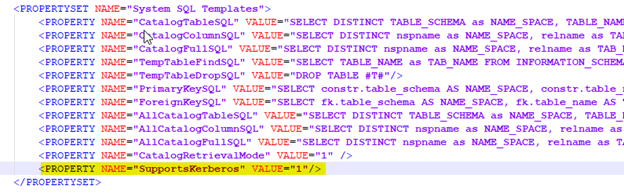
  • Modify the 
    database.pds
    file by adding the following as shown below for PostgreSQL:
    <property name="SupportsKerberos" value="1">
ka04W000000XPw5QAG_0EM4W000001IXBT.jpeg
  • Reload the
    database.pds
    file for PostgreSQL on Developer.
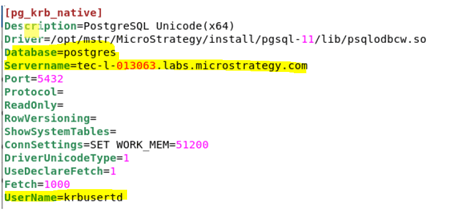
  • Create a PostgreSQL ODBC DSN on the Linux machine in the
    odbc.ini
    file with the native PostgreSQL ODBC driver (PostgreSQL Unicode(x64)), and make sure to add the parameter 
    UserName
    in the DSN.
ka04W000000XPw5QAG_0EM4W000001IXBY.jpeg
  • Log in to the Windows machine where Developer is with the user (in our example, we use
    krbusertd
    ). You should be able to log in to Developer without entering credentials after you finish the steps in KB19110.
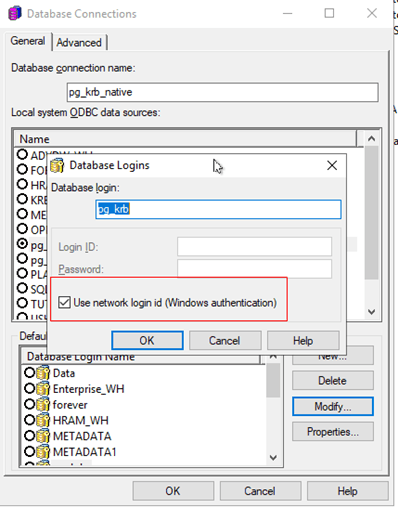
  • Create a database instance and set it up for Kerberos Passthrough.
ka04W000000XPw5QAG_0EM4W000001IXBd.jpeg
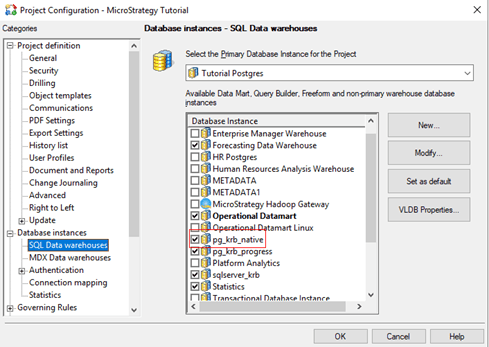
  • Add the database instance to the project.
ka04W000000XPw5QAG_0EM4W000001IXBi.jpeg
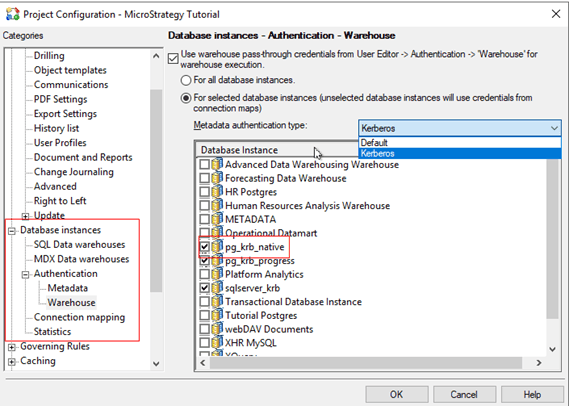
  • Open the Project Configuration editor for your project.
  • Go to Database instances > Authentication > Warehouse.
  • Make sure that "Use warehouse pass-through credentials from user Editor for Warehouse execution" is checked.
  • Select the For selected database instances option:
  • From the Metadata authentication type drop-down, choose Kerberos
  • Choose the database instance created previously in this section and click OK to close the editor.
ka04W000000XPw5QAG_0EM4W000001IXBn.jpeg
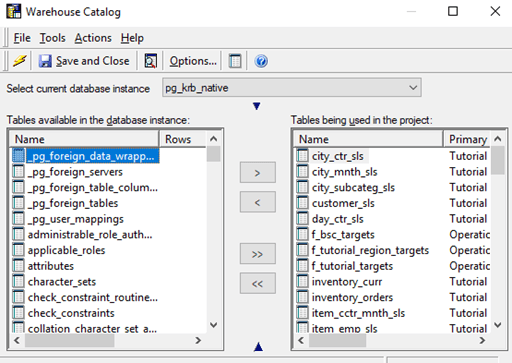
  • Check if table could be retrieved from the Warehouse Catalog.
ka04W000000XPw5QAG_0EM4W000001IXBs.jpeg

Comment

0 comments

Details

Knowledge Article

Published:

September 1, 2020

Last Updated:

January 15, 2021