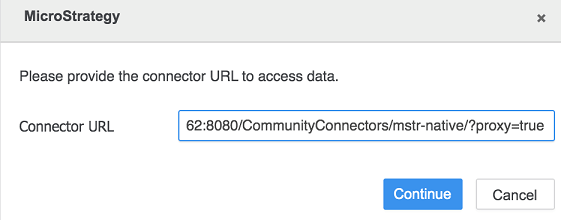
After upgrading to Strategy 2019 Update 2 or above, republishing a cube created by the Strategy connector may fail and produce the error, "Refreshing dataset failed."
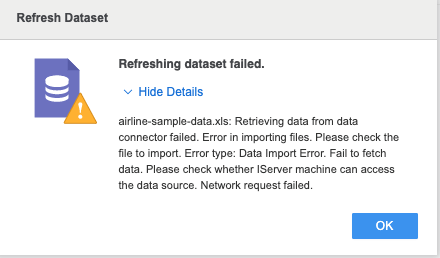
If you try to edit these Strategy Connector cubes, you may be asked to log into the Library server. When logging in, you may receive the error message, "Failed to fetch."
Users are also unable to edit tables from these cubes and receive the error, "Failed to fetch."
To view more details abot the error message, see KB483744: An error appears when logging into the MicroStrategy connector.
These errors appear because the Strategy connector's URL is similar to http://xxx.site/CommunityConnectors/mstr/." In addition, the default settings used to fetch data have changed from Strategy 2019 to Strategy 2019 Update 2 and above.
In Strategy 2019, the Strategy connector uses a default proxy to fetch Strategy Library data. In Strategy 2019 Update 2 and above, by default, the connector uses a direct connection to fetch the Strategy Library data.
Additionally, the target Strategy Library server does not allow a cross-origin request. Click here for more information about the same-origin policy.
There are two ways to resolve this issue, by either enabling your CORS settings or modifying the connector URL.
To allow cross-origin access, you can enable your CORS setting. CORS is a part of HTTP that lets servers specify what hosts are permitted to load content from that server.
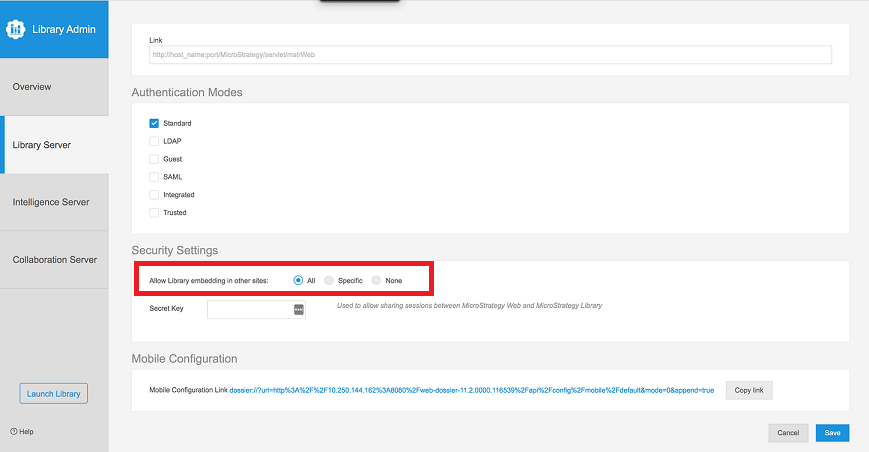
To enable CORS, you must modify the Allow Library embedding in other sites setting in the Library Server.
Your Web Server administrator can also modify the connector URL to allow the connector to access your data.