When creating, editing, or saving a HyperIntelligence Card in Workstation, you may see a “Failed to initialize Card” error appear. The details section can contain a few variations of the same error, below are two examples:
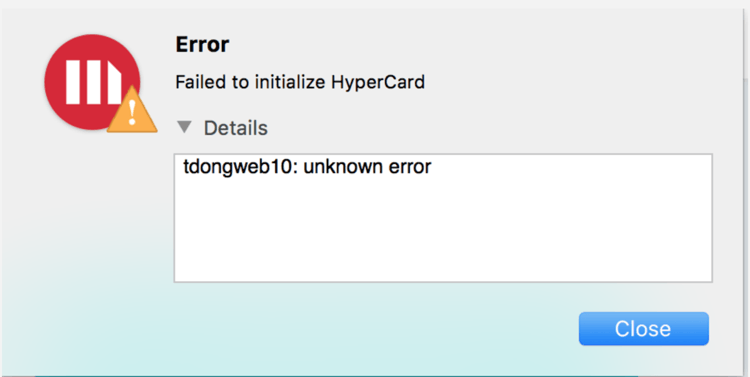
In this first example, “tdongweb10” is the name of the Intelligence Server that the Library Server is attempting to connect to. This will change based on what Intelligence Server Library you are connected to. Another example of this case would be “env-128372laouise1: unknown error.”
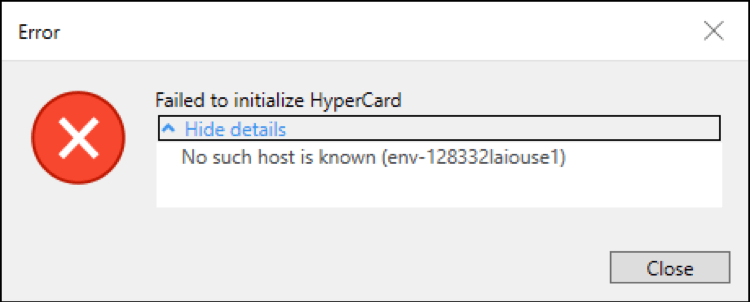
In this second example, “env-128332laiouse1” is the name of the Intelligence Server that the Library Server is attempting to connect to. This will change based on what Intelligence Server Library you are connected to.
Another example of this case would be “No such host is known (tdongweb10)”
As seen above, this error can have a few different variations. Others may include “Cannot find host [Intelligence Server name]” and “Unknown host: [Intelligence Server name]”.
The Intelligence Server IP address and name must be added to the host file found on the machine that is hosting the Library Server. Without this configuration, Library cannot properly connect to the Intelligence Server.
You must have administrator privileges to edit the hosts file, please ensure you’re using an administrator account before continuing.
On the Windows machine hosting the Library Server, navigate to this directory
C:\windows\system\32\drivers\etc\
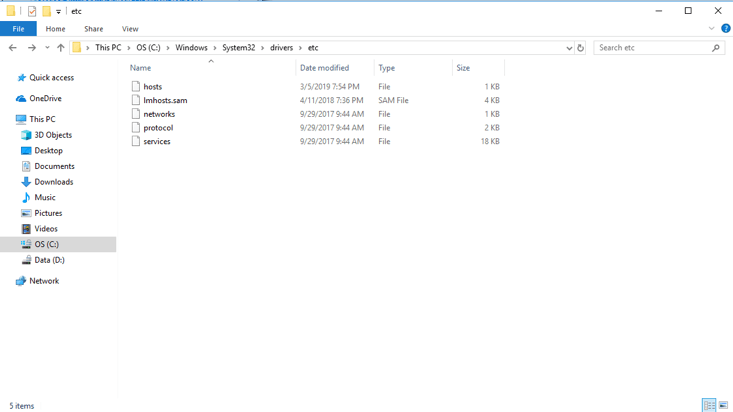
Open the hosts file using a text editor. You must run the text editor in Administrator Mode.
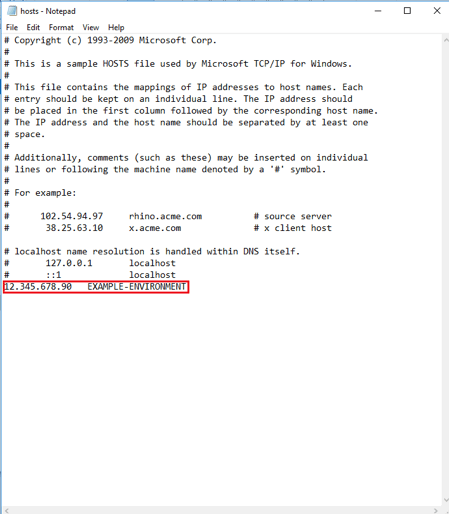
The host file will resemble the image above. Add the Intelligence Server IP address and name to the bottom of the file separated by a space (in the image above, an example is circled in red). The hosts file may already contain other IP addresses at the bottom of the file, we recommend that these are not altered and that the Intelligence Server information is simply added under any other information that is already present. Once complete save the file. The Library Server and Workstation may need to be restarted but the issue should be resolved.
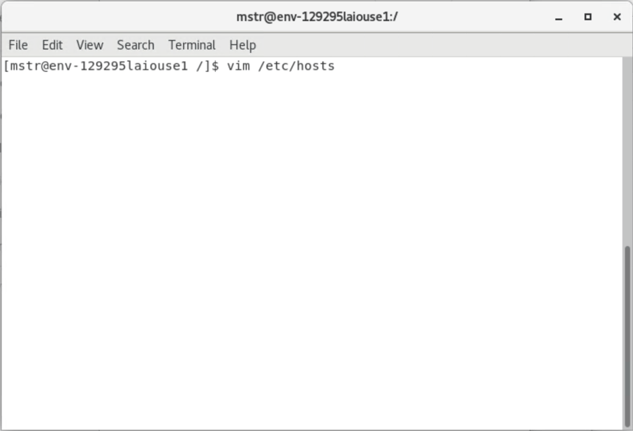
Open the terminal and enter the command
vim /etc/hosts/to edit the hosts file. To use an alternative editor, navigate to the hosts directory using
cd /etc/and open the alternative editor there.
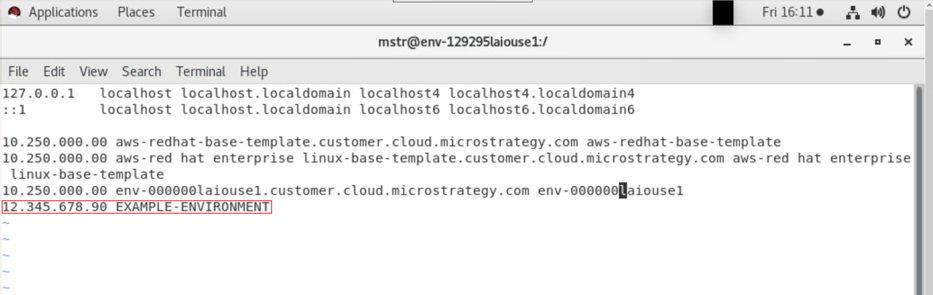
Add the Intelligence Server IP address and name to the bottom of the file. We recommend that anything else contained in the file is not altered. Save and exit the file. An example can be seen in the image below:
Some versions of Linux may have a line in their hosts file that says something like:
# The following lines are desirable for IPv6 capable hosts
