EducationSoftwareStrategy.com
StrategyCommunity

Knowledge Base

Product

Community

Knowledge Base

TopicsBrowse ArticlesDeveloper Zone

Product

Download SoftwareProduct DocumentationSecurity Hub

Education

Tutorial VideosSolution GalleryEducation courses

Community

GuidelinesGrandmastersEvents
x_social-icon_white.svglinkedin_social-icon_white.svg
Strategy logoCommunity

© Strategy Inc. All Rights Reserved.

LegalTerms of UsePrivacy Policy
  1. Home
  2. Topics

Troubleshooting Intelligence Server's new governing mechanism - Part 2: Job prioritization


Sigit Pambudi

Software Architect • MicroStrategy


This article offers the troubleshooting guideline for the new server governing mechanism (part 2). This article explains the prioritization of interactive over background requests.

Starting with the release of Strategy ONE (March 2024), dossiers are also known as dashboards.
This article outlines the following topics for troubleshooting the new server governing mechanism, prioritization:

  • What is job prioritization?
  • Troubleshooting workflow
  • How to verify that job prioritization is working properly 

What is Job Prioritization?

During its operation, the Intelligence Server receives various types of requests, including time-critical ones (such as interactive Dossier manipulations) as well as background requests (such as Smart Download inquiries from Library on iOS). When the Server is busy, it is desirable to prioritize the processing and execution of the time-bound interactive requests over the background ones, so that the response time of the former requests can be maintained.
To prioritize execution and maintain the performance of interactive requests, Strategy 2020 Update 2 introduces a new automatic Server governing mechanism. The first part of this governing is to provide a throttling algorithm , which limits the number of background requests that are transformed into jobs. This way, jobs for interactive requests do not need to compete against too many background jobs for CPU and memory resources.
Once a request is accepted (not throttled) by the Server and transformed into a job, it will experience the following workflow: (1) the job will be decomposed into multiple tasks, (2) each job task is put into a processing unit (PU) queue, and then (3) every queue will be served by a PU thread. In order to maintain the response time of interactive requests, their workflow must be separated from that of the background requests. This is achieved by adding a new queue and a new thread pool, for each PU type that supports background requests. Furthermore, the job-processing workflow of the interactive requests must be executed with higher priority so that they can occupy a larger chunk of CPU time. Such a job prioritization algorithm, which is the second and integral part of Server’s new automatic governing mechanism, provides a larger CPU time chunk for interactive jobs by assigning their PU threads with lower OS-level scheduling priority  (”

nice
” value) in Linux and higher priority class in Windows. Note that, while in Windows the priority class is proportional to CPU time, in Linux the nice value has an inverse relation to CPU time (and priority). Since Intelligence Server employs a thread pool-based concurrency, the steps below are applied to ensure that each task and queue are assigned a PU thread with the correct priority level:

  1. A PU thread is picked from a thread pool.
  2. The thread is dynamically assigned with the correct priority for executing the next task in the queue.
  3. After the task execution is complete, the thread has its priority reset to the default value (
    8
    in Windows and
    0
    in Linux) before being returned into the pool.

Step 2 improves the response time of interactive requests under high system load, while the last “reset-to-default“ step ensures that the thread pool is always in an expected state before the next reuse, possibly by other Server workflows. This way, response time performance can be improved without affecting other workflows.
When not configured properly, however, job prioritization could not provide the promised performance benefits. This knowledge base provides a troubleshooting guideline for job prioritization to prevent this issue.

Troubleshooting Workflow

How to troubleshoot:

  1. Find the “Symptom” that matches your problem.
  2. Working from top to bottom, examine the “Possible Cause” and perform the “How to Confirm the Root Cause.”
  3. Pay close attention to the “OS” column because some problems are specific to Linux OS.
  4. Implement the “How to Fix the Problem“ step(s).

Symptom A: I-Server failed to start up

35 
 OS (Windows, Linux, Both)Possible CauseHow to Confirm the Root CauseHow to Fix the Problem1BothCannot load SERVERDEF_BACKGROUND_QUEUES.PDS during I-Server start-up

35 
 OS (Windows, Linux, Both)Possible CauseHow to Confirm the Root CauseHow to Fix the Problem1BothCannot load SERVERDEF_BACKGROUND_QUEUES.PDS during I-Server start-up

35 
 OS (Windows, Linux, Both)Possible CauseHow to Confirm the Root CauseHow to Fix the Problem1BothCannot load SERVERDEF_BACKGROUND_QUEUES.PDS during I-Server start-up

35 
 OS (Windows, Linux, Both)Possible CauseHow to Confirm the Root CauseHow to Fix the Problem1BothCannot load SERVERDEF_BACKGROUND_QUEUES.PDS during I-Server start-up

35 
 OS (Windows, Linux, Both)Possible CauseHow to Confirm the Root CauseHow to Fix the Problem1BothCannot load SERVERDEF_BACKGROUND_QUEUES.PDS during I-Server start-up

35 
 OS (Windows, Linux, Both)Possible CauseHow to Confirm the Root CauseHow to Fix the Problem1BothCannot load SERVERDEF_BACKGROUND_QUEUES.PDS during I-Server start-up

35 
 OS (Windows, Linux, Both)Possible CauseHow to Confirm the Root CauseHow to Fix the Problem1BothCannot load SERVERDEF_BACKGROUND_QUEUES.PDS during I-Server start-up

35 
 OS (Windows, Linux, Both)Possible CauseHow to Confirm the Root CauseHow to Fix the Problem1BothCannot load SERVERDEF_BACKGROUND_QUEUES.PDS during I-Server start-up


Perform “Repair” action through Strategy installer to restore the missing PDS file. OS (Windows, Linux, Both)Possible CauseHow to Confirm the Root CauseHow to Fix the Problem 1BothJob prioritization is disabled due to an invalid processing unit (PU) structure order


Perform “Repair” action through Strategy installer to restore the missing PDS file. OS (Windows, Linux, Both)Possible CauseHow to Confirm the Root CauseHow to Fix the Problem 1BothJob prioritization is disabled due to an invalid processing unit (PU) structure order

Symptom B: Degraded throughput for interactive jobs when there is a significant number predictive cache requests


Perform “Repair” action through Strategy installer to restore the missing PDS file. OS (Windows, Linux, Both)Possible CauseHow to Confirm the Root CauseHow to Fix the Problem 1BothJob prioritization is disabled due to an invalid processing unit (PU) structure order


Perform “Repair” action through Strategy installer to restore the missing PDS file. OS (Windows, Linux, Both)Possible CauseHow to Confirm the Root CauseHow to Fix the Problem 1BothJob prioritization is disabled due to an invalid processing unit (PU) structure order


Perform “Repair” action through Strategy installer to restore the missing PDS file. OS (Windows, Linux, Both)Possible CauseHow to Confirm the Root CauseHow to Fix the Problem 1BothJob prioritization is disabled due to an invalid processing unit (PU) structure order


Perform “Repair” action through Strategy installer to restore the missing PDS file. OS (Windows, Linux, Both)Possible CauseHow to Confirm the Root CauseHow to Fix the Problem 1BothJob prioritization is disabled due to an invalid processing unit (PU) structure order


Perform “Repair” action through Strategy installer to restore the missing PDS file. OS (Windows, Linux, Both)Possible CauseHow to Confirm the Root CauseHow to Fix the Problem 1BothJob prioritization is disabled due to an invalid processing unit (PU) structure order


Perform “Repair” action through Strategy installer to restore the missing PDS file. OS (Windows, Linux, Both)Possible CauseHow to Confirm the Root CauseHow to Fix the Problem 1BothJob prioritization is disabled due to an invalid processing unit (PU) structure order


Perform “Repair” action through Strategy installer to restore the missing PDS file. OS (Windows, Linux, Both)Possible CauseHow to Confirm the Root CauseHow to Fix the Problem 1BothJob prioritization is disabled due to an invalid processing unit (PU) structure order


Perform “Repair” action through Strategy installer to restore the missing PDS file. OS (Windows, Linux, Both)Possible CauseHow to Confirm the Root CauseHow to Fix the Problem 1BothJob prioritization is disabled due to an invalid processing unit (PU) structure order

Applies to Strategy 2021


   Applies to Strategy 2020 Update 2


   Applies to Strategy 2020 Update 2


   Applies to Strategy 2020 Update 2


   Applies to Strategy 2020 Update 2


2BothJob prioritization is fully or partially disabled from Registry


2BothJob prioritization is fully or partially disabled from Registry


2BothJob prioritization is fully or partially disabled from Registry


2BothJob prioritization is fully or partially disabled from Registry

Applies to Strategy 2021


Job prioritization depends on two components: queue and thread prioritizations. These components are enabled by default, unless they are disabled from Registry. Here is an example when both components are disabled:

[HKEY_LOCAL_MACHINE\SOFTWARE\MicroStrategy\DSS Server\Job Prioritization]
"EnableThreadPrioritization"="NO"
"EnableQueuePrioritization"="NO"


  Job prioritization is fully disabled because of an added Registry entryApplies to Strategy 2020 Update 2


  Job prioritization is fully disabled because of an added Registry entryApplies to Strategy 2020 Update 2


  Job prioritization is fully disabled because of an added Registry entryApplies to Strategy 2020 Update 2

Note: On the other hand, the log file will contain the following entry when job prioritization is enabled:

[Kernel][Info] The job prioritization feature is enabled.
In this case, proceed to the next possible root cause in the following row.
Since the job prioritization feature is enabled by default, there is no need to overwrite this setting.


3LinuxFeature is disabled because the maximum of scheduling priority ("nice") value is too low


3LinuxFeature is disabled because the maximum of scheduling priority ("nice") value is too low


3LinuxFeature is disabled because the maximum of scheduling priority ("nice") value is too low


3LinuxFeature is disabled because the maximum of scheduling priority ("nice") value is too low


Ensure that the nice value (can be checked by executing a ulimit -e command) is 20 or higher:

Note: The settings above only modifies the maximum nice value for the mstr user, but should not affect other users. The followings are two special scenarios you should be aware of.


4BothInteractive jobs are assigned with incorrect job type. As a result, they are executed with lower priority than Smart Download (referred here as “predictive caching”) requests.


4BothInteractive jobs are assigned with incorrect job type. As a result, they are executed with lower priority than Smart Download (referred here as “predictive caching”) requests.


4BothInteractive jobs are assigned with incorrect job type. As a result, they are executed with lower priority than Smart Download (referred here as “predictive caching”) requests.


No immediate resolution. Log a support ticket regarding this logical defect to Strategy Support team.5BothThe Server failed to set the thread priority correctly.


No immediate resolution. Log a support ticket regarding this logical defect to Strategy Support team.5BothThe Server failed to set the thread priority correctly.


No immediate resolution. Log a support ticket regarding this logical defect to Strategy Support team.5BothThe Server failed to set the thread priority correctly.


No immediate resolution. Log a support ticket regarding this logical defect to Strategy Support team.5BothThe Server failed to set the thread priority correctly.


No immediate resolution. Log a support ticket regarding this logical defect to Strategy Support team.5BothThe Server failed to set the thread priority correctly.


6BothSmart Download (predictive caching) jobs are assigned with the incorrect job type. As a result, they are executed with higher priority than interactive job.


6BothSmart Download (predictive caching) jobs are assigned with the incorrect job type. As a result, they are executed with higher priority than interactive job.


6BothSmart Download (predictive caching) jobs are assigned with the incorrect job type. As a result, they are executed with higher priority than interactive job.


6BothSmart Download (predictive caching) jobs are assigned with the incorrect job type. As a result, they are executed with higher priority than interactive job.


... [Kernel][Job Trace] ... MSIJob::SetType: Set Job:1's type to (Interactive Job)

Note: Under several workflows, the (Interactive Job) entry might be missing. In this case, the job is still considered to be erroneously set as an interactive job.

Ensure the deployed Strategy Library has a version of 11.2.0200.xxxx or newer. Strategy 2020 Hotfix 2 installer does NOT automatically deploy the new Library WAR file. The old WAR file lacks the attribute needed to identify and set the correct priority for predictive caching requests.

If the problem persists, log a support ticket regarding this logical defect to Strategy Support team and attach the DSSErrors.log file.


How to Verify that Job Prioritization is Working Properly


There may be several corner cases not covered by the troubleshooting workflow section above. In such case, the immediate action is to verify whether the job prioritization is working properly. This boils down to checking whether interactive (time-critical) and Smart Download (referred here as “predictive caching”) jobs are respectively assigned with the right priority level during execution, by performing the steps below.

  • How to verify interactive job’s priority level
    Simply run a dossier from Strategy Platform Web, Library, Workstation, Desktop, Mobile, or Developer and make sure that the
    DSSErrors.log 
    contains the following entries.
    
    ... [Kernel][Job Trace] ... MSIJob::MSIJob Job:1 created.
    ...
    ... [Kernel][Job Trace] ... MSIJob::SetType: Set Job:1's type to (Interactive Job)
    

    Due to I-Server’s internal logic, line 3 may be missing. In this case, the job is still considered to be executed with an interactive (P1) priority level. For a matching job ID in the first line (the ID is
    1
    in this case), make sure there is no log entry that states it is set to (
    Predictive Cache Job
    ) type.
  • How to verify predictive caching job’s priority level
    First of all, make sure that I-Server is not in a busy status, so that a predictive caching request is always admitted and indeed enters the job processing workflow (we call it MSIJob internally). To do this, you can wait until all interactive jobs are finished (or simply kill them from job monitor). Additionally, you should also make sure that there is no other predictive caching request sent to I -Server. This makes it easier to inspect the
    DSSErrors.log
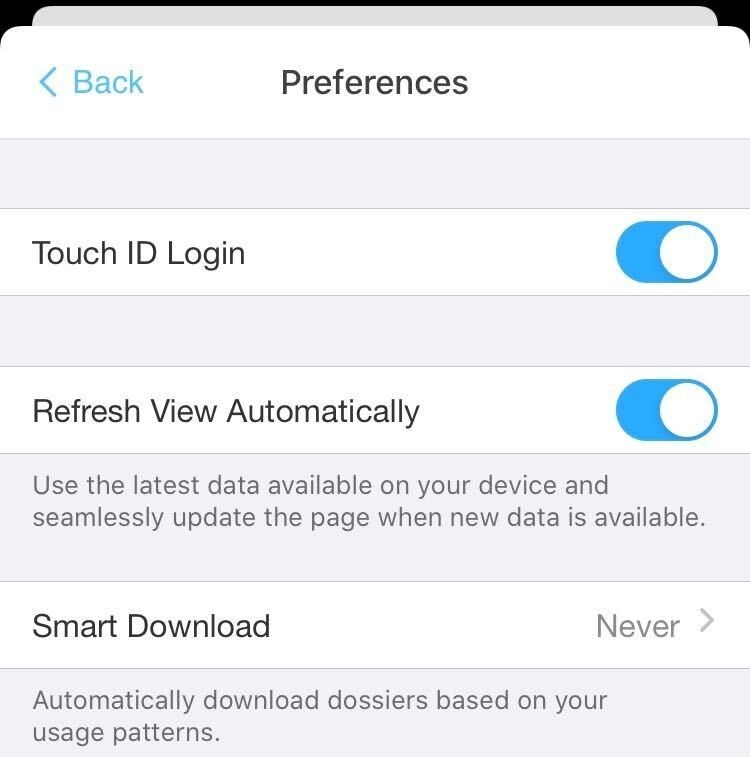
    in the steps below and must be done by disabling the predictive caching feature from Strategy Mobile and Library on iOS and Android. To do this, go to the “Smart Download” part of the “Options → Preferences” page and then select “Never” (see screenshot below).
ka0PW0000001JjfYAE_0EM2R000001HjDm.jpeg
  • To send a predictive caching request, determine the target project and Dossier IDs (these should exist and operational in your metadata) and then send the following REST API commands to StrategyLibrary. Here, the first one is for project login while the the predictive caching request is actually sent by the POST command in line 2.
    
    curl -X POST "http://localhost:8080/consume/api/auth/login" -H "accept: application/json" -H "Content-Type: application/json" -d "{"username":"<user_name>","password":"<password>","loginMode":1,"maxSearch":3,"workingSet":10,"changePassword":false,"newPassword":"string","metadataLocale":"en_us","warehouseDataLocale":"en_us","displayLocale":"en_us","messagesLocale":"en_us","numberLocale":"en_us","timeZone":"UTC","applicationType":35}"
    
    curl -X POST "http://localhost:8080/MicroStrategyLibrary/api/dossiers/<dossier_id>/executionResult?resultType=binary" -H "accept: /" -H "X-MSTR-AuthToken: <x_mstr_token_from_login>" -H "X-MSTR-ProjectID: <project_id>" -H "Content-Type: application/json" -d "{"include":[],"mobilePrecaching":true}"
    

    Finally, verify that the the following entry is created inside
    DSSErrors.log
    that indicates the predictive caching request is executed with the correct priority. In this example, the Job ID is
    2
    . Note that the easiest way to verify the log entries is to make sure that there is no other running jobs other that the predictive caching request you triggered. This way, all the entries in
    DSSErrors.log
    is solely due to your predictive request.
    
    ... [Kernel][Job Trace] ... MSIJob::MSIJob Job:2 created.
    ... [Kernel][Job Trace] ... MSIJob::SetType: Set Job:2's type to (Predictive Cache Job)
    

A more detailed step-by-step example to verify whether job prioritization works properly is given in the video below. Note that the video includes the steps to verify both job prioritization’s and job throttling’s functionalities. Thus, when viewing the video, our focus should be on checking the priority levels for accepted jobs, which happens at timestamp 4:54 for predictive caching jobs and 5:53 for interactive jobs.


Comment

0 comments

Details

Knowledge Article

Published:

June 16, 2020

Last Updated:

March 21, 2024