EducationSoftwareStrategy.com
StrategyCommunity

Knowledge Base

Product

Community

Knowledge Base

TopicsBrowse ArticlesDeveloper Zone

Product

Download SoftwareProduct DocumentationSecurity Hub

Education

Tutorial VideosSolution GalleryEducation courses

Community

GuidelinesGrandmastersEvents
x_social-icon_white.svglinkedin_social-icon_white.svg
Strategy logoCommunity

© Strategy Inc. All Rights Reserved.

LegalTerms of UsePrivacy Policy
  1. Home
  2. Topics

KB483353: Unable to locate Users or Objects using the search feature


Ling Jing

Product Owner, Principal • MicroStrategy


In the event you run into a situation where you cannot locate users or objects using a search feature, you may need to rebuild the index of the quick search. This article identifies user cases where you may need to perform this operation.

Starting with the release of Strategy ONE (March 2024), dossiers are also known as dashboards.

Symptoms 


Users may find that the search feature in Web is not returning any results for users or objects. In particular, users may discover this problem in the following situations:

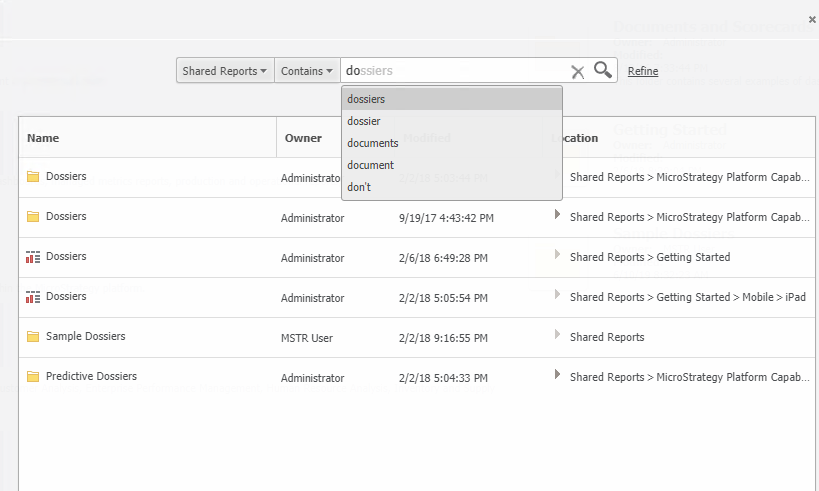
Searching for an Object


You can see an object under a folder, but when you search for it by name, nothing is returned in the search results.
ka0PW0000001JXHYA2_0EM2R000000hHFc.jpeg


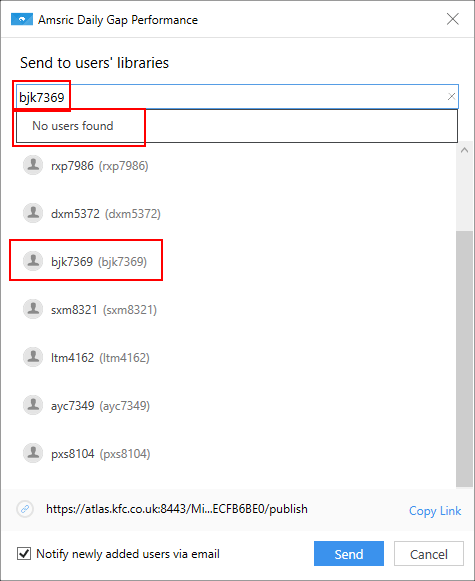
Searching for a User


When trying to send a dossier to a user's Library, searching by their account name does not return any results.
ka0PW0000001JXHYA2_0EM2R000000hHGG.jpeg

You may also discover a problem when viewing a dossier in Library. When you click the Comments icon and try to @ mention a user, the user does not appear.

ka0PW0000001JXHYA2_0EM2R000000hHGa.jpeg


Cause


In these cases, a possible cause is that the search index is corrupted. 
For the two user search cases, it may be that the user performing the search function does not have browse ACL to the users they want to search. Contact your administrator to check the ACL of the user.

Workaround


If your search index is corrupted, rebuild the index of the quick search. For instructions, see KB482892.
If this does not resolve your problem, please contact Technical Support for assistance and provide the following information:

  • The XML trace of the command. To retrieve this information, enable Kernel XML API Trace in the Diagnostics Configuration.
  • The index file. To retrieve this information, go to the Quick Search Manager window.
  • The searchengine.log and DSSErrors.log files.
    • It's helpful to have the search engine log level set to All. To do this:
      1. Navigate to [InstallationPath]\Intelligence Server and open the searchengine.config file.
      2. Edit the line containing searchengine.log.level, set it as "searchengine.log.level = 0".
      3. Change the index folder in the Quick Search Manager window to reload the searchengine.config file.
  • The user information, including the ACL, locale setting, and membership.

Comment

0 comments

Details

Knowledge Article

Published:

June 11, 2019

Last Updated:

March 21, 2024