EducationSoftwareStrategy.com
StrategyCommunity

Knowledge Base

Product

Community

Knowledge Base

TopicsBrowse ArticlesDeveloper Zone

Product

Download SoftwareProduct DocumentationSecurity Hub

Education

Tutorial VideosSolution GalleryEducation courses

Community

GuidelinesGrandmastersEvents
x_social-icon_white.svglinkedin_social-icon_white.svg
Strategy logoCommunity

© Strategy Inc. All Rights Reserved.

LegalTerms of UsePrivacy Policy
  1. Home
  2. Topics

KB442054: Unable to Render Visualizations when Exporting Dossier as PDFs while Windows Authentication Mode is Configured


Community Admin

• Strategy


In MicroStrategy 10.X, certain visualizations do not render when exporting a dossier as PDF with Windows Authentication. A previous article mentioned turning off Windows Authentication, which is not possible for all customers. We have developed a new workaround as a result.

Starting with the release of Strategy ONE (March 2024), dossiers are also known as dashboards.

Symptom


When exporting a dossier to a PDF, some visualizations, like maps, do not render well and show the following error message in the exported PDF file:
Failed to display visualization because failed to get pluginsVisList.
 

Cause


This error message can appear for two reasons: (1) if the Export Engine can't access the Web server or (2) if Windows Authentication Mode is enabled.
 

Solution


You must resolve the error based on the root cause. To determine if the error appears because the Export Engine can't access the Web server due because the Web server name can't be resolve to an IP address, follow the steps below:

  1. Log into the Linux server, <iserver-host>, where the Export Service is running.
  2. Run the following command:
    ping <webServer-host>

    If you see an error message saying,
    ping: unknown host <webServer-host>
    , then proceed to step 3.
  3. Open /etc/hosts and add the following line:
    <webServer-host> <The Real IP Address of webServer-host>

If you did not receive an error, the cause may be because you have Windows Authentication enabled. If you can, change from Windows Authentication to Anonymous Authentication. For instructions, see KB440132. 
If you cannot use Anonymous Authentication, see the following workarounds.
 

Workarounds


If the above Export Engine solution did not work or you cannot utilize Anonymous Authentication, see the following workarounds:
 

Workaround for the Export Engine


By default, the Export Engine retrieves its resources from the Web or Library server. Beginning in Strategy 2019 Update 2, if it's not possible to pull resources from the Web or Library server, you can have the Export Engine redirect its web resource request to the Export Engine side.
Once redirected, the Export Engine loads resources, such as plugins (custom widgets and image layouts) and map keys, from the resources folder that is pre-installed in the root folder of the PDF Export Service.
For instructions, see New Customization Property for the Export Engine Service.
 

Workaround for Anonymous Authentication


If you need to use Windows Authentication, you can create a second application in IIS that is set up with Anonymous Authentication. Then you can push the PDF Export Engine to the second application while the primary application is still configured with Windows Authentication.
To set this system up, use the following instructions:
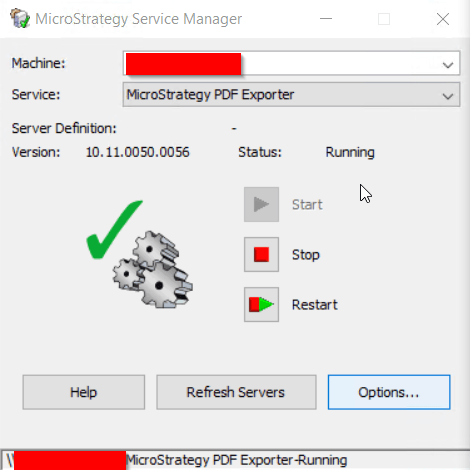
  • Log into the Web server application machine.
  • Create a second application in IIS and point it to the Web ASPx folder in your Strategy installation directory.
  • Set the authentication mode for your second application to Anonymous.
  • Open Service Manager. Under Service, select Strategy PDF Exporter and click Options.
ka0PW0000001JSXYA2_0EM2R000000hRkG.jpeg
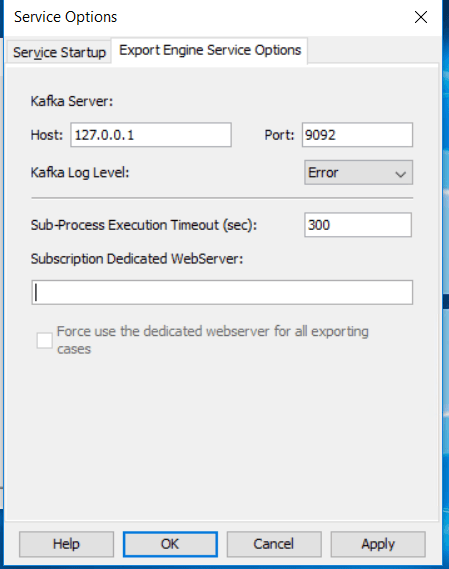
  • Select the Export Engineer Service Options tab and enter the URL of the second application in the Subscription Dedicated Web Server field. 
    Example URLs:
    • For the Strategy Web Application:
      http://[web server]/MicroStrategy/asp/Main.aspx
    • For the second application used for exporting: 
      http://[web server]/[second application name]/asp/Main.aspx 
ka0PW0000001JSXYA2_0EM44000000Qy4X.png
  • Select the Force use the dedicated web application for all exporting cases checkbox.
  • Click Apply.
  • Click OK.
  • Restart the Intelligence server. You should now be able to export dossiers to PDFs with the correct rendering.


  KB442054


Comment

0 comments

Details

Knowledge Article

Published:

September 28, 2018

Last Updated:

March 21, 2024