EducationSoftwareStrategy.com
StrategyCommunity

Knowledge Base

Product

Community

Knowledge Base

TopicsBrowse ArticlesDeveloper Zone

Product

Download SoftwareProduct DocumentationSecurity Hub

Education

Tutorial VideosSolution GalleryEducation courses

Community

GuidelinesGrandmastersEvents
x_social-icon_white.svglinkedin_social-icon_white.svg
Strategy logoCommunity

© Strategy Inc. All Rights Reserved.

LegalTerms of UsePrivacy Policy
  1. Home
  2. Topics

KB12867: How timeout settings in MicroStrategy Web and the MicroStrategy Intelligence Server affect users in MicroStrategy Web


Community Admin

• Strategy


When a user logs into MicroStrategy Web, there are two timeout settings that come into play. The first is the 'Clients Session Idle time (sec)' setting located in Workstation by right-clicking the Environment -> Properties -> Governing Settings -> Clients Session Idle time (sec) is the session timeout on the web server side. The second setting is the session timeout on the web server side.

When a user logs into Strategy Web, there are two timeout settings which come into play.
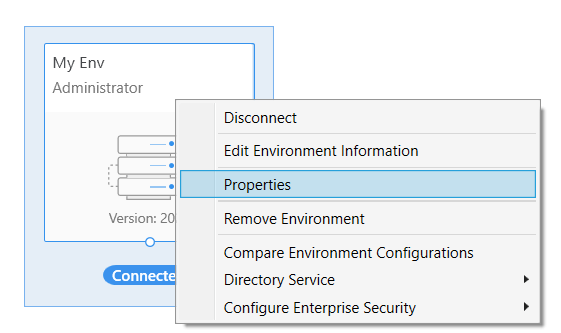
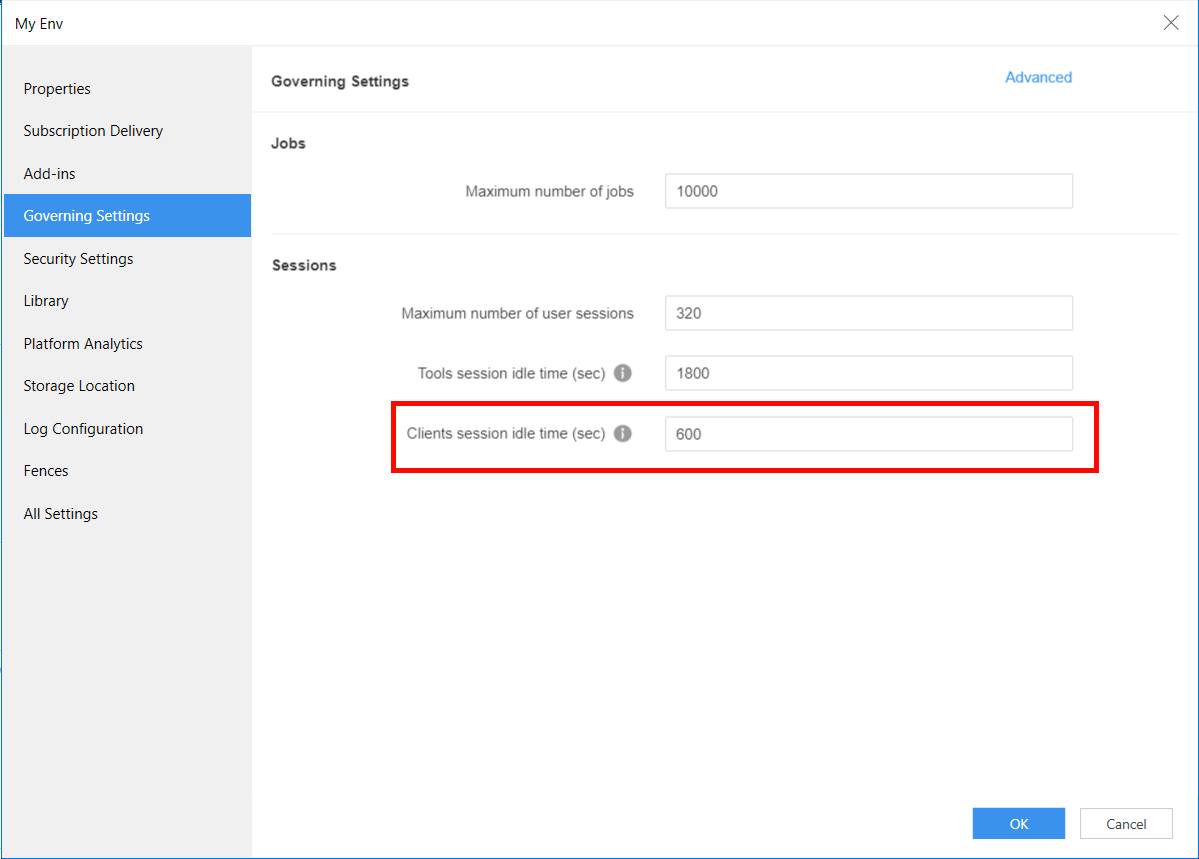
The first is the 'Clients Session Idle time (sec)' setting located in Workstation
by right-clicking the Environment -> Properties -> Governing Settings -> Clients Session Idle time (sec), as shown in the image below.
ka0PW0000000uLZYAY_0EMPW0000046q02.jpeg
ka0PW0000000uLZYAY_0EMPW0000046rCD.jpeg

This setting limits the time, in seconds, that users can remain idle before their Strategy Intelligence Server session is ended.
 
The second setting is the session timeout on the web server side.
Using Strategy Web running on IIS, the session timeout is configured using IIS Manager as seen in step 2 of the following article "KB41860 - What are the timeout settings controlled by IIS 7 that affect MicroStrategy Web"
Note that the web server side session will also expire once the application pool is recycled.
 
Strategy Web on IIS saves the information for user sessions in a .NET session object. Active Server Page (ASP) .NET session objects provide their own session management and define a timeout after which the session object is released if it has not been accessed. This occurs independently of the value entered for the Strategy Intelligence Server's governing 'Web user session idle time' setting. Users are prompted for their login information because of a timeout of the session object in the .NET infrastructure. For Strategy Web Universal, contact the Web Administrator for information on Web Application specific timeout settings.
 
When using Strategy Web JSP, the session timeout is set in the web.xml file as described in the following article "KB12966: How to configure the web session timeout set on JSP application servers using MicroStrategy Web JSP ".Note that depending on the JSP application server, other web application server specific session timeout configurations may interfere. Refer to the documentation of the respective Web application server for more information.
 
A third security setting that should be kept in mind for session timeouts for Strategy Web is 'Allow automatic login if session is lost'. This setting can be found in the Security section on the Web Administration Page and looks like the image shared below:

 

ka0PW0000000uLZYAY_0EM4400000028xA.jpeg

This setting enables users to be automatically reconnected to the Strategy Intelligence Server if the session is lost. This setting will NOT automatically reconnect the .NET session object.
 
To fully understand how these settings interact with each other, read the following scenarios:
 
Scenario 1:


Web User Session Idle Time = 60 minutes
Timeout setting in Web.config = 20 minutes
Allow automatic login if session is lost = checked

A user logs in, performs some actions, and then idles for 30 minutes. When the user returns and attempts to continue working, the session is lost and the user is prompted to log back in. This is because the ASPNET session object for that user has expired before the Web User Session Idle Timeout. The 'Allow automatic login if session is lost' can ONLY create new Strategy Intelligence Server sessions, so if the ASPNET session object has timed out, the user has to log back in to create a new ASPNET session object, even if the Strategy Intelligence Server session is still available. Users will not receive an error message but will just be sent back to the Login screen before they can proceed with whatever action they selected to continue with.
 
Scenario 2:
 

Web User Session Idle Time = 20 minutes
Timeout setting the Web.config file = 60 minutes
Allow automatic login if session is lost = checked

A user logs in, performs some actions, and then idles for 30 minutes. When the user returns and attempts to continue working, there is no prompt for a login and the user can continue working. This is because if checked, the 'Allow automatic login if sessions is lost' setting will recreate a Strategy Intelligence Server session when the original has timed out.
 
Scenario 3:
 

Web User Session Idle Time = 20 minutes
Timeout setting the Web.config file = 60 minutes
Allow automatic login if session is lost = unchecked
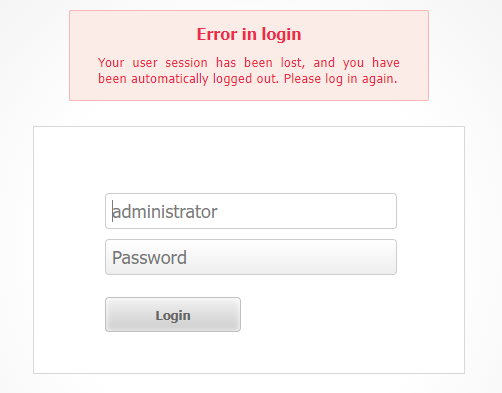
A user logs in, performs some actions, and then idles for 30 minutes. When the user returns and attempts to continue working, the session is lost and the user is prompted to log back in. Since the 'Allow automatic login if sessions is lost' is not checked, then the Web Server cannot create a new Strategy Intelligence Server session, and the user is asked to log back in. The difference between this scenario and the first is that there is an error message on the login page, as shown below:
Error in Login
Your user session has been lost, and you have been automatically logged out. Please log in again. 
 

ka0PW0000000uLZYAY_0EMPW0000046scv.jpeg


KB12867


Comment

0 comments

Details

Knowledge Article

Published:

March 29, 2017

Last Updated:

February 26, 2024