EducationSoftwareStrategy.com
StrategyCommunity

Knowledge Base

Product

Community

Knowledge Base

TopicsBrowse ArticlesDeveloper Zone

Product

Download SoftwareProduct DocumentationSecurity Hub

Education

Tutorial VideosSolution GalleryEducation courses

Community

GuidelinesGrandmastersEvents
x_social-icon_white.svglinkedin_social-icon_white.svg
Strategy logoCommunity

© Strategy Inc. All Rights Reserved.

LegalTerms of UsePrivacy Policy
  1. Home
  2. Topics

KB17037: How to setup Windows Authentication for MicroStrategy Web


Community Admin

• Strategy


This technical note article explains how to setup windows authentication for MicroStrategy Web.

With Microsoft Windows authentication, users are validated based on whether they successfully logged into the Windows machine in order to determine if they can access a Strategy project. They are not prompted to enter their Strategy user login ID and password, they are passed immediately into the project.
To accomplish this, follow the steps below:

  1. Link the Strategy User to the windows account.
  2. Enable Windows Authentication at the application server level.
  3. Configure Strategy Web for windows authentication.

1. Link the Strategy User to the windows account.
Before using Windows authentication, the administrator must link Strategy users to a Windows user account. This must be done in Strategy Developer:
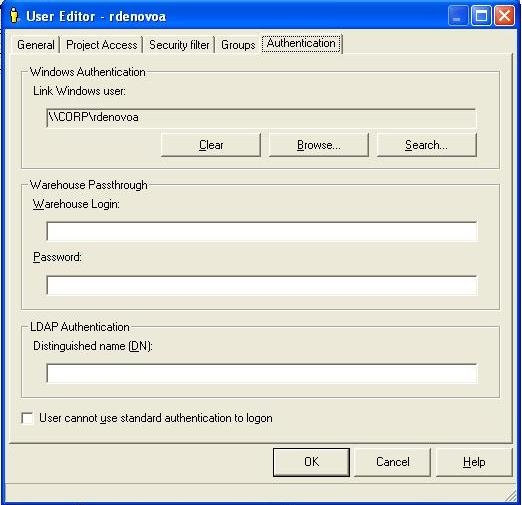
  • Go to the 'Administration' icon > ‘User manager’ > Select the Strategy User that will be linked.
  • Right click and edit the user. Select the 'Authentication' tab.
  • Under the Windows Authentication area, search for the Windows user that will be linked to the Strategy user and click on 'OK'.
ka04W00000148FgQAI_0EM440000002BQn.jpeg

2. Enable Windows Authentication at the application server level.
To set Windows Authentication in the Strategy Web Project, the application server must be configured to accept Windows Authentication. This can be done in Microsoft IIS following these steps:
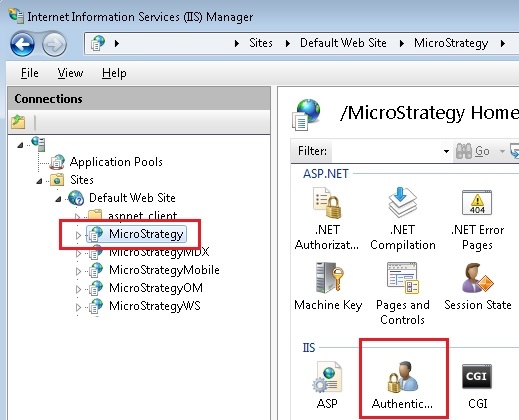
  • Go to Control Panel > Administrative Tools > Internet Information Services (IIS) Manager.
  • Expand Sites > Default Web Sites, and click on the Strategy virtual directory, shown below.
ka04W00000148FgQAI_0EM440000002Nu1.jpeg
  • Double click on the Authentication icon in the middle pane, highlighted above.
  • Disable Anonymous authentication and enable ASP.NET Impersonation and Windows Authentication. This can be done by right clicking on the authentication mode and selecting the option from the context menu. Note, for more information on this step, refer to this technical note article KB205622: How to setup Windows Authentication with Microsoft IIS 7.x for MicroStrategy Web, Mobile or Office 9.x and 10.x .
  • Now, setup the appropriate permissions on the Strategy Virtual directory by following the steps in this technical note article KB44742: How to add permissions in Microsoft IIS 7 when troubleshooting MicroStrategy Web Windows Authentication issues . Remember to use the NETWORK SERVICE user for Windows Authentication.

3. Configure Strategy Web for windows authentication.
Now enable Windows Authentication in Strategy Web:
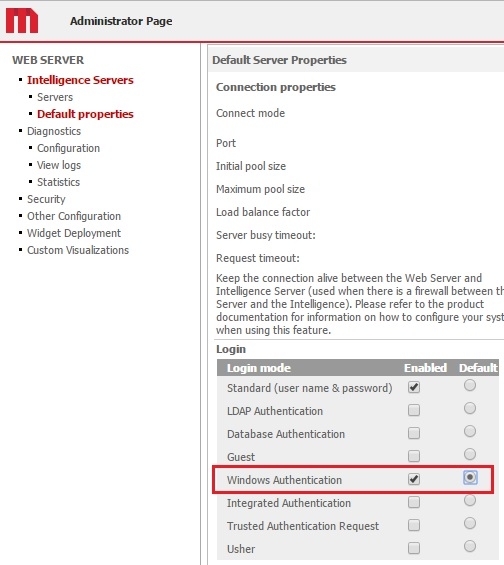
  • Go to the Strategy Web Administrator page.
  • Under the Default properties section, enable Windows Authentication as a Login mode.
ka04W00000148FgQAI_0EM440000002Nu6.jpeg

The authentication mode for Strategy Web can be set at the server level for all projects, or at the individual project level. To set the authentication mode to windows at the project level, follow these steps:

  • Log into Strategy Web as the Strategy Administrator user and access the Preferences. Note: accessing the preferences will be different in Strategy 9.4.x than in 10.x.
  • Select "Project Default" preferences level and click on "Security".
  • Enable Windows Authentication Login mode.
  • Select "Apply to current project" and hit the Save icon next to it as shown below.
ka04W00000148FgQAI_0EM440000002NuB.jpeg

 
Once each of these steps have been performed, the Strategy user should be linked to the Windows account so the next time the user logs in they won’t be prompted for their Strategy credentials but will be authenticated by the Windows account used in the client machine.


Comment

0 comments

Details

Knowledge Article

Published:

June 5, 2017

Last Updated:

June 27, 2023