EducationSoftwareStrategy.com
StrategyCommunity

Knowledge Base

Product

Community

Knowledge Base

TopicsBrowse ArticlesDeveloper Zone

Product

Download SoftwareProduct DocumentationSecurity Hub

Education

Tutorial VideosSolution GalleryEducation courses

Community

GuidelinesGrandmastersEvents
x_social-icon_white.svglinkedin_social-icon_white.svg
Strategy logoCommunity

© Strategy Inc. All Rights Reserved.

LegalTerms of UsePrivacy Policy
  1. Home
  2. Topics

KB201796: What is the SMTPSender trace and what is its purpose in MicroStrategy 2021?


Community Admin

• Strategy


What is the SMTPSender trace and what is its purpose?

Simple Mail Transfer Protocol (SMTP) is a TCP/IP protocol used when sending and receiving email. There are typically five steps in the SMTP email delivery process.

  1. Retrieve the recipient's domain value (e.g., Strategy.com).
  2. Determine the mail server preference/priority. Each mail server has a priority number associated with it and the lower the value, the higher is its priority.
  3. Open a TCP/IP Connection to the mail server with the highest priority.
  4. Open a mail session.
  5. Transmit the message.

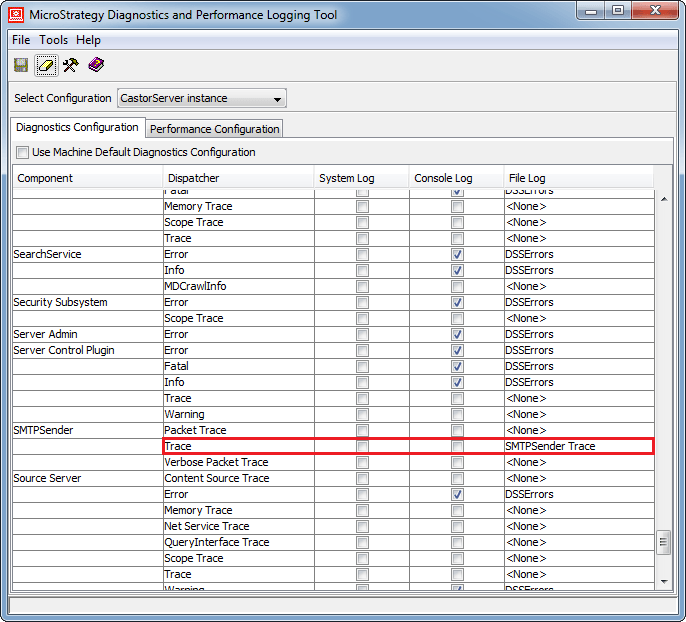
The SMTPSender trace is useful when trying to determine the cause for an undelivered or erroneous email subscription. It can be found in the Strategy Diagnostics and Performance Logging tool as shown below.
ka0PW0000000t69YAA_0EM4400000029Ln.jpeg

Note: This log is not enabled by default. An existing or new "File Log" destination must be selected for this logging to be used. Also, this trace will require an Intelligence Server restart to take effect.
 
The excerpt below demonstrates the five steps of the SMTP process via a successful email subscription:


[HOST:WAS-TEST][PID:13912][THR:11588][SMTPSender][Trace] Setting up address statuses
[HOST:WAS-TEST][PID:13912][THR:11588][SMTPSender][Trace] Local machine domain: WAS-TEST
[HOST:WAS-TEST][PID:13912][THR:11588][SMTPSender][Trace] Processing destination domain: Strategy.com
[HOST:WAS-TEST][PID:13912][THR:11588][SMTPSender][Trace] Connecting to domain: Strategy.com
[HOST:WAS-TEST][PID:13912][THR:11588][SMTPSender][Trace] Connecting to ip address: 10.15.70.24
[HOST:WAS-TEST][PID:13912][THR:11588][SMTPSender][Trace] Establishing handshake via Hello on domain: Strategy.com
[HOST:WAS-TEST][PID:13912][THR:11588][SMTPSender][Trace] Checking recipients
[HOST:WAS-TEST][PID:13912][THR:11588][SMTPSender][Trace] Recipient address testemail@Strategy.com accepted
[HOST:WAS-TEST][PID:13912][THR:11588][SMTPSender][Trace] Sending email
[HOST:WAS-TEST][PID:13912][THR:11588][SMTPSender][Trace] Email sent. Waiting for acknowledge
[HOST:WAS-TEST][PID:13912][THR:11588][SMTPSender][Trace] Email send acknowledged

 
In the example above, the five steps correlate to the following:

  1. Domain is WAS-TEST.
  2. The mail server with the highest priority/preference is Strategy.com.
  3. A TCP connection is attempted to IP address: 10.15.70.24.
  4. Mail session is initiated as indicated by “Establishing handshake via Hello on domain: Strategy.com”.
  5. Message is transmitted as indicated by “Sending email”.

For additional troubleshooting steps and common SMTP-related questions, refer to the Strategy Knowledge Base technical notes listed below.

  • KB11482: How to deliver an e-mail manually for SMTP troubleshooting purposes?
  • KB31568: How to configure Smart Host for use with MicroStrategy Distribution Services 9.x
  • KB45358: "Email Delivery Failed...Cannot connect to a socket... No more mail Exchange Servers to try" error message appears when sending an email subscription using MicroStrategy Distribution Services 9.x.

Comment

0 comments

Details

Knowledge Article

Published:

April 18, 2017

Last Updated:

February 26, 2024