SUMMARY:
When using LDAP authentication in Strategy Intelligence Server 9.x-10.x, users in the LDAP directory can be imported into the Strategy metadata by performing a batch import. Batch Import can be configured through Strategy Desktop/Developer by following the steps below:
1) Right click the project source > Configure Strategy Intelligence Server.
2) Select LDAP > Import > Import/Synchronize In Batch; enable Import Users and Import Groups.
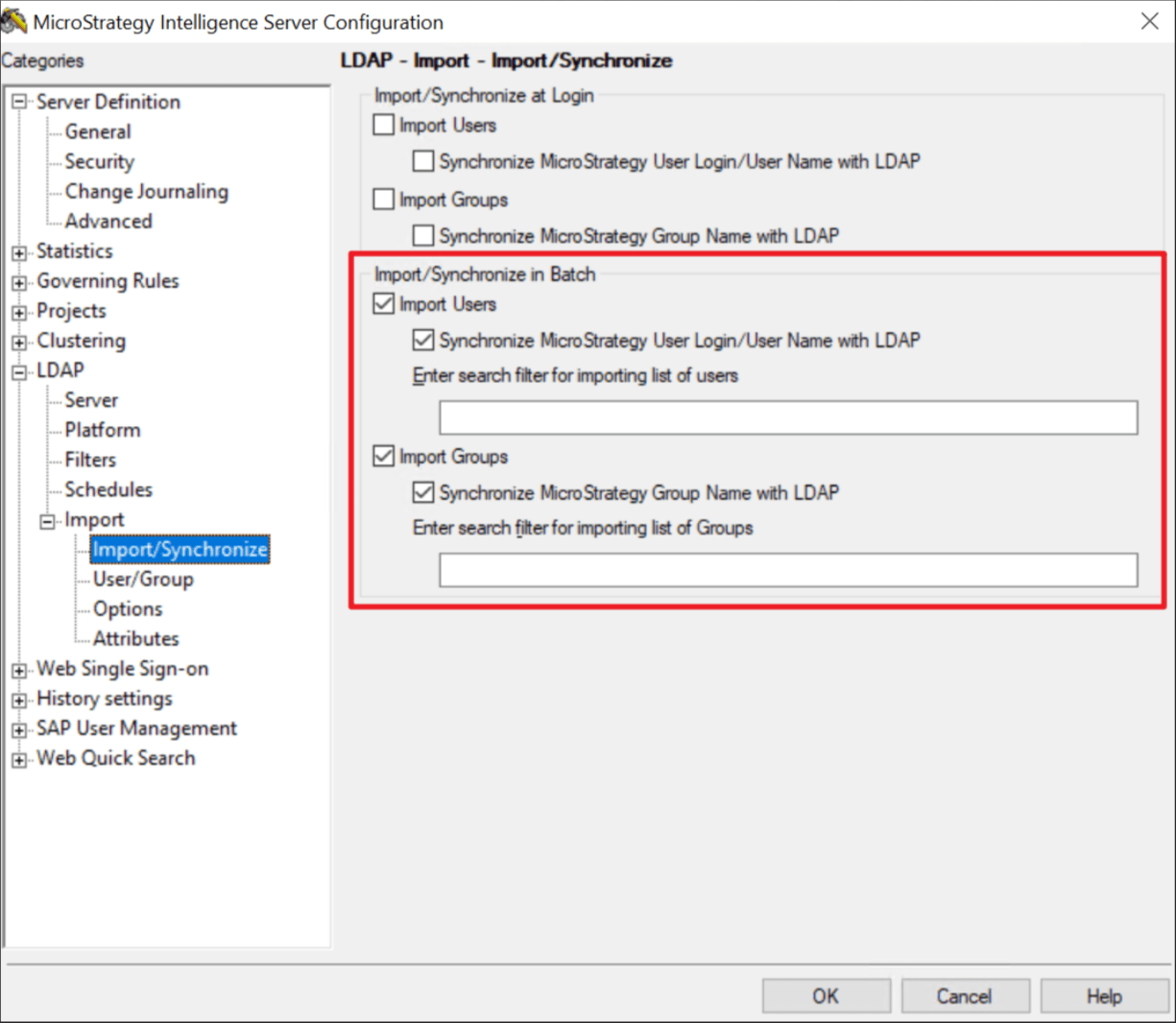
3) Enter the search filter(s) to use for batch importing Users and / or Groups. If search filters are not entered, no users or groups will be imported. The search filters should be provided by the LDAP administrator, and must be customized to retrieve the specific users and / or groups that are desired to be imported.
4) Under LDAP > Schedules; select a schedule on which the batch import will be performed.
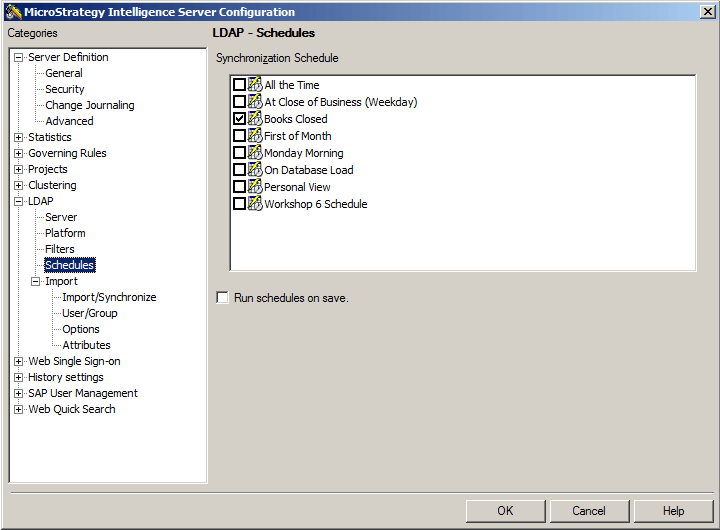
5) Run the schedule to perform the batch import.
Refer to the following Strategy Knowledge Base articles for further reading on the topic of LDAP Batch Import:
KB44679: When importing LDAP users into the metadata, the user can only import a max of 1000 LDAP users at once in MicroStrategy 9.x
KB43194: After unintentionally performing a batch import or any other import method which has imported a large number of users into the MicroStrategy environment, what methods can be used to revert the changes?
