EducationSoftwareStrategy.com
StrategyCommunity

Knowledge Base

Product

Community

Knowledge Base

TopicsBrowse ArticlesDeveloper Zone

Product

Download SoftwareProduct DocumentationSecurity Hub

Education

Tutorial VideosSolution GalleryEducation courses

Community

GuidelinesGrandmastersEvents
x_social-icon_white.svglinkedin_social-icon_white.svg
Strategy logoCommunity

© Strategy Inc. All Rights Reserved.

LegalTerms of UsePrivacy Policy
  1. Home
  2. Topics

KB218565: How to mimic a grid with images as an attribute form in MicroStrategy Web


Community Admin

• Strategy


How to mimic a grid with images as an attribute form in MicroStrategy Web

Symptom

In Strategy Web, it is possible to define images as attributes through either of the following approaches:
1. Create a "Picture" type attribute form with image URL;
2. Create a "HTML tag" type attribute form with <img> HTML tag.
 
Either way, there are some known issues. For "Picture" type, it is not possible to define the image size on-fly as described in KB218564 . For HTML tag type, export to PDF is not possible as described in KB47039 .
 
It is not possible to have the images re-sizable and export to PDF in documents.
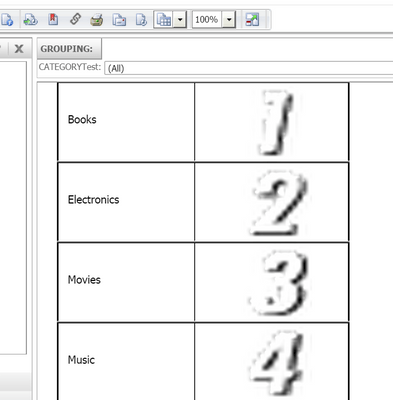
One workaround is use image object together with group-by attribute to mimic a grid with the image as attribute form.
 

Steps to reproduce

Follow below steps to reproduce with Strategy Tutorial project:
  • Create a report with Category attribute in Strategy Tutorial;
  • Create a Report Service document based on report created in step1;
  • In Report Service document, place attribute Category in grouping area;
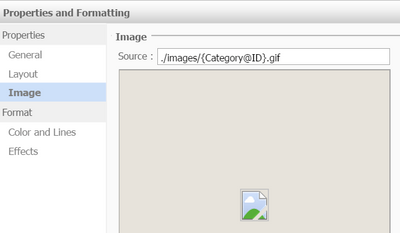
  • In the newly appeared Category Header, insert dynamic text {Category@DESC}
  • Insert image object with desired size and define it with dynamic text, as shown below:
ka04W00000148wnQAA_0EM4400000025nV.jpeg
  • Insert Line object to mimic the grid boarder;
  • Right mouse click on empty space of Category Header section, choose "Properties and Formatting", check "Height can shrink";
  • Right mouse click on grouping attribute, choose "Grouping properties", in "Page by Mode" drop box, select "No page-by (All Only)";
  • Run document in DHTML mode or Flash mode, it displays similarly as a grid with an image attribute form and the images display correctly when export to PDF.
ka04W00000148wnQAA_0EM4400000025nT.jpeg

Comment

0 comments

Details

Knowledge Article

Published:

April 7, 2017

Last Updated:

April 7, 2017