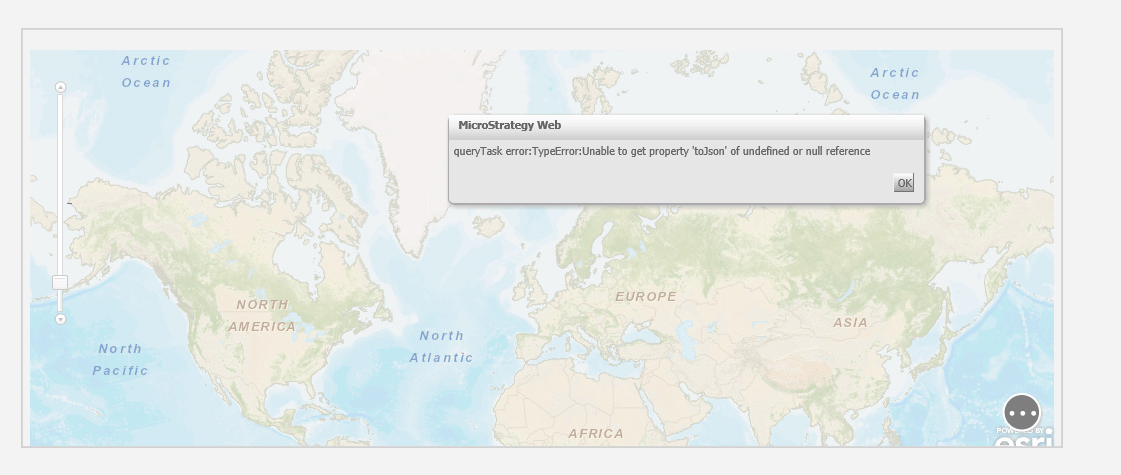
In Strategy Web, an ESRI map widget may return an error regarding ‘Unable to get property ‘toJson’ of undefined or null reference’. This error will be seen when a Strategy Attribute is mapped incorrectly to an ESRI GEO-Attribute. The current action is to alter the mappings so the Strategy Attribute data correctly mirrors the ESRI GEO-Attribute Data.
When running a document in Strategy Web, developers may receive an error stating the following: Unable to get property ‘toJson’ of undefined or null reference
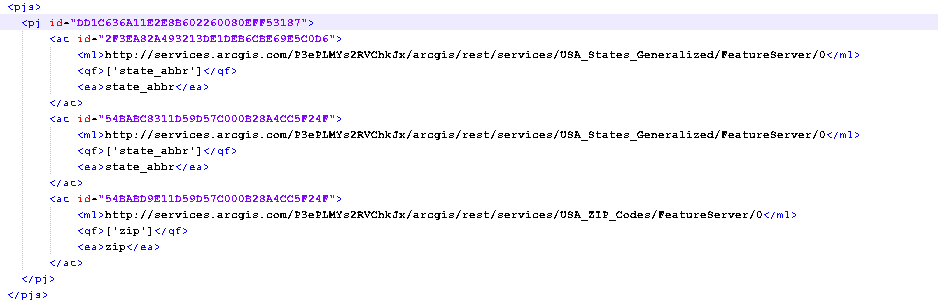
1) In the ESRIConfig.xml file, map the Strategy Attribute to ESRI Geo-Attribute with non-similar data such as Zipcode to State Abbrevation.
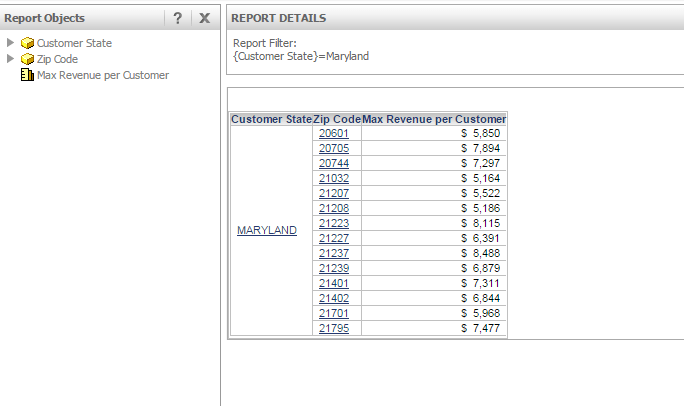
2) Create a report that contains the Strategy Attribute in Step 1.
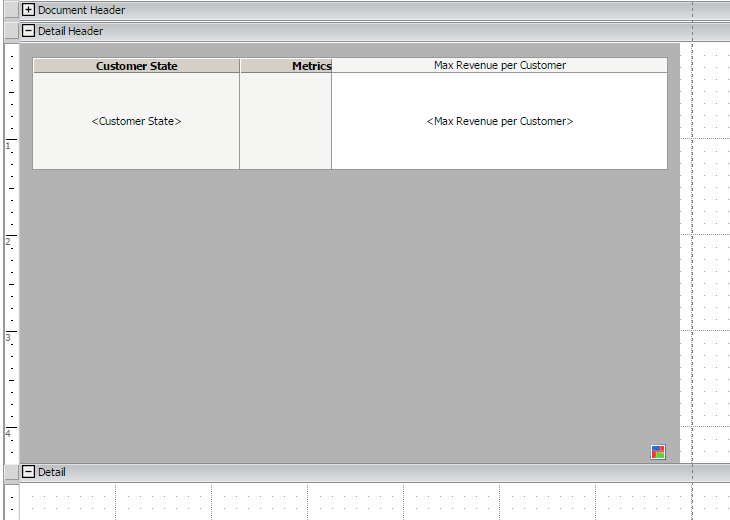
3) Create a document based on that report.
4) Setup the ESRI map widget to be ran in DHTML mode.
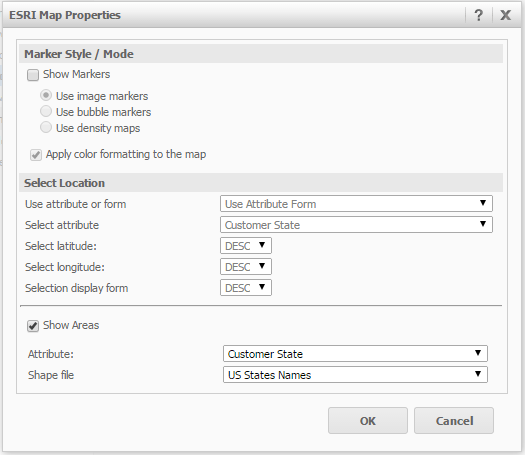
5) Run Document in Express mode to show ESRI Widget.
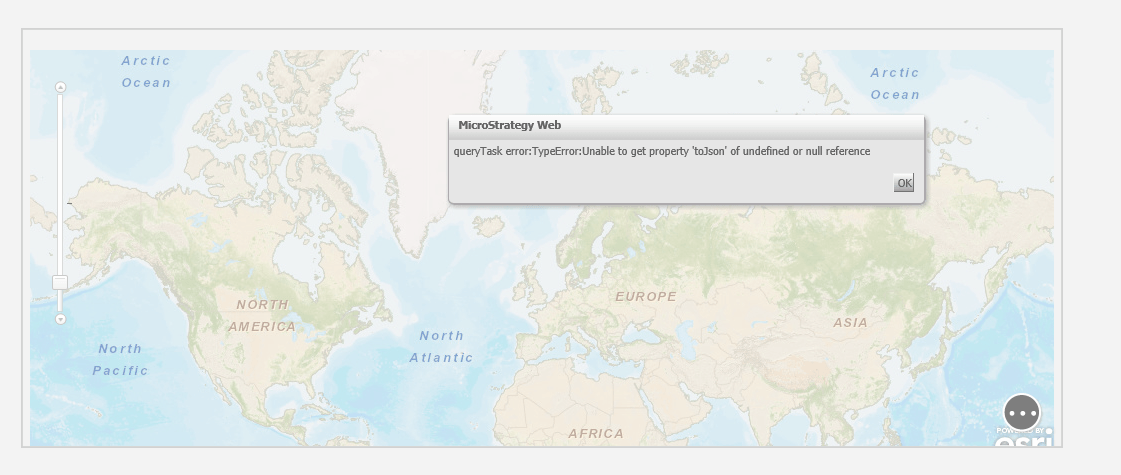
This issue has been found due to a configuration related issue where the Strategy Attribute is not mapped correctly to the ESRI Geo-Attribute resulting in Attribute Element values not matching type between attributes. The attribute’s data do not match as expected, resulting in the error being seen.
To resolve this issue, a developer should alter the Strategy attribute mapping to the ESRI Geo-Attribute mappings so the data being returned by the Strategy Attribute matches that of the ESRI Geo-Attribute. This can be done by running the base report and comparing the data returned against that of the ESRI Server.
To do this, the URL used for the Map Layer should be obtained from the ESRIConfig file.
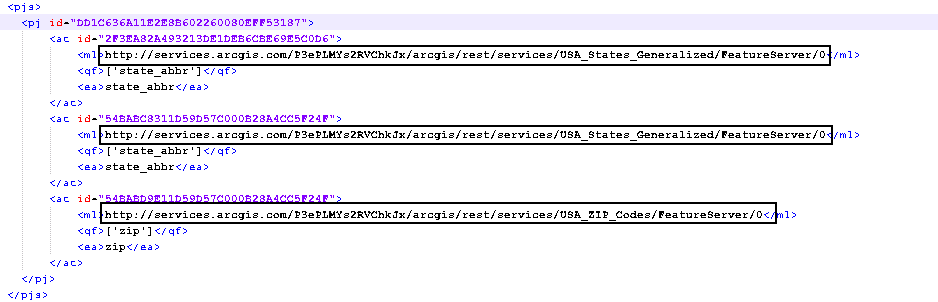
That URL should be used in a Web Browser. This will take the developer to an ESRI hosted site that will give an option to view the data in grid format. For more details regarding how to get the correct Name Conventions for ESRI, refer to below Technical Note:
KB210826 How to determine the ESRI name conventions when plotting maps with areas in an ESRI Widget in MicroStrategy Web
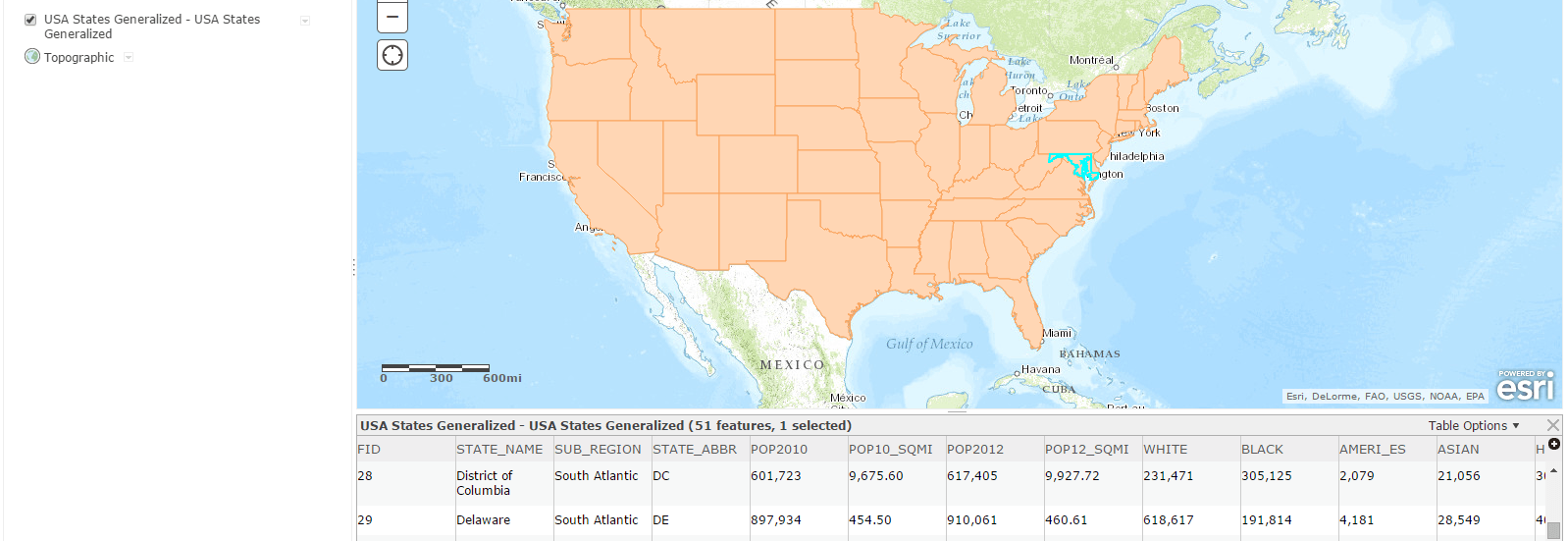
A developer can then run the base report and view the data returned from Strategy versus the ESRI Map server data.
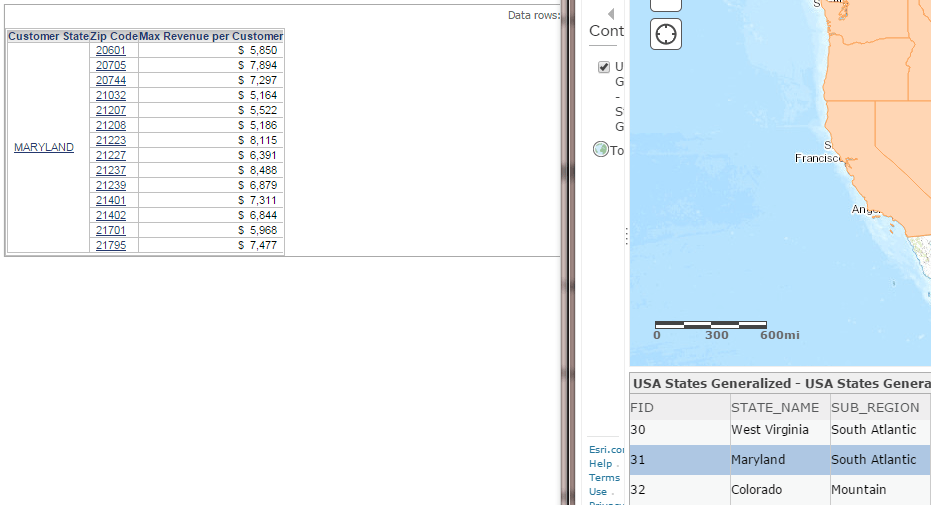
Once the correct column is identified that matches the data, the ESRIConfig.xml file should be updated correctly and the Web Application Server restarted.
If the above actions do not resolve the issue, the following should be provided when contacting MicroStrategy Technical Support:
1) Screenshot of error.
2) ESRIConfig.xml file from Deployed Web Application.
3) Fiddler Trace when executing report. Please see KB20064 regarding information on Fiddler.
For more information regarding the ESRI Geo-Attribute mappings and the ESRIConfig.xml file, please see the Setup section under either ‘ESRI custom cloud-based map integration’ or ‘ESRI on-premises map integration’ in the ‘GIS Integration Help’ located in the Product Manuals.
KB233002
