EducationSoftwareStrategy.com
StrategyCommunity

Knowledge Base

Product

Community

Knowledge Base

TopicsBrowse ArticlesDeveloper Zone

Product

Download SoftwareProduct DocumentationSecurity Hub

Education

Tutorial VideosSolution GalleryEducation courses

Community

GuidelinesGrandmastersEvents
x_social-icon_white.svglinkedin_social-icon_white.svg
Strategy logoCommunity

© Strategy Inc. All Rights Reserved.

LegalTerms of UsePrivacy Policy
  1. Home
  2. Topics

KB307046: How to use Fiddler to troubleshoot connectivity issues for HTTPS traffic on Mobile devices


Tianfeng (Jimmy) Jiang

Quality Engineer, Principal • MicroStrategy


This Knowledge Base article describes how to use Fiddler to troubleshoot connectivity issues for HTTPS traffic on Mobile devices

Fiddler is a free tool that supports debugging HTTP(S) traffic and monitoring incoming and outgoing network traffic. 
Check more information on Fiddler from KB20064: How to install and use Fiddler for MicroStrategy Web troubleshooting.
 
To capture HTTP traffic from mobile app,
for ios device, refer to KB307046: How to use Fiddler to troubleshoot connectivity issues for HTTPS traffic on Mobile devices;
for Android device, refer to KB44336: How to use Fiddler along with Proxydroid to troubleshoot connectivity issues on Android devices.
 
To capture HTTPS traffic from mobile app, more steps need to be performed.
Below is the step-by-step guidance:
  • Install the fiddler tool in client machine. (It needs to be in the same network/wifi with your mobile device). Get the tool from https://www.telerik.com/download/fiddler
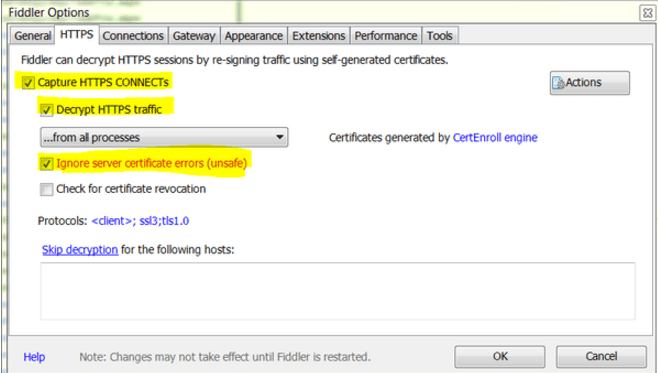
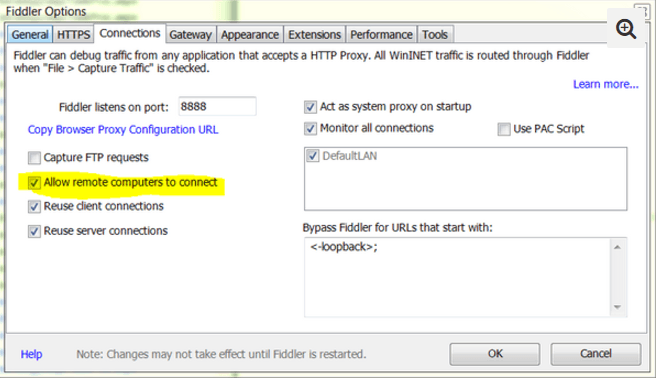
  • Open it. Go to Tools-Fiddler options. Set as below:
    HTTPS tab>>this allows fiddler to capture HTTPS requests.
     
ka04W000001IqzTQAS_0EM440000002MjN.png
  • Connections tab>>This allows fiddler to capture the request from your mobile device.
ka04W000001IqzTQAS_0EM440000002MjX.png
  • On device, do below to allow the HTTPS capture depending on the device you using:
    For ios, refer to “Decrypt HTTPS Traffic from iOS Devices” part in
    http://docs.telerik.com/fiddler/Configure-Fiddler/Tasks/ConfigureForiOS
    For android, refer to “Decrypt HTTPS” part in
    http://docs.telerik.com/fiddler/Configure-Fiddler/Tasks/ConfigureForAndroid
  • Configure the HTTP proxy in wifi settings.
    For ios, refer to “Set the iOS Device Proxy” part in
    http://docs.telerik.com/fiddler/Configure-Fiddler/Tasks/ConfigureForiOS
    For android, refer to “ Configure Nexus Device” part in
    http://docs.telerik.com/fiddler/Configure-Fiddler/Tasks/ConfigureForAndroid
    Note that, the ip for server(ios) or proxy hostname(android) is the client machine’s ip where you installed fiddler in Step1.

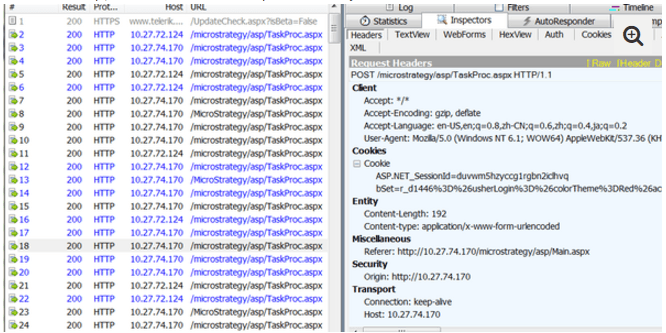
After the setup, it would record the requests one-by-one as shown below:
ka04W000001IqzTQAS_0EM440000002MkL.png

Reproduce the error in mobile device. Select all records and right click to save selected sessions as ArchiveZIP. KB307046


Comment

0 comments

Details

Knowledge Article

Published:

May 25, 2017

Last Updated:

December 6, 2018