BACKGROUND
In Strategy 10.x, Enterprise Manager was redesigned to improve the statistics logging and data load process and add support for non-Windows operating systems. The Enterprise Manager console has been completely replaced by a new Enterprise Manager Data Loader Service which is controlled via the familiar Command Manager tool. This technical note will provide a step-by-step process to set up and administer the new Enterprise Manager system.
IMPORTANT CONSIDERATIONS
The complete Enterprise Manager system involves one or more Strategy Intelligence Server environments, a Statistics and Enterprise Manager warehouse database, and an Enterprise Manager Data Loader Service. It is critical that only a single Data Loader service is configured for any given Enterprise Manager warehouse. Configuring multiple Data Loader services to the same Enterprise Manager warehouse will result in unexpected behavior and potential data loss.
The Statistics and Enterprise Manager Repository should be in a database that is separate from your production data warehouse and Strategy metadata.
Also, as with Enterprise Manager 9.x, in version 10.x it is possible to store statistical data from multiple Strategy Intelligence Server environments in the same Statistics and Enterprise Manager warehouse. Some issues can arise with the Enterprise Manager reporting if statistics are being logged into a single warehouse from more than one environment that contains a project with the same GUID (this situation can occur if the project has been duplicated from one metadata to another). In this case, it is strongly recommended to use a separate Enterprise Manager warehouse for each environment that contains the same project GUID in order to avoid these issues.
While an upgrade path is provided to convert an existing Enterprise Manager 9.x warehouse into an Enterprise Manager 10.x warehouse, many difficulties can arise when doing so due to the major differences between the Enterprise Manager 9.x and 10.x architecture. Strategy strongly recommends that customers not try to upgrade Enterprise Manager 9.x warehouses to version 10.x. Instead, it is recommended to retain the existing EM 9.x warehouse and project for historical reporting, and create a new EM 10.x warehouse and project for reporting on current and future data. For more details and a complete step-by-step walkthrough of this process, refer to KB309808: How to create a new Enterprise Manager 10.x warehouse and project while retaining an existing 9.x warehouse and project. The remainder of this technical note will assume that there is not an existing 9.x EM warehouse and project in the environment.
INSTALLATION
When installing Strategy 10.x software, Enterprise Manager will appear in the component selection screen. Selecting the Strategy Enterprise Manager component for installation will result in the Enterprise Manager Data Loader Service being installed on the machine along with Strategy Command Manager. The Data Loader service may be installed on any Strategy-supported operating system, removing the previous limitation restricting it to Windows only. While the service may be installed on the same machine as the Strategy Intelligence Server, there is no requirement to do so and it may be installed on a different machine instead. Again, ensure that only one Data Loader service is installed per Enterprise Manager system.
INITIAL SETUP
Once the Enterprise Manager Data Loader Service has been installed on a machine, a Statistics and Enterprise Manager warehouse will need to be created. In Strategy 10.x, the statistics tables and warehouse creation process is all handled by Configuration Wizard via the Create Metadata, History List and Enterprise Manager Repositories option.
In order to use the provided Strategy Enterprise Manager reports and documents, the Enterprise Manager project must be created in a Metadata. Strategy 10.x no longer provides the option to create the Enterprise Manager project into a 2-tier project source. To create the Enterprise Manager project, run Configuration Wizard on the Strategy Intelligence Server machine that uses the Metadata where the project should be created, and select the Create Enterprise Manager project option. Enter the credentials for the Administrator account on the local Intelligence Server, and then enter the DSN and login credentials for the newly created Statistics and Enterprise Manager warehouse. This process will create the Enterprise Manager project and automatically configure it to use the newly created Statistics and Enterprise Manager warehouse as its primary warehouse database instance.
SERVICE CONFIGURATION
After the warehouse creation is completed, the Data Loader service will need to be configured to point to the warehouse. If the warehouse creation was performed on the same machine as where the Data Loader service was installed, this step will be performed automatically by Configuration Wizard at the end of the warehouse creation process. Otherwise it will need to be performed manually via Service Manager on the machine where the Data Loader service is installed.
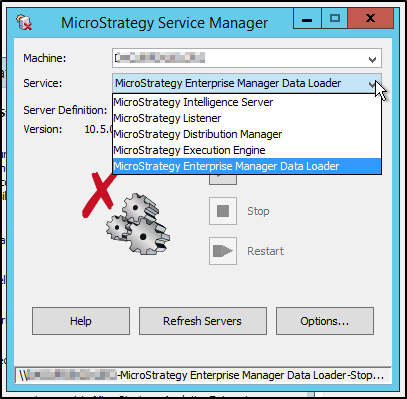
In Service Manager, select the Strategy Enterprise Manager Data Loader from the drop-down menu:
Then select Options...:
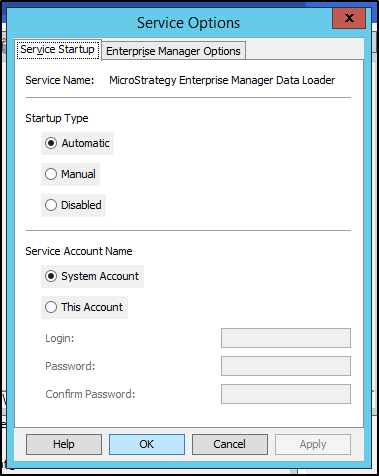
If any change needs to be made to the account that the Data Loader service runs under, it can be done on this screen. Then, select the Enterprise Manager Options tab:
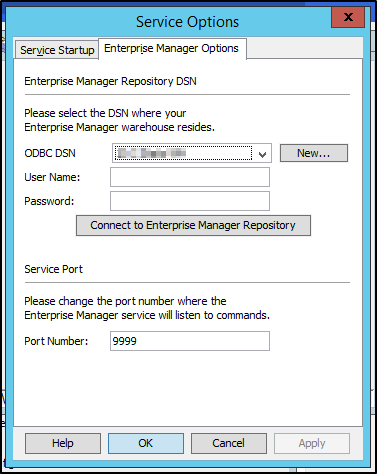
Configure the Data Loader service to use the DSN for the newly created Statistics and Enterprise Manager warehouse. If the DSN does not exist yet on this machine, select New... to create it now. After entering the login credentials, test the connection using the Connect to Enterprise Manager Repository button.
If any change needs to be made to the port where the Data Loader service is listening, users should change it here. Once the configuration is complete, start the Data Loader service.
STATISTICS CONFIGURATION
In order to log statistics from the Strategy Intelligence Server, statistics will need to be enabled and configured on the desired projects. This process can be streamlined via the Configure Intelligence Server option in Configuration Wizard. After stepping through most of the configuration process, a new dialog has been added for Statistics Configuration:
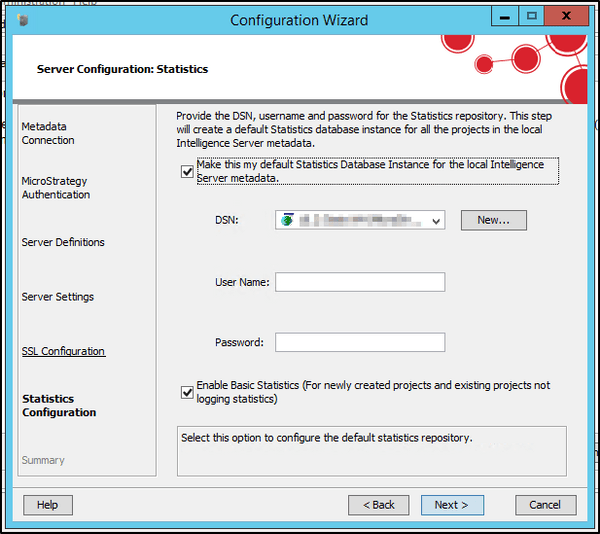
Enter the DSN and login credentials for the Statistics and Enterprise Manager warehouse. Checking the two options here will automatically enable basic statistics for all projects and set the statistics database instance to the Statistics and Enterprise Manager warehouse specified here. Statistics can also be configured manually through Project Configuration in Strategy Developer if desired.
DATA LOAD CONFIGURATION
Command Manager will be used to configure the Enterprise Manager data load(s). It is important to run Command Manager from the same machine where the Enterprise Manager Data Loader service is installed to ensure that no DNS or network problems will prevent Command Manager from communicating with the Data Loader service. A full guide and reference for the Command Manager commands used to configure Enterprise Manager data loads can be found in the PDF document attached to KB273206: Best practices for configuration of MicroStrategy Enterprise Manager 10.x.
A quick example of the minimum necessary configuration to run a data load is provided below:
1. Run Command Manager and create a Connection-less Session (EM configuration does not require to log in to a Project Source).
2. Connect the Enterprise Manager Data Loader service to the Strategy Intelligence Server that logs statistics to be monitored (if using clustered Intelligence Servers, just pick one of them):
START MONITORING SERVER "servername" IN PORT 34952 USING USERNAME "administrator" PASSWORD "password" FOR ENTERPRISE MANAGER "localhost" IN PORT 9999;
CREATE DATA LOAD "daily @ 8AM" FOR ENVIRONMENT "servername" AND PROJECT "Strategy Tutorial" DO ACTION UPDATEWAREHOUSE BEGIN DATE "1/1/2016 00:00:00 +0000" FREQUENCY WEEKLY ON MONDAY TUESDAY WEDNESDAY THURSDAY FRIDAY AT 08:00:00 ENABLED IN ENTERPRISE MANAGER "localhost" IN PORT 9999;
EXECUTE DATA LOAD "daily @ 8AM" IN ENTERPRISE MANAGER "localhost" IN PORT 9999;
LIST PROPERTIES FOR CURRENT DATA LOAD IN ENTERPRISE MANAGER "localhost" IN PORT 9999;
Data Load name =
Progress =
Start Date =
End Date =
Steps =
LIST PROPERTIES FOR LAST DATA LOAD IN ENTERPRISE MANAGER "localhost" IN PORT 9999;
Data Load name =
Progress =
Start Date =
End Date =
Steps =
