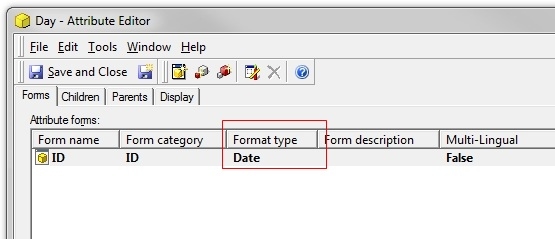
When an attribute that is defined with Format-type of Date, as shown below:
is added to a grid in a report or document, its default format, seen when right-clicking on the attribute > Advanced formatting > Number will not be Date, but Default instead, like shown below:
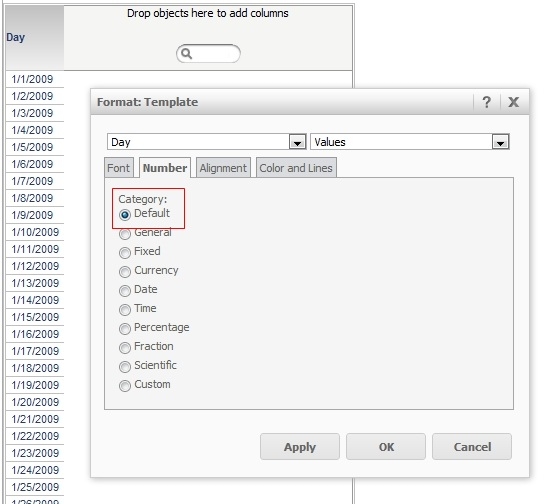
With these two options, Strategy Web and exports to Excel will work correctly; the attribute appears formatted as date in Strategy Web and as date type in Excel.
However for Strategy Office, there will be different behaviors if this Format type is changed between Default and Date on the interface shown above and if the Strategy Office setting under General > Grid > Formatting: Apply date/time cell formatting semantics to date/time values is enabled or disabled.
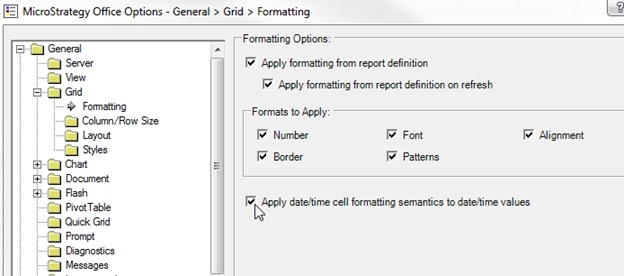
If an attribute is defined in the schema as having the Date format-type but the Number formatting of the attribute is not explicitly set to a type of "Date" and left at "Default" at the report level, and Strategy Office is configured with Apply date/time cell formatting semantics to date/time values enabled, then Strategy Office will not treat this as a date. The result is the attribute appears as a formula, like shown below:
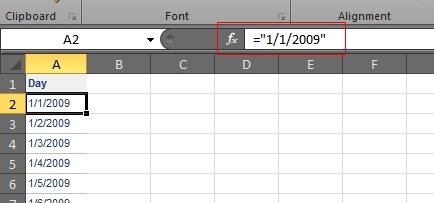
Strategy Office needs to convert the raw date value string in the report XML to a .NET date value to send it to Excel for formatting. Without an explicit format string it's not possible to do the conversion. To fix this in Excel, refer to tech note KB39357: How to convert date data in text format to date format in Excel after being exported from MicroStrategy Web 9.x for more information. Otherwise, the report level formatting must be set to Date. Refer to point 4 for more information.
If an attribute is defined in the schema as having the Date format-type but the Number formatting of the attribute is not explicitly set to a type of "Date" and left at "Default" at the report level, and Strategy Office is configured with Apply date/time cell formatting semantics to date/time values disabled, then Strategy Office will not treat this as a date. The result is the attribute appears as a string, like shown below:
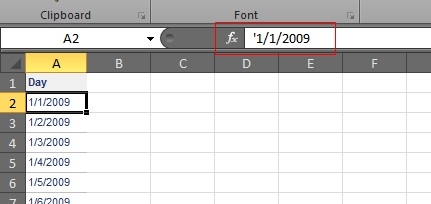
This is done in order to preserve the formatting of an attribute and to not convert it into any other particular data type. The result is the attribute appears as text with a single apostrophe preceding it. To fix this in Excel, refer to the action on KB442375: ‘Replace Text’ option in thresholds will cause exported cells in Microsoft Excel appear formatted as text even when the used value is a number in MicroStrategy Developer and Web; now the cell can be formatted as date directly in Excel. Otherwise, the report level formatting must be set to Date.
Refer to point 4 for more information.
If an attribute is defined in the schema as having the Date format-type and the Number formatting of the attribute is explicitly set to a type of "Date" at the report level, and Strategy Office is configured with Apply date/time cell formatting semantics to date/time values disabled, then Strategy Office will not treat this as a date. The result is also that the attribute appears as a string, like shown below:
This is done in order to preserve the formatting of an attribute and to not convert it into any other particular data type. The result is the attribute appears as text with a single apostrophe preceding it. To fix this in Excel, refer the action in KB442375: ‘Replace Text’ option in thresholds will cause exported cells in Microsoft Excel appear formatted as text even when the used value is a number in MicroStrategy Developer and Web; now the cell can be formatted as date directly in Excel. Otherwise, the report level formatting must be set to Date. Refer to point 4 for more information.
If an attribute is defined in the schema as having the Date format-type and the Number formatting of the attribute is explicitly set to a type of "Date" at the report level, and Strategy Office is configured with Apply date/time cell formatting semantics to date/time values enabled, then Strategy Office will treat this as a date. Refer to tech note KB39955: Date value formatting is changed to text in Excel 2007 when report is executed in MicroStrategy Office 9.x for more information.
KB41220
