SYMPTOM:
After Intelligence Server successful activation, user reboots the machine and finds that the Intelligence Server has lost its activation.
Activation of the Intelligence Server on License Manager completes without errors, and before the reboot Desktop and Web can be accessed without warning messages. However, upon reboot, the server is deactivated.
When connecting to Strategy Desktop, user obtains the following warning message.
Sample Code/Error
"Strategy Desktop: Strategy's server product require activation within 5 calendar days of installation. At least one server product has not yet been activated after installation and/or upgrade. These product(s) will remain functional for another 5 days after which they will not restart. Please activate these products using License Manager or visit the Activation web site at
User has checked and followed the notes below without success:
KB14333: "What are the circumstances under which Strategy Server Activation is required?"
KB19094: "Automatic Deactivation of Strategy Intelligence Server installation occurs every time after a machine reboot"
TROUBLESHOOTING STEPS
If the workaround on technical note KB19094, manually starting the Intelligence Server after reboot, does not solve the issue, then you can enable the activation trace for more information.
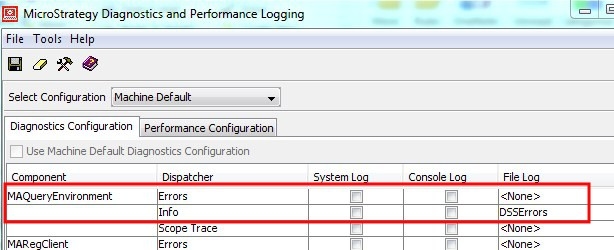
As discussed on that note, the Intelligence Server will check the identity of the machine by checking the Network Adapter MAC address. The MAQueryEnvironment -> Info trace provides more information about the interface that is been used and the identity check process.
To activate the trace, go to the Diagnostics Configuration tool, and set a file location to where the trace information will be written to for the Info dispatcher and MAQueryEnvironment component .
After the trace has been activated, perform the License Activation of the Intelligence Server on License Manager again. Then restart the Intelligence Server.
Check the file mstr.hist. This file should contain an entry for the latest activation of the form
Sample Code/Error
ContractId=XXXXX
CDKey=xxxxxxxxxxxxxxxxxxxxxxxxxxxxxxxxxxxxxxxxxxxxxxxxxxx
LicenseType=Modular
Time=8:26:42
Date=2011-02-09
LicenseKeyIssueDate=27/01/11
SLAId=xx
Source=License Manager
Type=Activation
State=Activated
ActivationCode=xxxxxxxxxxxxxxxxxxxxxxxxxxxxxxxxxxxxxxxxxxx
Check the activation time, on this case, 8:26:42.
Then check the activation trace, around the time where the activation was performed, you should see a message like the following
Sample Code/Error
MAQueryEnvironment] Discarding adapter "MS TCP Loopback interface"
2011-02-09 08:26:42.578+01:00 Testing MAC address 00:ff:d8:0a:ae:8a, as hash 78f0a71de83d3ad
2011-02-09 08:26:42.609+01:00 Leave 'MatchHashedMacAddressWithIPHelper' near .\PrivateSource\Windows\MacAddressImpl.cpp(308)
2011-02-09 08:26:42.640+01:00 Leave 'CheckUniqueHostIdentifier' near .\PrivateSource\Windows\OsQuery.cpp(177)
These lines indicate that Network Interface Card (NIC) with MAC address 00:ff:d8:0a:ae:8a and hash 78f0a71de83d3ad was chosen by the Intelligence Server to perform the identification.
In this case the NIC selected corresponds to a Virtual Network Adapter, in this particular case it corresponds to a "Juniper Network Connect Virtual Adapter".
Then reboot the server. Check the activation trace and look for MAQueryEnvironment entries around the time the server is restarting. You should see entries like the following:
Sample Code/Error
2011-02-09 08:40:19.140+01:00 Enter 'CheckUniqueHostIdentifier' near .\PrivateSource\Windows\OsQuery.cpp(177)
2011-02-09 08:40:19.312+01:00 Enter 'MatchHashedMacAddressWithIPHelper' near .\PrivateSource\Windows\MacAddressImpl.cpp(308)
2011-02-09 08:40:19.343+01:00 Adapter "Juniper Network Connect Virtual Adapter": 00:ff:98:9c:ae:8a
...
Info] Discarding adapter "MS TCP Loopback interface"
2011-02-09 08:40:19.625+01:00 Testing MAC address 00:ff:98:9c:ae:8a, as hash f0b7d171aa13bc4
2011-02-09 08:40:19.656+01:00 Testing MAC address 1c:65:9d:fd:2d:a4, as hash e4ea57f458e1368
2011-02-09 08:40:19.750+01:00 Testing MAC address 5c:26:0a:35:93:d5, as hash bf68d98c5c9da43
2011-02-09 08:40:19.781+01:00 Testing MAC address 00:50:56:c0:00:01, as hash ed376989fd542c3
2011-02-09 08:40:19.812+01:00 Testing MAC address 00:50:56:c0:00:08, as hash d8f2d61f34523a4
2011-02-09 08:40:19.843+01:00 Leave 'MatchHashedMacAddressWithIPHelper' near .\PrivateSource\Windows\MacAddressImpl.cpp(308)
2011-02-09 08:40:19.875+01:00 Leave 'CheckUniqueHostIdentifier' near .\PrivateSource\Windows\OsQuery.cpp(177)
2011-02-09 08:41:02.296+01:00 Server is checking License Activation.
2011-02-09 08:41:02.343+01:00 License checking for activation failed: NOT activated, 5 days left
Notice now that the MAC address for the Juniper network adapter is not the same. The hash for this MAC address is then different and the Intelligence Server fails to recognize the server.
CAUSE:
Intelligence Server uses the NIC MAC address to identify the machine at startup. When there are several network adapters on the machine, Intelligence Server will choose the first one available, which can be a Virtual Network Adapter. Virtual Network Adapters MAC address might change, which prevents the Intelligence Server to identify the machine correctly, which results on deactivation of the installation.
ACTION:
Disable the virtual network adapters, and activate the server installation again. This will force the activation to choose the physical machine address to identify the server. Then perform a reboot of the machine and enable the network adapters again.
To disable virtual adapters follow the steps below
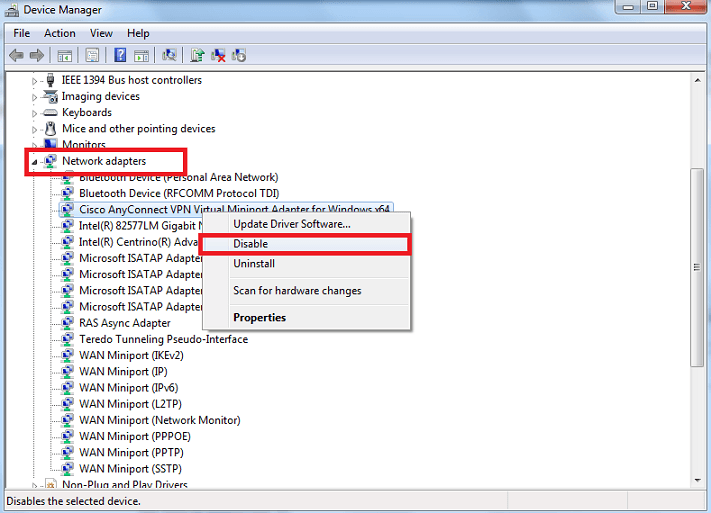
Perform the Intelligence Server activation again on License Manager, then reboot the machine.
Verify that the server installation is still active.
Reenable the Virtual Network adapters on the Device Manager.
REFERENCES
KB14333: "What are the circumstances under which Strategy Server Activation is required?"
KB19413 "Server activation does not take effect in Strategy 8.1.2 and 9.x on Windows Vista or Windows Server 2008 despite the fact that activation is performed successfully on the machine"
KB19094: "Automatic Deactivation of Strategy Intelligence Server installation occurs every time after a machine reboot"
Third Party Software Installation:
WARNING:
The third-party product(s) discussed in this technical note is manufactured by vendors independent of Strategy. Strategy makes no warranty, express, implied or otherwise, regarding this product, including its performance or reliability.
KB422365
