SUMMARY:
This Technote describes how to create a Real Time Analysis using XQuery and a JSON-REST Web Service against Cassandra in Strategy 9.4.1. This will allow developers to create reports that update automatically from an Apache Cassandra database using a JSON-REST Web Service.
PREREQUISITES:
This prerequisites for this Technical Note are that an Web Service utilizing JSON-REST has been setup and is currently able to be connected from external source.
Step to Create an XQuery against the JSON-REST Web Service:
1) Determine URL that will be used for XQuery. In our test scenarios we used the following:
a. http://<Web Host>/services/D3TestData/GetAllFeed001S001Dataz
2) Create new XQuery via XQuery Tool.

3) Change source type to ‘REST-JSON’ and ‘Connectivity’ to ‘HTTP URL and Method’ as shown below:

4) Placed URL string in the appropriate section and proceed to ‘Response Definition’
5) Alter the ‘JSON Options’ to ‘json:parse’ and capture response.
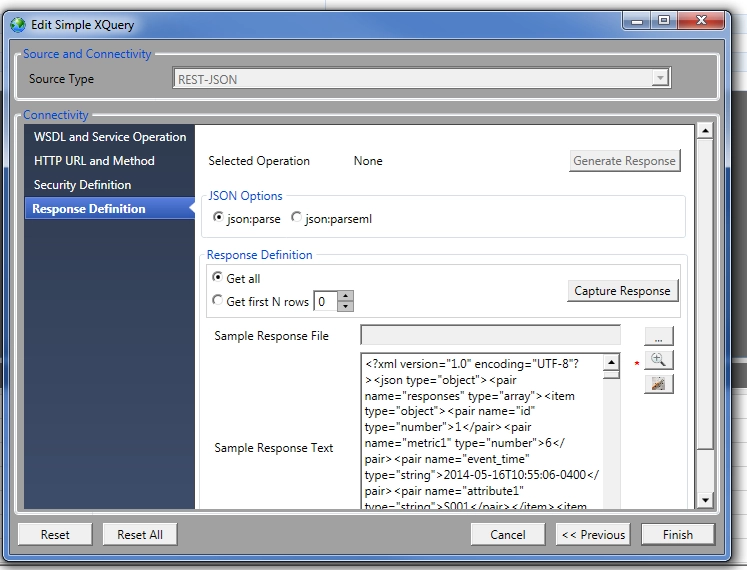
6) From here select ‘Finish’. This will take you to the main screen that will allow the mapping of the attributes.
7) In our case we used four values: ‘ID’,’Metric1’,’Event_Time’,’Attribute1’. These items needed to be brought in the ‘Columns’ by Right Clicking on the appropriate value on the right and selecting “Add JSON pair to column specification”. This will allow you to map the value to the appropriate object.

8) You will also need to map the parent nodes of the objects. In our case, this was pair (name=”responses”…) and item (type = “object”).
9) Once importing all the columns is finished, you will need to alter the ‘Target type’ of the each of the objects columns to have the appropriate datatype. This can be done by altering the
‘Target type’ in the ‘Properties’ tab for each object.
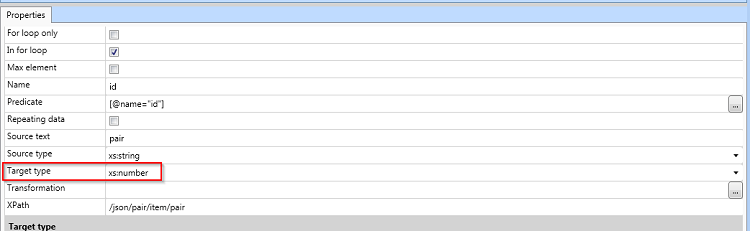
10) Once the object types have been altered, you will want to verify that the parent nodes have the option ‘For loop only’ selected. For the parent most node, you will want to also set the ‘Predicate’ value to match the ‘name’ value shown.
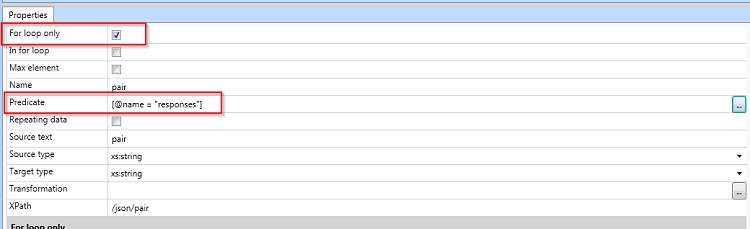
In our test, ‘responses’ is the name of our ‘pair’ node. This value can be set by setting the ‘For loop only’ and selecting the button to far right of the ‘Predicate’ value. This will launch the following screen:
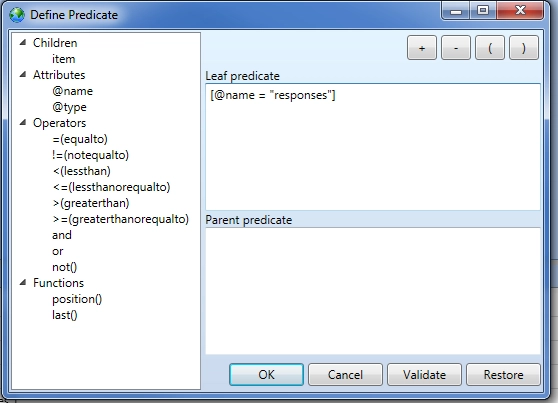
11) Once the ‘Leaf predicate’ is populated correct, press ‘Validate’ to proceed.
12) From here you can generate the XQuery needed as well as execute the query to test for results using the ‘Generate’ and ‘Execute’ buttons on the toolbar. You should see something like the following:
<Table>
  <ColumnHeaders>
  <ColumnHeader name="id" type="xs:string" />
  <ColumnHeader name="metric1" type="xs:string" />
  <ColumnHeader name="event_time" type="xs:string" />
  <ColumnHeader name="attribute1" type="xs:string" />
   </ColumnHeaders>
  <Data>
    <Row>
      <id>1</id>
      <metric1>168</metric1>
      <event_time>2014-05-16T11:46:08-0400</event_time>
      <attribute1>S001</attribute1>
      </Row>
  </Data>
</Table>
15) Once at the Editor screen, you will copy the entire XQuery contents in the top section and map your attributes and metrics as wanted. Please note that the attribute/metrics need to be in the exact order as they are defined in the XQuery.
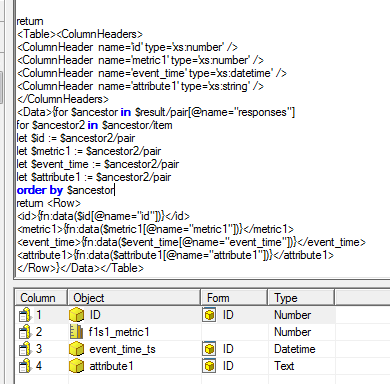
16) Once this is completed, if the report runs successfully and brings back the correct data, it can now be used as the basis for datasets for other documents in Strategy.
Steps to create an automatically updating document in Strategy Web 9.4.1:
17) Once you have created a document based on your dataset, go to the 'Tools' menu and select 'Document Properties'.
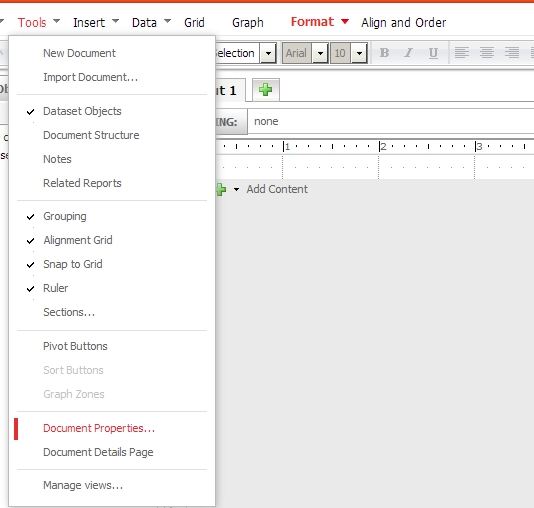
18) Once in that menu, you will want to select 'Advanced' and you will see the option to enable 'Refresh'.

FOR MORE INFORMATION:
For more information on using XQuery, please see the chapter in the Strategy Advanced Reporting Guide regarding 'Reporting on third-party web services with XQuery.'
For more information regarding creating Documents and Dashboards, please see the Report Services Document Creationg Guide.For related information, please see the following Technotes:
KB45185: Using XQuery to retrieve data from MongoDB
KB38308: How to connect to Salesforce using XQuery reports in MicroStrategy 9.2.x and aboveKB44872: "HTTP error encountered while trying to access a REST service. " error message appears while running XQuery report in MicroStrategy Developer 9.x
Third Party Software Installation WARNING
The third-party product(s) discussed in this technical note is manufactured by vendors independent of Strategy. Strategy makes no warranty.
KB423164
