EducationSoftwareStrategy.com
StrategyCommunity

Knowledge Base

Product

Community

Knowledge Base

TopicsBrowse ArticlesDeveloper Zone

Product

Download SoftwareProduct DocumentationSecurity Hub

Education

Tutorial VideosSolution GalleryEducation courses

Community

GuidelinesGrandmastersEvents
x_social-icon_white.svglinkedin_social-icon_white.svg
Strategy logoCommunity

© Strategy Inc. All Rights Reserved.

LegalTerms of UsePrivacy Policy
  1. Home
  2. Topics

KB42438: How to calculate a metric based on the previous two values of another metric in MicroStrategy Developer 9.4.x-10.x


Stefan Zepeda

Salesforce Solutions Architect • Strategy


This article describes how to calculate a metric based on the previous two values of another metric in MicroStrategy Developer 9.4.x-10.x

 
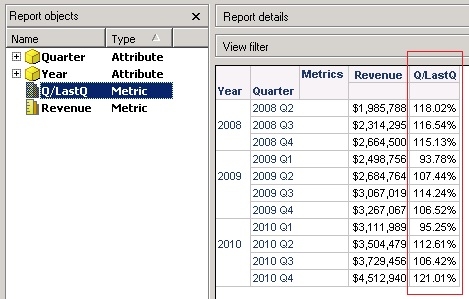
In some business scenarios, it is required to create a metric and calculate the values based on the previous two values of another metric. The metric was used as an example to calculate  / . The metric may be expected to be displayed as shown below:
ka04W000001Ir51QAC_0EM440000002Cxk.jpeg

 
NOTE: When the outer join is not enabled, of '2008 Q1' has a null value. Hence this row will not be displayed.
 
For the steps below to achieve the requirement in two different approaches:
Approach 1: Transformation
In Strategy Desktop, create a Transformation schema object.
NOTE: Two ways to create a transformation object:
  • Using a new column pointing to the previous ID in the LU table
  • KB9221: How to create Last Month Transformation in MicroStrategy Developer 9.4.x-10.x?
  • Based on the ID column in the LU table to calculate the previous ID:
  • KB4374: Are transformation tables needed to create transformation attributes/metrics in MicroStrategy 9.4.x-10.x?
  • Update Schema.
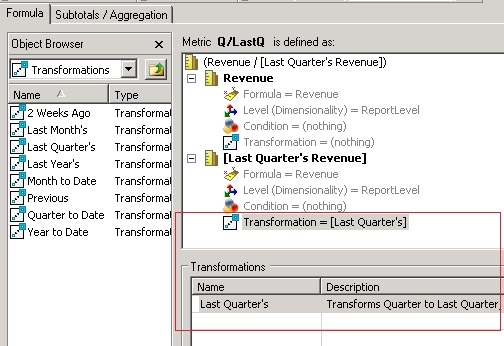
  • Create a metric and use the transformation created in the previous steps, as shown below:
ka04W000001Ir51QAC_0EM440000002Cxe.jpeg
  • Sample Code/Error

    (Revenue / )


  • Create the metric to calculate / . The values of the metric are shown in the screenshot at the top of this Technical Note.

 
Approach 2: MovingSum

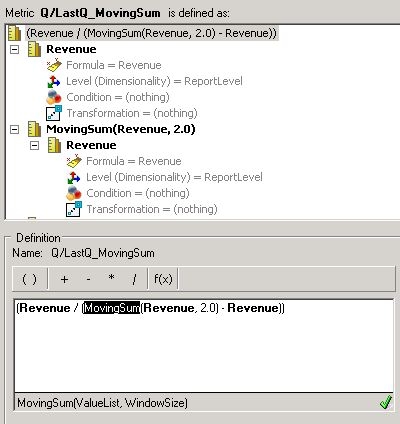
  • In Strategy Desktop, create the metric to calculate / using MovingSum() function, as shown below:
ka04W000001Ir51QAC_0EM440000002Cxm.jpeg
  • Sample Code/Error

    (Revenue / (MovingSum(Revenue, 2.0) - Revenue))


    NOTE:Formula (MovingSum(Revenue, 2.0) - Revenue) calculates the values of Last Quarters's Revenue. Similarly, The revenue of the quarter before last quarter can be calculated with formula (MovingSum(Revenue, 3.0) - MovingSum(Revenue, 2.0)), etc.
     
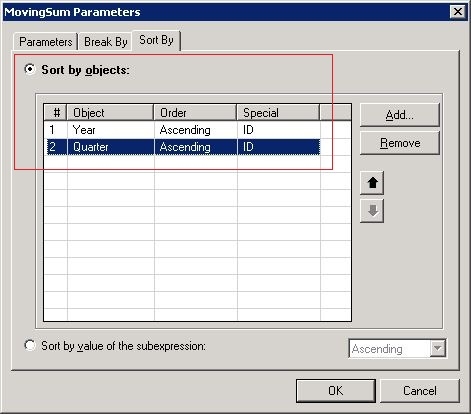
  • Right mouse click on "MovingSum" in the formula and select MovingSum Parameters.
  • Select "Sort By" tab and select "Sort by objects" to add all the attributes in the report template to make sure the valuelist of the MovingSum() function is sorted exactly as the values displayed in the grid, as shown below:
ka04W000001Ir51QAC_0EM440000002Cxn.jpeg
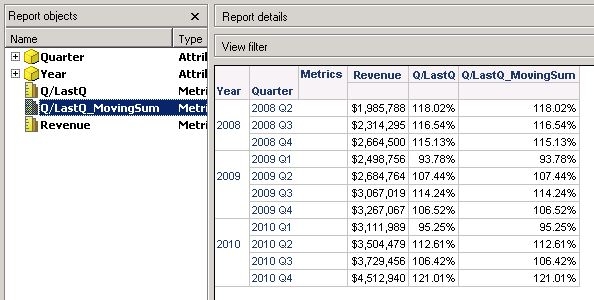
  • Save the metric and add it into the report. The results are the same with the metric created in Way 1, as shown below:
ka04W000001Ir51QAC_0EM440000002Cxi.jpeg


Comment

0 comments

Details

Knowledge Article

Published:

June 8, 2017

Last Updated:

June 8, 2017