EducationSoftwareStrategy.com
StrategyCommunity

Knowledge Base

Product

Community

Knowledge Base

TopicsBrowse ArticlesDeveloper Zone

Product

Download SoftwareProduct DocumentationSecurity Hub

Education

Tutorial VideosSolution GalleryEducation courses

Community

GuidelinesGrandmastersEvents
x_social-icon_white.svglinkedin_social-icon_white.svg
Strategy logoCommunity

© Strategy Inc. All Rights Reserved.

LegalTerms of UsePrivacy Policy
  1. Home
  2. Topics

KB439193: How does the MicroStrategy Intelligence Server use SMTP to send emails in MicroStrategy 9.x and 10.x?


David Currin

Quality Engineer, Senior • MicroStrategy


This article describes the email sending workflow in MicroStrategy Intelligence Server 9.x and 10.x and provides some troubleshooting steps in the event of a problem

Introduction
Strategy Intelligence Server can send email messages in different scenarios such as through Distribution Services email subscriptions, the "Send Now" option on reports or dashboards, administrative notification emails, Collaboration Server notification emails etc.  Although the application of these emails is different, the same basic workflow is used in every case.  This article will describe the workflow, elaborate about important settings, and provide some troubleshooting steps in the event of an issue.
Discussion
To send an email, the Strategy Intelligence Server must be able to communicate with an SMTP (Simple Mail Transfer Protocol) server which will accept the outgoing messages.  Strategy does not provide its own SMTP server, so in order to send emails one must be found or specified.  By default (i.e., if Smart Host options are not configured in the email device), the Strategy Intelligence Server will use the target email address to attempt to find a publicly accessible SMTP server according to the following workflow:
 

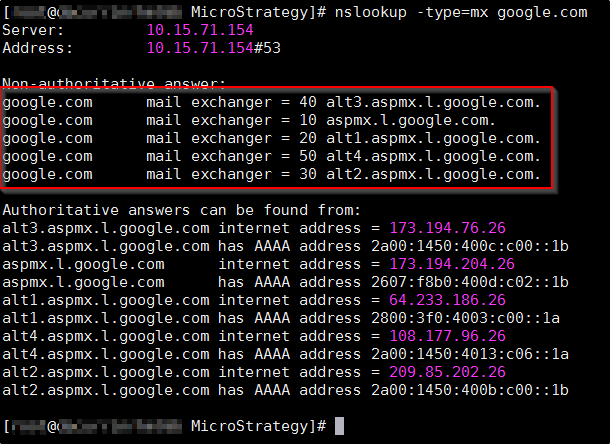
  • Retrieve domain mail server records.  Strategy Intelligence Server isolates the Internet domain from the recipient's e-mail address (for example, google.com for an email address of testuser@google.com) by discarding the characters up to the '@' symbol. It then makes a request through the host operating system to the configured DNS (Domain Name System) server for the 'MX' or mail exchanger record for the domain.  This request can be simulated using the nslookup command:
    
    nslookup -type=mx google.com

ka04W000001IqVkQAK_0EM44000000QAib.png
  • Select a mail server.  Next, the Strategy Intelligence Server chooses the mail server with the highest priority from the domain's MX records.  Lower numbers indicate a higher priority, so in this example, the record with value 10 will be selected (aspmx.l.google.com).  A DNS lookup on the resulting hostname is performed to obtain the corresponding IP address.
  • Connect to the mail server.  The Strategy Intelligence Server attempts to connect to the selected mail server on port 25.  If a connection cannot be established Intelligence Server returns to Step 2, selecting the next highest priority mail server for a connection attempt.  If the Intelligence Server is not able to connect to any of the mail servers returned by the DNS, the email delivery will fail.
  • Start a mail session. If a connection was successful, the Strategy Intelligence Server starts a mail session using EHLO (E-SMTP) if possible. Otherwise, HELO (SMTP) is attempted. If both protocols are rejected Intelligence Server returns to Step 2, selecting the next highest priority mail server for a connection attempt.  If the Intelligence Server is not able to start a mail session on any of the mail servers returned by the DNS, the email delivery will fail.
  • Send the message. Depending on the session type, the Strategy Intelligence Server uses the SMTP or E-SMTP protocol to deliver the e-mail message to the remote e-mail server.

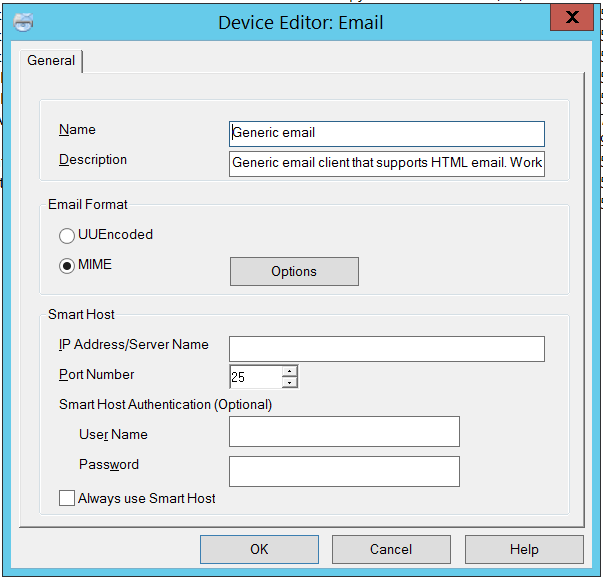
  The email device's Smart Host options allow a specific mail server to be utilized, in addition to or instead of using the mail server lookup workflow above.
ka04W000001IqVkQAK_0EM44000000QAjP.png

When a mail server is specified in the Smart Host settings, it will be used as a last-resort mail server if all of the mail servers obtained via DNS MX records fail.
Alternatively, if the Always use Smart Host option is checked, the DNS lookup workflow will be skipped and the Strategy Intelligence Server will only attempt to use the mail server specified in the Smart Host settings.
Troubleshooting
The most useful log for troubleshooting email issues is the SMTPSender > Trace log.  This log will show the complete workflow of looking up mail server records, selecting a server to use, connecting to the server, and sending the email.  For more information regarding the log, see the Knowledge Base Article KB201796: What is the SMTPSender trace and what is its purpose for Distribution Services in MicroStrategy 9.x and 10.x?
In some cases, it may be helpful to manually connect to a mail server and send an email using the same workflow that the Intelligence Server uses.  For details on manually sending an email, see the Knowledge Base Article KB11482: How to deliver an e-mail manually for SMTP troubleshooting purposes?
  KB439193


Comment

0 comments

Details

Knowledge Article

Published:

December 27, 2017

Last Updated:

January 3, 2019