
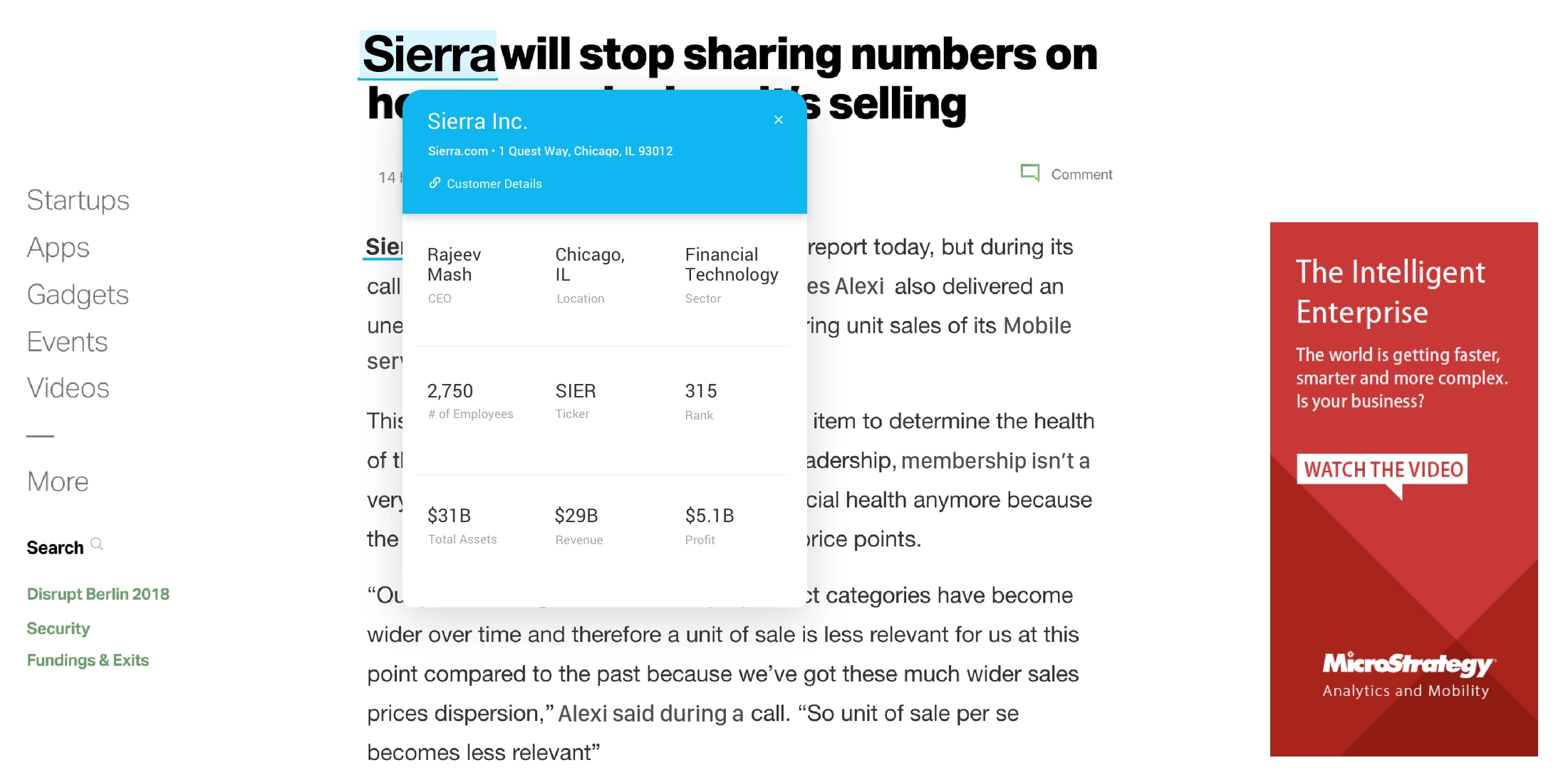
What is Alternate Keyword Matching for HyperIntelligence cards?
HyperIntelligence allows you to add various, or alternate, forms of the keyword attribute. This enables the card to appear for synonymous terms of the keyword across web applications. This is known as Alternate Keyword Matching or Alias Form Solutions. For example, let’s say you selected Brand as the keyword attribute. The attribute element Amazon will appear as Amazon, but we also want the element forms AMZN or Amazon.com, Inc. to match to the card. Using Alternate Keyword Matching, all three of these attribute forms will act as a keyword attribute in web applications.
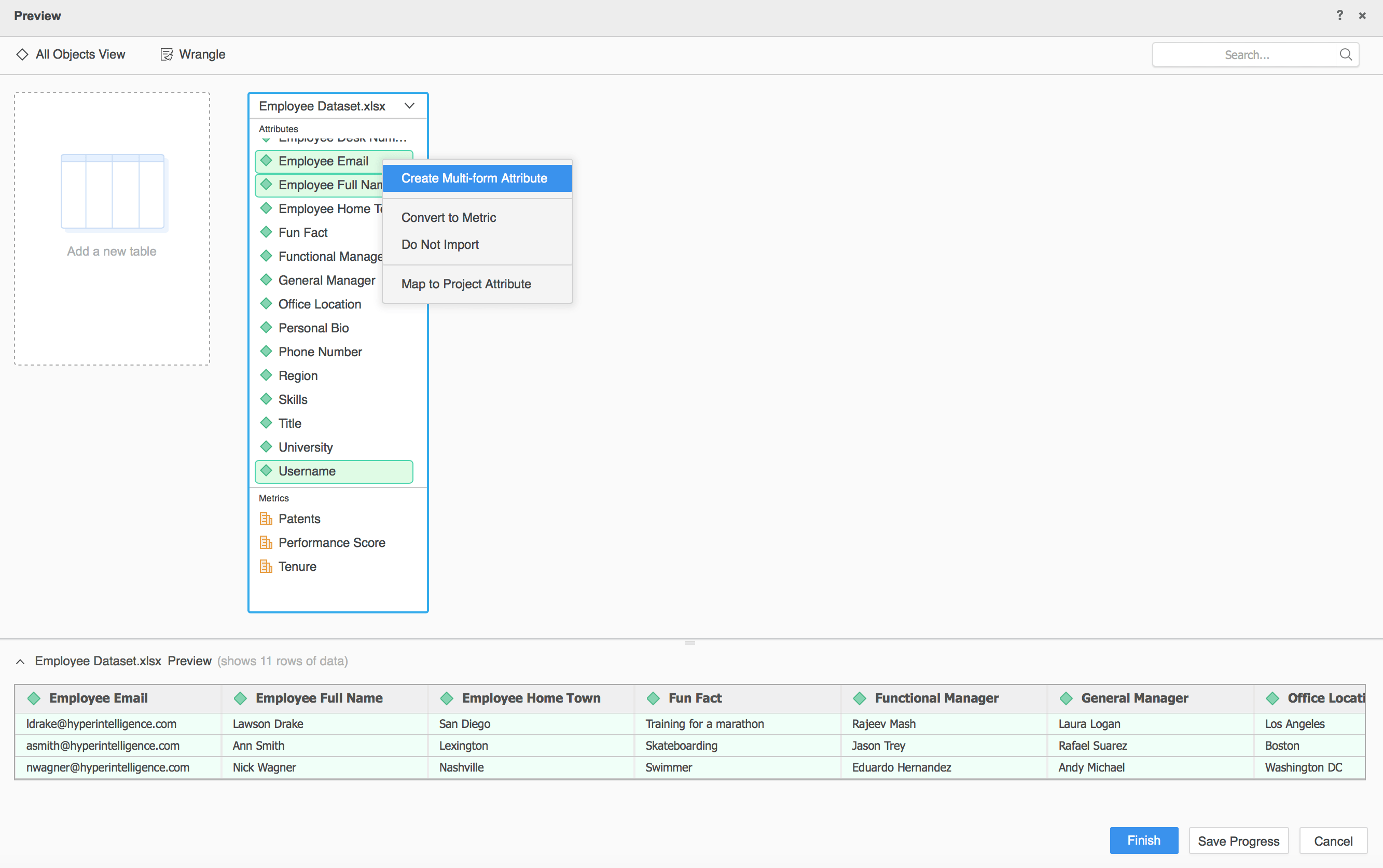
To enable alternate keyword matching, create a dataset fit for HyperIntelligence by wrangling the data and creating multi-form attributes. Multi-form attributes enable you to choose multiple forms for keyword matching. All forms of keyword matches will then be underlined in web applications.
Tip: A best practice is to create the multi-form attribute BEFORE creating a card. All components used to create the multi-form attribute will be removed from the card once returning back to the card editor after any modifications.
To Create a Dataset fit for Alternate Keyword Matching:
Tip: Align the data types within the data preview. For example, an email should change to the email data type and URL should change to a URL data type for optimal presentation within the card.
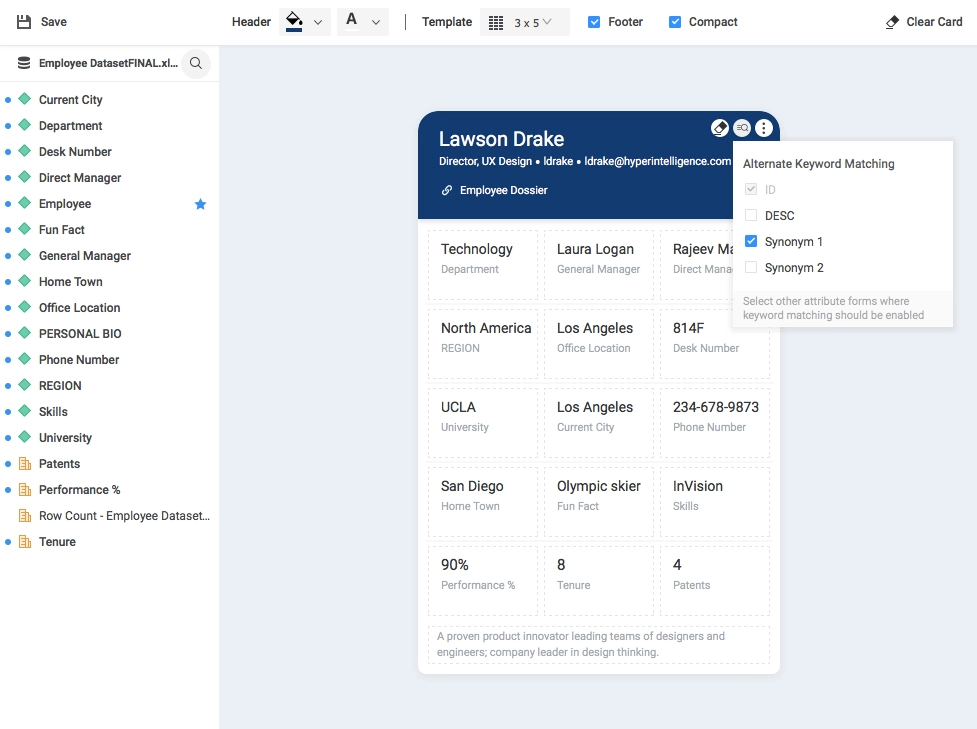
Note: Feel free to choose more than one Synonym for alternate keyword matching, as in the Amazon versus AMZN example earlier.
Before continuing to the next step for Alternate Keywords:

Choose the

icon to clear the header, cells, or footer at any time.
Can I have multiple attribute forms in the title of the card header?
Yes, you can have multiple attributes forms in the title of the card header. To add multiple attribute forms, create a multi-form attribute within the dataset and drag it to the header of the HyperIntelligence card. Select the forms you want to see in the card header. Select a main attribute form for the title and choose other forms for subtitles. Try adding a link and text in the header.
Note: Selecting attribute forms for the title displayed in the header is different from choosing attributes for Alternative Keyword Matching. The title displays on the card, while the keywords work with the functionality of web page searches and data results across applications.
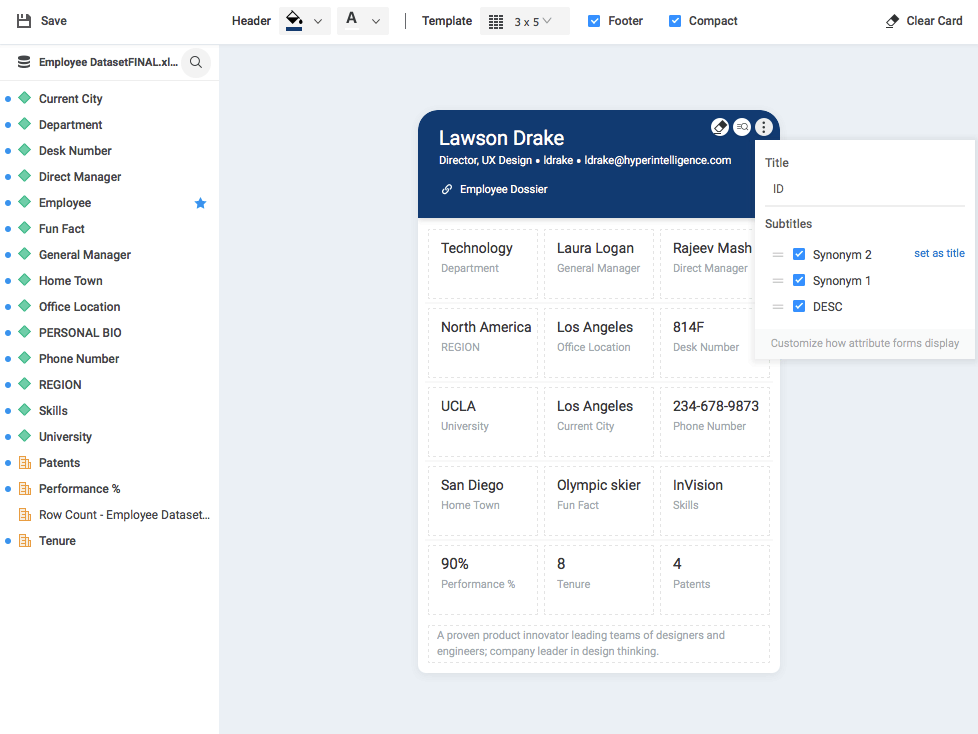
Example: Let’s say you are creating an employee card. First, create a multi-form attribute in the dataset. You choose the forms Employee Name, Employee Title, Email Address, and other attributes.
These forms can all be added to the header of the HyperIntelligence card, allowing you to view important employee information across web applications.
How do I change the number format on a HyperIntelligence card?
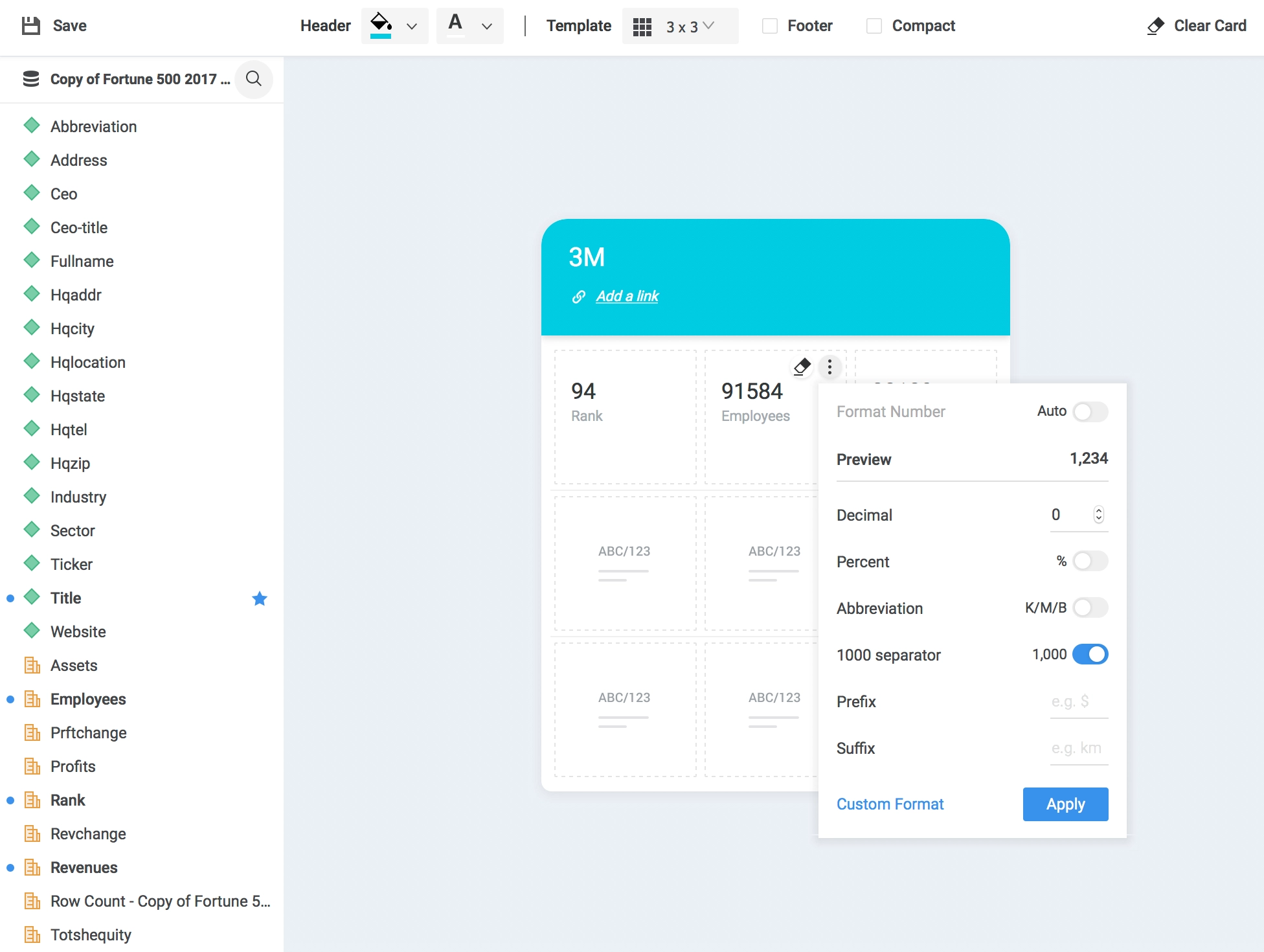
Once you have metrics in the card template, click a cell and select the More icon in the right-hand corner. The Format Number editor displays. Strategy sets the number format to Auto by default.
To Edit Number Formatting of certain cells in the card:
Note: If you have metrics, such as Revenue or Profit, use Prefix to add the dollar sign (“$”) to enhance the appearance of the card. Additionally, use abbreviations (K/M/B) instead of 0000 so the data is easily consumable for users at a quick glance.
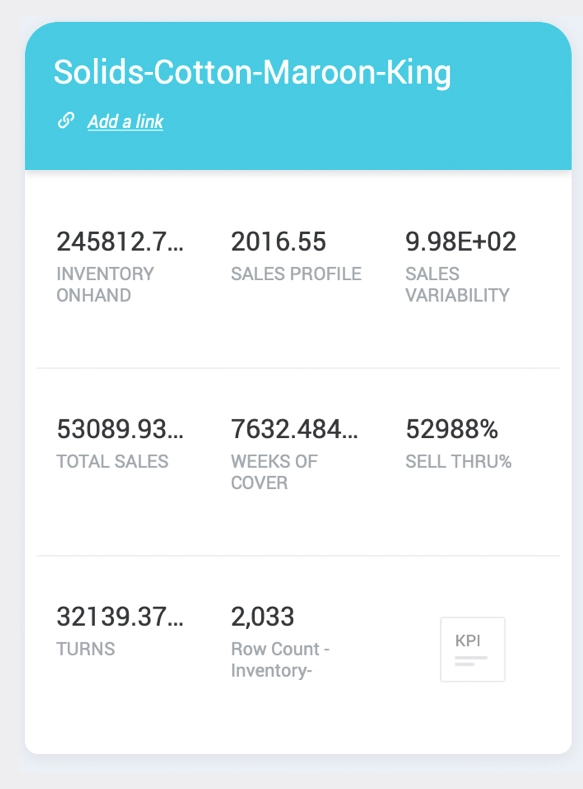
Tip: Avoid decimals, long percentages, or a lack of number separators. These factors can affect readability and retention of information presented.
View the card below for an example of these common design errors.
Are there best fonts or colors to use for a HyperIntelligence card?
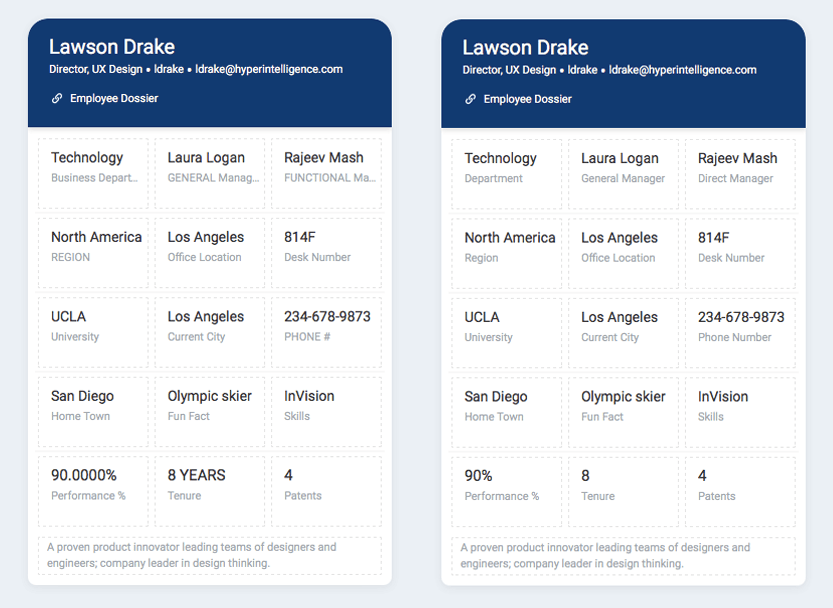
Although there aren't specific colors or fonts that are deemed “best” for the card, it is important to optimize the readability of cards. Though uppercase is visually appealing, it is harder for card viewers to read and takes more space on the card. Strategy suggests only capitalizing the first letter. Additionally, ensure the font you select is unified throughout the card.
A) Example of a non-unified card. B) Example of an optimal, unified card.
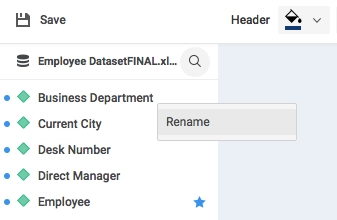
Tip: Rename objects in the card to be more concise.
This increases readability and enhances the appearance of the card.
To Rename an object within the card:
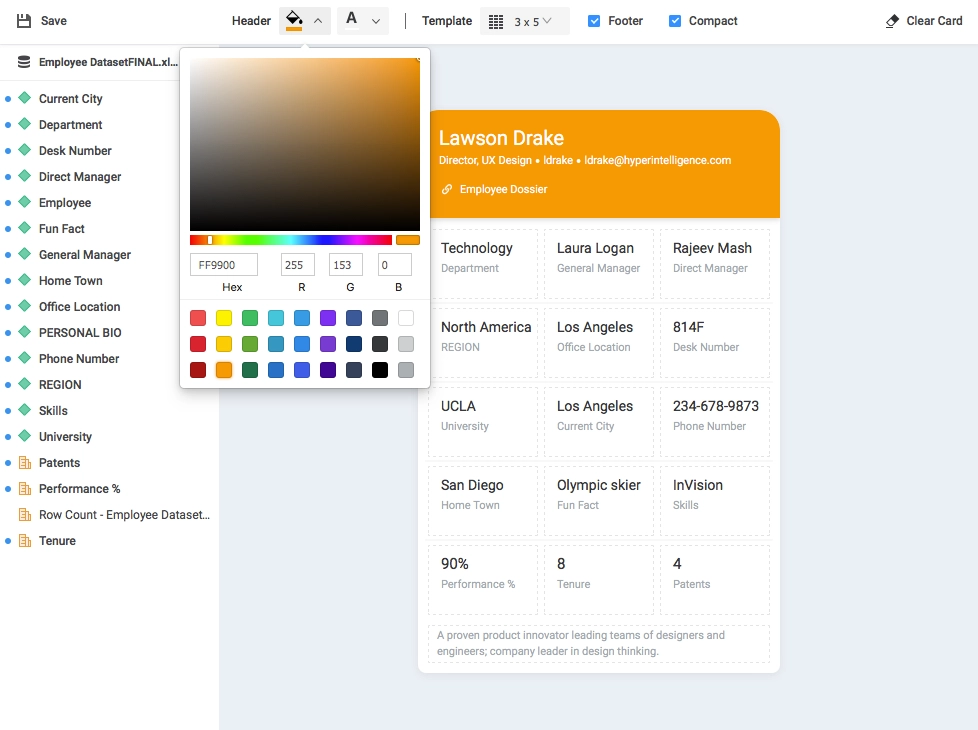
To Change the Colors of headers or header fonts:
Tip: The Strategy design team suggests using dark colors for the header and white for the text, or vice versa to optimize legibility.
Any tips for the best template or layout for a HyperIntelligence card?
One of the first steps in formatting HyperIntelligence cards is to choose the best-fit template. When thinking about choosing a template, think about the words and descriptions that will be included on the card. Try to include only information that would be imperative at-a-glance.
By default, the template is 3x3. However, change the template to 2x3 or 2x2 to increase the horizontal space for attribute elements within the cards. If you want to have more information on a card, opt for a longer 3x4 or 3x5 template.
To change the Template Size of the card:
Tip: Add a footer to include buffer space at the bottom of the card. Users can also add an additional attribute to the card footer. This is a helpful spot for descriptive attributes (i.e. the Personal Bio in the footer of the dark blue Employee Card example) that are longer or URLs that might take up more space on the card. To add a footer, select the Footer checkbox.
What’s the “Compact” option of cards?
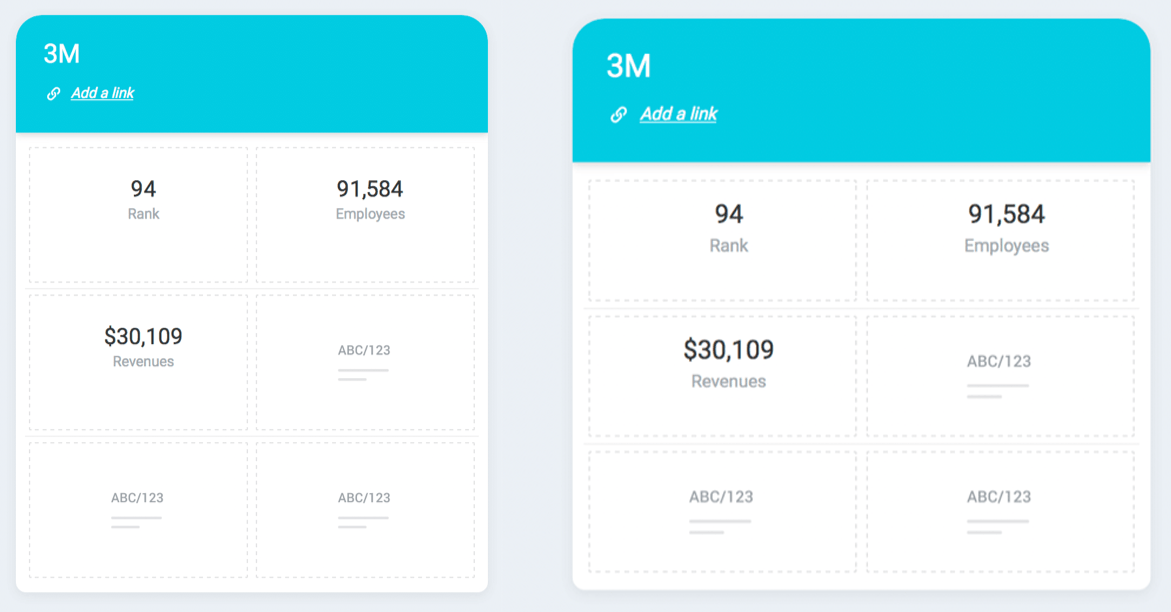
On the toolbar, users can select the checkbox Compact. The compact option decreases the cushion area of the card, taking up less space within web applications. From a design perspective, added cushion around the boxes and header allows for easier data visibility.
A) Non-Compact card settings. B) Compact card settings.
How should I organize my KPIs?
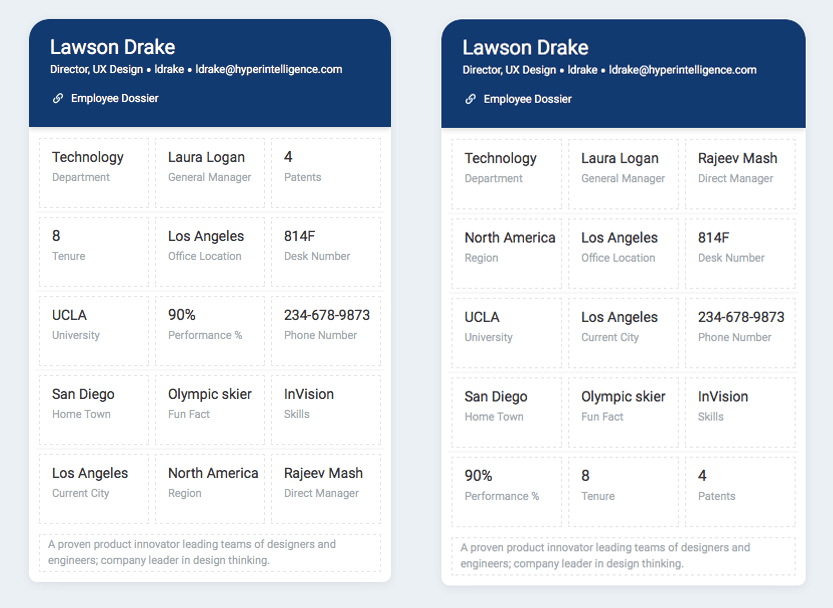
When creating a card, think about a user’s reading flow. Most Western countries read from left to right, so it's helpful to put important information on the left. Additionally, consider grouping all attributes together. For example, it's better to place your attributes at the top of the card and all metrics at the bottom of the card. This makes it easier to read strings one by one and then move on to numbers. When designing a card, think about how you, as a user, would want your experience to be across the web.
A) Scattered reading flow. B) Optimal: Horizontal reading flow.
For more information on HyperIntelligence cards, view our articles "What is MicroStrategy HyperIntelligence?" and "Governance & Security for HyperIntelligence". Alternatively, visit the HyperIntelligence Guide for more.
Stayed tuned for new how-to videos and written tutorials on HyperIntelligence in the Community Learning Center!
