
Saving HyperIntelligence cards
To save a card, click Save and choose a location to store your card in Workstation. When you save the card, it's only visible to you. You, as an individual user, will have access to the card in Workstation and it will appear in your Chrome extension or HyperMobile application.
To allow other users to view the card in Chrome, you must change the security access of the card—selecting individual users or groups for access—as well as certify the card to officially publish the card.
How to control who can view the HyperIntelligence cards within the organization?
After you have saved the card, go to Security Access. To get to Security Access:
Tip: Click Advanced to open the Advanced Security dialog and change permissions for multiple users or user groups all at once and click OK.
Note: Despite giving access to a specific user or user groups, the users will not be able to view the card while using the Chrome Extension until the card is certified. Certify the HyperIntelligence card.
How do I certify the card to give users the ability to view the card across web applications with Chrome extension?
Once other users or user groups have access to the card, make sure to certify the card to finalize it for visibility in the Chrome extension.
An orange ribbon will appear on the card once successfully certified. The card is now ready for use within the Chrome Extension and across all web browsers.
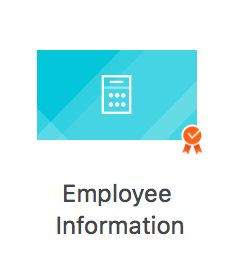
Tip: The Get Info selection also has the option for Properties. Within Properties, you can choose the final name for the card, add a description for the card, and certify the card. Certification of cards means that the card is trusted and the data is reliable.
How do you turn HyperIntelligence cards ON or OFF?
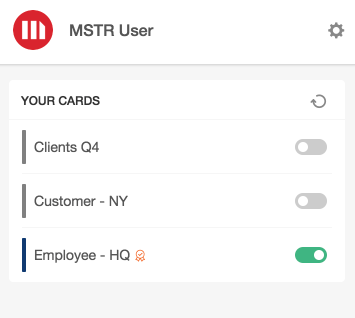
From the extension menu, you can select which cards are enabled or disabled, as well as whether or not you want the extension enabled for the site you are currently on. Based on the permissions granted, users will have access to the cards based on the connected environment.
Toggles appear to the right of each card to enable or disable it. Click the Refresh button to ensure the card is turned off. Cards will be grayed out once they are disabled. Click the toggle button again to turn the card back on for the given website.
How do you blacklist specific individual websites for HyperIntelligence?
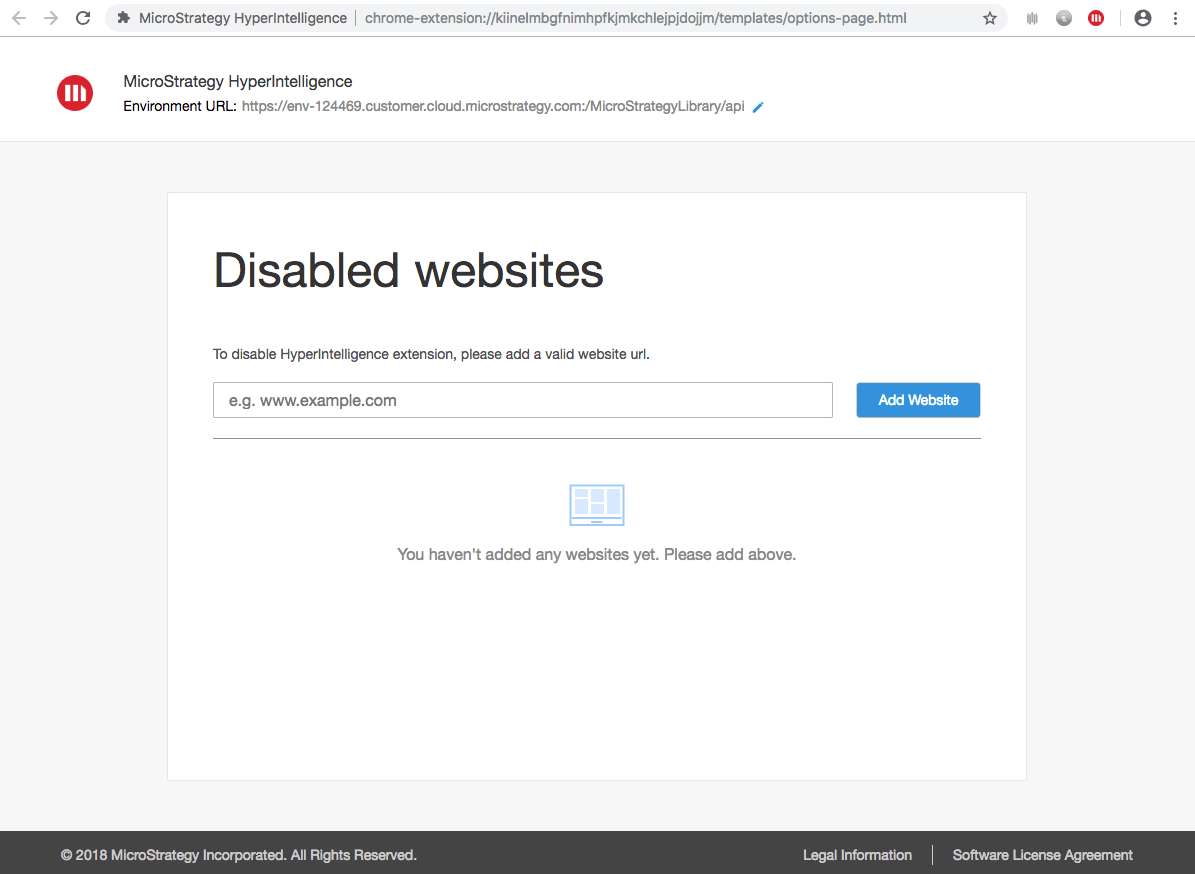
By default, the extension will work with any web-based content. However, it is possible to blacklist the HyperIntelligence functionality from individual websites.
To hide the HyperIntelligence cards from specific websites:
Note: You can disable more than one website by adding to the list.
If you want to allow users to view a site that is disabled, click the trash icon.
For more information on HyperIntelligence cards, view our articles "What is MicroStrategy HyperIntelligence?" and "Best Practices for HyperIntelligence Cards." Alternatively, view the HyperIntelligence Guide for more.
Stayed tuned for new how-to videos and written tutorials for HyperIntelligence on the Community Learning Center!
