
Let’s say you are a sales consultant for a top technology company. You are constantly traveling and emails are always flooding your inbox. Rather than searching comprehensive dashboards or diving into customer management applications to find information, HyperIntelligence brings the data to you. Simply hovering over a keyword in your web application empowers you to gain the data insights needed to drive key business decisions in just zero clicks.
How does HyperIntelligence work?
Strategy HyperIntelligence is the next step in the future of data analytics. With Strategy HyperIntelligence, organizations can inject Zero-Click Intelligence about customers, products, people, and more directly into websites or web applications. Built by Strategy, a worldwide leader in enterprise analytics and mobility, the Chrome extension surfaces information from 200+ enterprise data sources and injects real-time, contextual insights directly into a user’s browser-based workflows.
Once you download the extension, HyperIntelligence scans web pages, emails, or web applications for relevant keywords. Keywords appear underlined and users can hover over these keywords to view HyperIntelligence cards containing real-time insights.
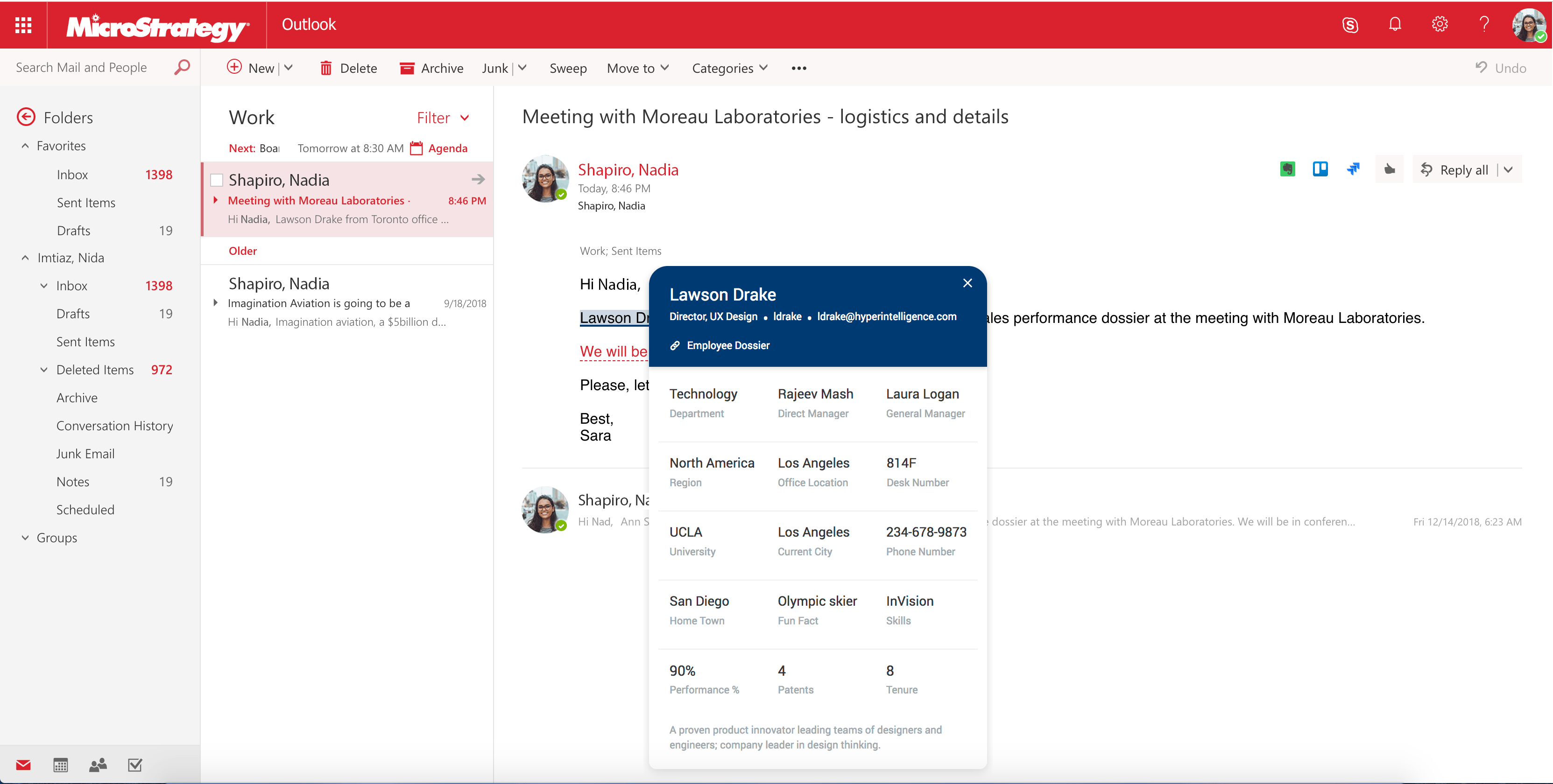
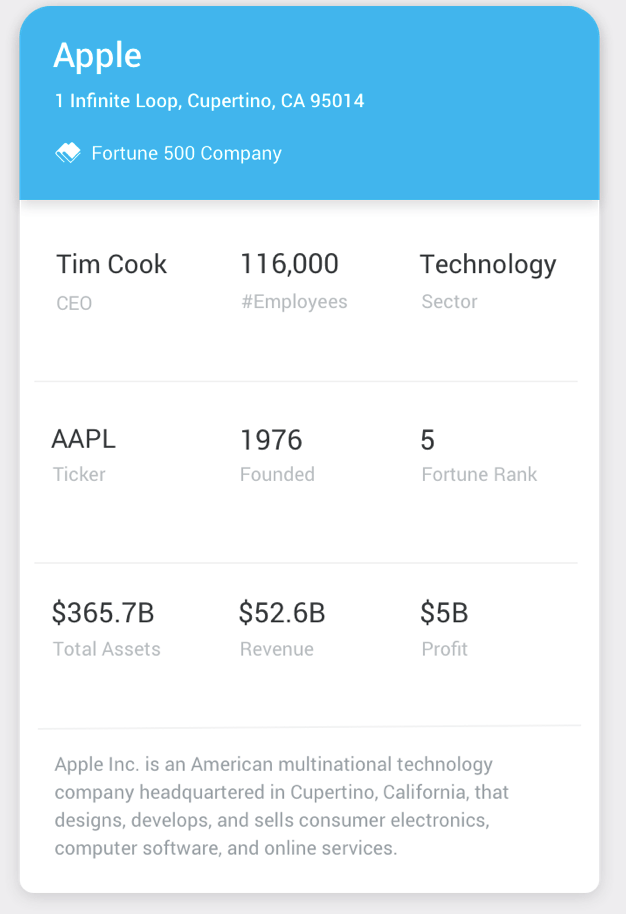
What are HyperIntelligence cards?
HyperIntelligence works to deliver Zero-Click Intelligence–providing key data insights for specific keywords across all web applications. This is done through HyperIntelligence cards. Cards are objects that host data and elegantly display predefined KPIs associated with keywords sourced directly from datasets imported into the Strategy platform. Additionally, cards seamlessly combine information from multiple enterprise assets and applications. For example, card creators can use data from Marketo, Salesforce, and other relational databases to pull information for the HyperIntelligence card.
Tip: Cards are created in Strategy Workstation. The keyword attribute selected by the card creator defines the purpose of the card. The attribute will then be the keyword underlined across web applications. View How to Create Cards to learn more.
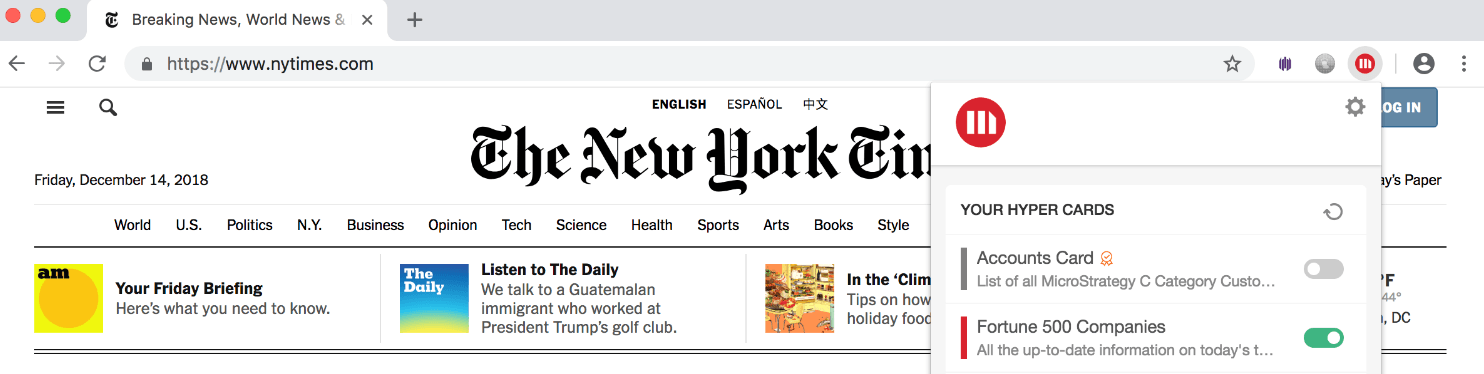
Installing the HyperIntelligence Chrome Extension
To install HyperIntelligence on Chrome, first add the HyperIntelligence extension. The extension is currently located on the Chrome Web Store.
The Strategy logo appears to the right of the address bar in the Chrome browser, alongside your Google profile icon. The next step is connecting to a Strategy environment.
To connect to an environment within the extension:
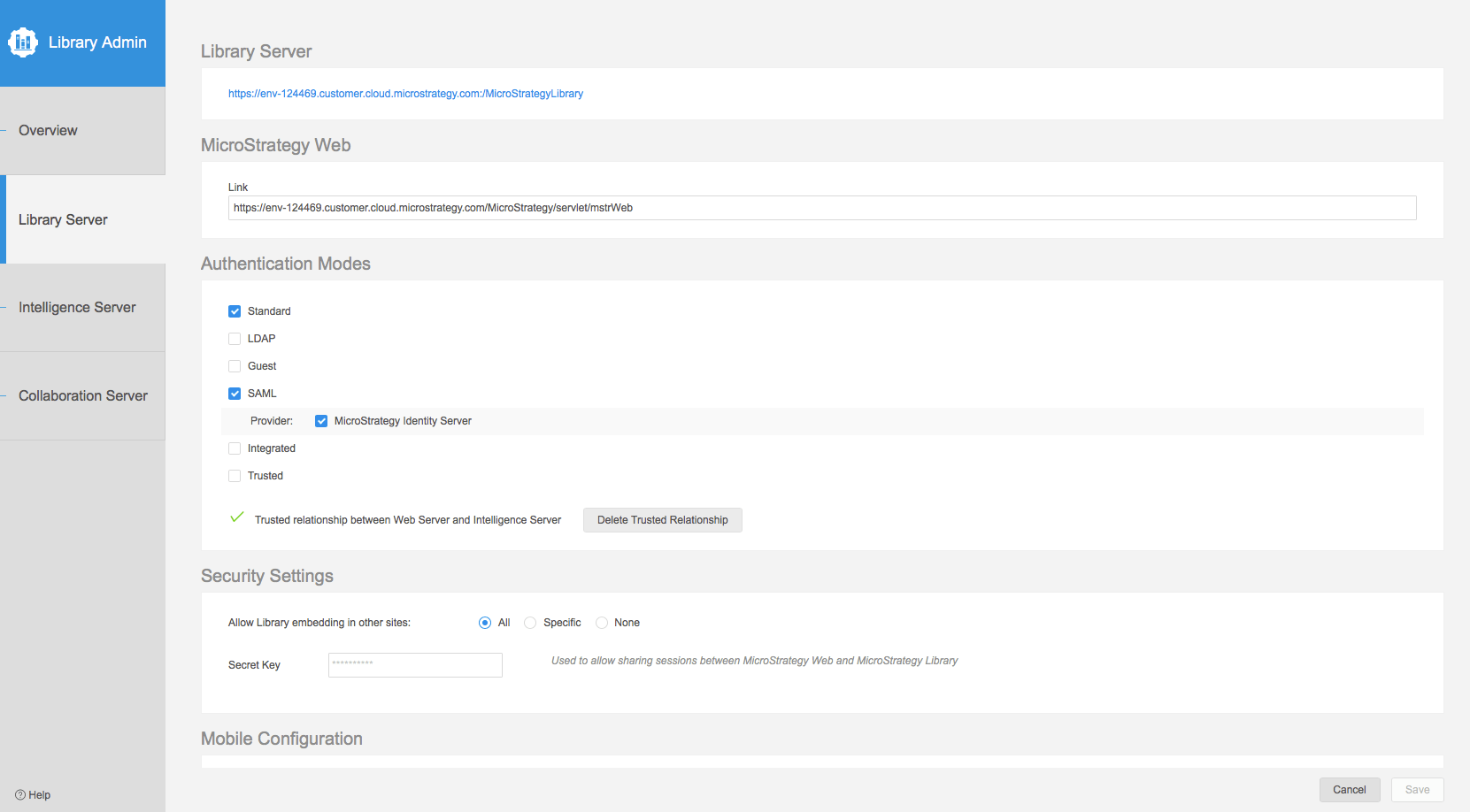
Tip: When connecting to your environment, ensure your the URL ends with “StrategyLibrary.” For an example, https://env-124469.customer.cloud.Strategy.com:/StrategyLibrary.
The Strategy logo for the HyperIntelligence extension will switch from grey to red.
Not sure where to find the URL? To obtain your Environment URL:
If you'd like to Switch Environments, you can edit the existing URL:

How do I start building a card once the Chrome extension is installed?
Strategy Workstation is the go-to-place for building HyperIntelligence cards. If you do not have Strategy Workstation, visit our download site to get the latest version.
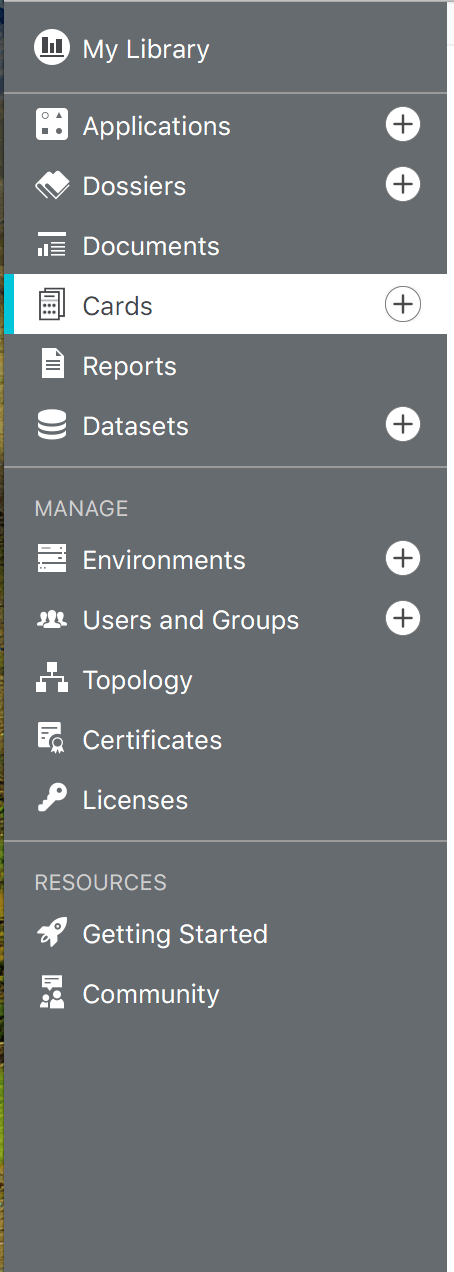
5. Select a dataset. The Card Editor will appear.
Tip: Make sure the dataset is an in-memory cube.
Note: You can also create cards by right-clicking a dataset > Create New Card.
6. Drag an attribute to serve as the Keyword Attribute to the header of the card template.
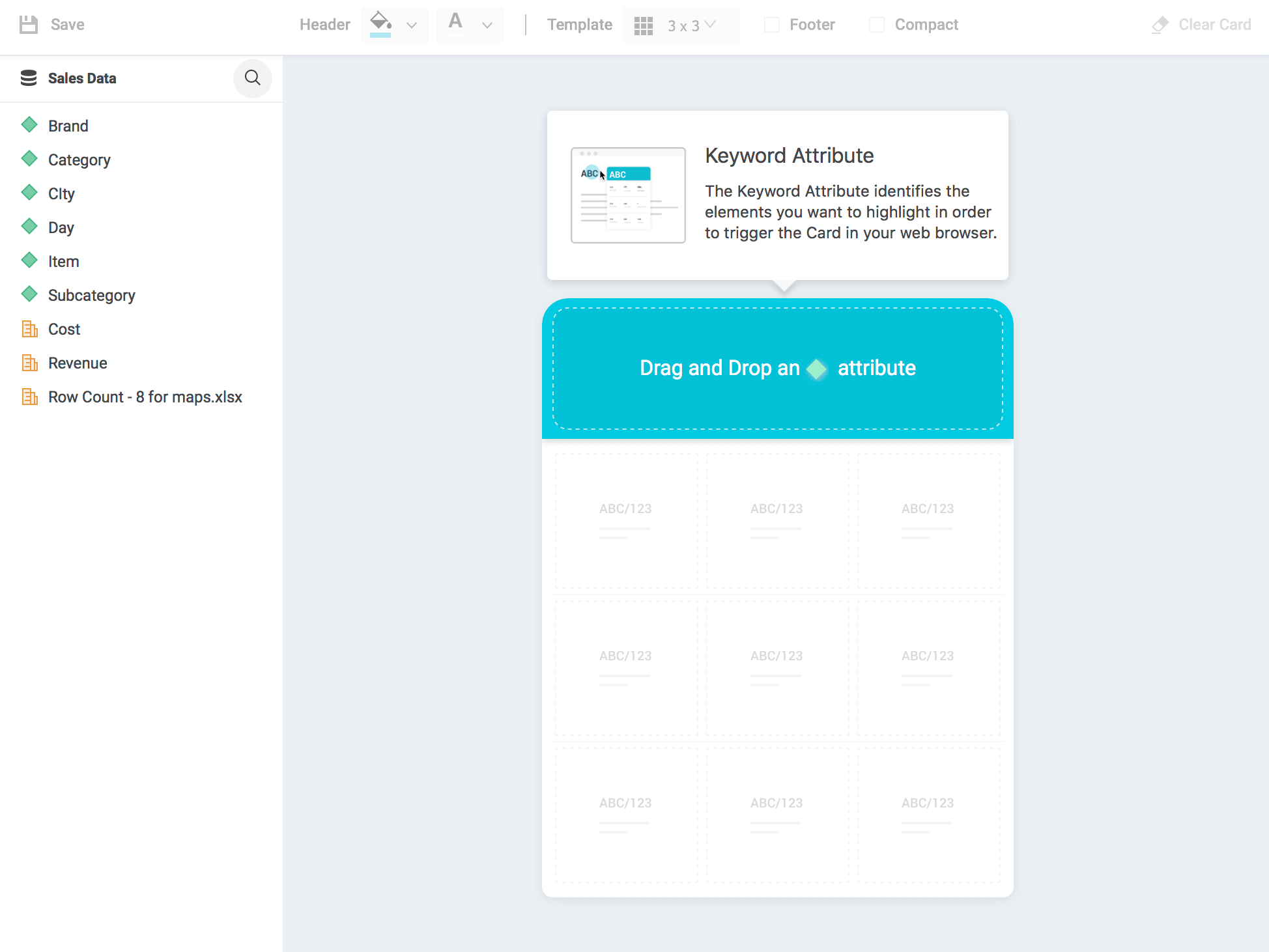
Note: A blue star

appears to the right of the attribute selected for the keyword.
7. Continue to drag attributes or metrics from the dataset to the template.
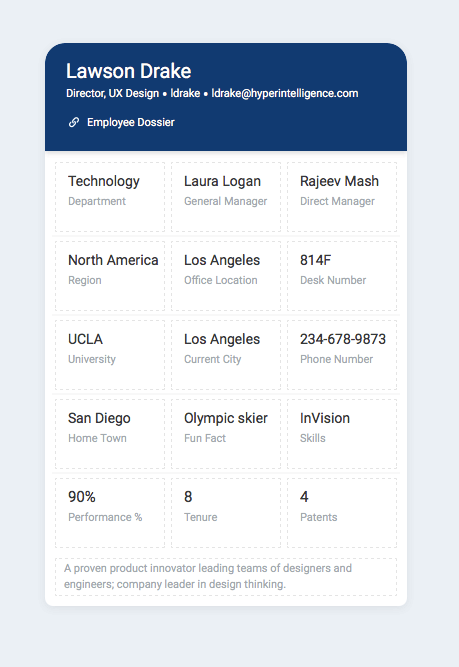
A preview of a card appears once you add the first piece of data to the card.
This preview will generally display the first row of data from the dataset.
For more information on HyperIntelligence cards, view our articles "Best Practices for HyperIntelligence Cards" and "Governance & Security for HyperIntelligence" or see the HyperIntelligence Guide.
Stayed tuned for new how-to videos and written tutorials for HyperIntelligence on the Community Learning Center!
