EducationSoftwareStrategy.com
StrategyCommunity

Knowledge Base

Product

Community

Knowledge Base

TopicsBrowse ArticlesDeveloper Zone

Product

Download SoftwareProduct DocumentationSecurity Hub

Education

Tutorial VideosSolution GalleryEducation courses

Community

GuidelinesGrandmastersEvents
x_social-icon_white.svglinkedin_social-icon_white.svg
Strategy logoCommunity

© Strategy Inc. All Rights Reserved.

LegalTerms of UsePrivacy Policy
  1. Home
  2. Topics

KB46931: In MicroStrategy Analytics Enterprise, how to establish connectivity to Impala 1.x using the Cloudera v2.5 ODBC driver


Community Admin

• Strategy


In MicroStrategy Analytics Enterprise, Cloudera v2.5 ODBC drivers are supported to establish connectivity to Cloudera CDH 4.x. Refer to the following MicroStrategy Knowledge Base document for further information:

Introduction:
In Strategy Analytics Enterprise 9.4.1, Cloudera v2.5 ODBC drivers are supported to establish connectivity to Cloudera CDH 4.x. Refer to the following Strategy Knowledge Base document for further information:
 
KB46881 : Certification of Cloudera v2.5 drivers to connect to Cloudera CDH 4.x in Strategy Analytics Enterprise 9.4.1
 
The section below provides steps to establish ODBC connectivity to Impala from Windows and Linux Operating Systems.
 
Windows
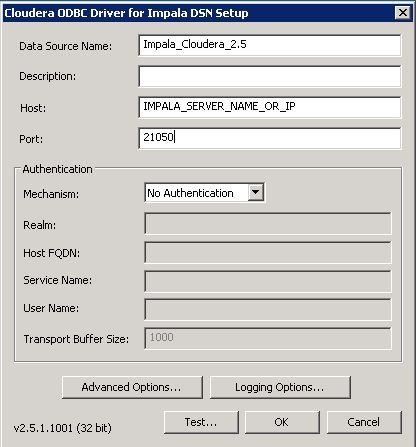
  • Install the certified ODBC driver (32-bit Cloudera ODBC Driver for Apache Impala, Version 2.5) to connect to Impala.
  • From Windows ODBC Administrator (32-bit), choose to create a new system DSN and choose 'Cloudera Driver for Apache Impala'.
  • On the DSN configuration editor, provide the required server parameters to connect to Impala, as shown below.
     
ka04W00000148hsQAA_0EM440000002JCH.jpeg
  •  
    Note: For steps on configuring the DSN when using Kerberos authentication, refer to the following Strategy Knowledge Base document: 
     
    KB46879 : How to configure connectivity to a secured CDH cluster with Strategy 9.4.x with the Cloudera v2.5 ODBC Driver for the Intelligence Server on a Windows operating system


Linux

  • Install the certified ODBC driver (32-bit Cloudera ODBC Driver for Apache Impala, Version 2.5) to connect to Impala.
  • Locate the odbc.ini file found in the home directory of the Strategy installation.
  • Edit the odbc.ini and add the following content at the end of the file to create a new DSN for Impala. Sections marked with <> (marked in bold) should be filled in by users based on their environment. 
     
    
    [Cloudera_Impala_2.5] 
    Description=Cloudera ODBC Driver for Impala (32-bit) DSN
    Driver=<FULL_PATH_TO_DRIVER>/lib/32/libclouderaimpalaodbc32.so
    DriverUnicodeEncoding=2
    HOST=<IMPALA_SERVER_NAME_OR_IP>
    PORT=21050
    Database=<DB_NAME>
    AuthMech=0
    #KrbFQDN=
    #KrbRealm=
    #KrbServiceName=impala
    # Username/password authentication with SSL settings.
    #UID=
    #PWD=
    #CAIssuedCertNamesMismatch=1
    #TrustedCerts
    # General settings
    TSaslTransportBufSize=1000
    RowsFetchedPerBlock=1000
    SocketTimeout=0
    StringColumnLength=32767
    UseNativeQuery=0 


    Note: For the 'AuthMech' parameter, the default parameter value is 0, which means no authentication. Refer to the Cloudera documentation found at: http://www.cloudera.com/content/support/en/documentation/cloudera-connectors-documentation/connector-documentation-latest.html  for information on options that can be set for the 'AuthMech' parameter.
     
    The parameters which have been commented out are required only when using Kerberos as the authentication mechanism or when using a standard user name.  
     
  • In the odbc.ini file, add an entry for the newly created DSN  to the ODBC Data Sources header section as shown below.
     
    
    [ODBC Data Sources] 
    Cloudera_Impala_2.5=Cloudera ODBC Driver for Apache Impala 


  • Edit the odbcinst.ini found in the home folder of the Strategy installation and add an entry for 'Cloudera ODBC Driver for Apache Impala' in the ODBC Drivers section.
     
    
    [ODBC Drivers]
    Cloudera ODBC Driver for Apache Impala=Installed

     
  • Add a section for 'Cloudera ODBC Driver for Apache Impala' in the body of the file. An example entry is provided below. The <FULL_PATH_TO_DRIVER> in the section below should be filled based on the on the install directory of the Cloudera Impala driver.
     
    
    [Cloudera ODBC Driver for Apache Impala]
    Description=Cloudera ODBC Driver for Apache Impala 
    Driver=<FULL_PATH_TO_DRIVER>/lib/32/libclouderaimpalaodbc32.so

  • Edit the odbc.sh file found in the env folder of the Strategy home folder and add the following entry to the setup section found at the beginning of the file. An example entry from odbc.sh is given below. The additional entries added are highlighted in bold. An example 'cloudera.impalaodbc.ini' file has been attached to the end of this document.


    # 
    # set up the environment for ODBC
    #
    ODBC_LIBRARY_PATH=/home/fomer/MSTR/LINUX/94_94l/install/lib32
    mstr_append_path LD_LIBRARY_PATH "${ODBC_LIBRARY_PATH:?}"
    export LD_LIBRARY_PATH
    SIMBAINI=/home/MSTR/LINUX/94_94l/.cloudera.impalaodbc.ini
    export SIMBAINI


  • In the odbc.sh file, add an entry  for 'ODBC Driver for Impala'. An example entry is given below. Users would have to fill in the <FULL_PATH_TO_DRIVER> based on the install directory of the Cloudera Impala driver .


    # 
    # ODBC Driver for odbc25 Impala
    #
    #IMPALA_CONFIG='<FULL_PATH_TO_DRIVER>/lib/32'
    if [ "${IMPALA_CONFIG}" != '<IMPALA_CONFIG>' ]; then
     export IMPALA_CONFIG
     mstr_append_path LD_LIBRARY_PATH "${IMPALA_CONFIG:?}"/
     export LD_LIBRARY_PATH
    fi


ka04W00000148hsQAA_0EM440000002JCG.png
  • Sample_Cloudera_Impala_INI


Comment

0 comments

Details

Knowledge Article

Published:

May 4, 2017

Last Updated:

May 4, 2017