Starting with the release of Strategy ONE (March 2024), dossiers are also known as dashboards.
Connect Live Datasets are used
Filter Push Down not applied
CSI Changes
What is CSI?
Query Detail – A way to check the SQL query and CSI generated for the dossier.
Connect Live
Filter Push-Down – A way to apply filter directly in the SQL generation, often in earlier calculation passes, in order to reduce the amount of calculation done in CSI Engine, to improve execution performance.
The following example uses Strategy Tutorial attributes and metrics.
1. Open Strategy Web.
2. Create 2 datasets. We use Strategy Tutorial tables that have the Call Ctr Id attribute.
a. Create the new dataset DS1:
i. Add External Data > Databases > Select Tables.
ii. Select the "CITY_CTR_SLS" table from data source “Tutorial Data”.
iii. Click “Finish”.
iv. Click “Connect Live”.
b. Create the new dataset DS2:
i. Add External Data > Databases > Select Tables.
ii. Select the "LU_CALL_CTR" table from data source “Tutorial Data”.
iii. Click “Finish”.
iv. Click “Connect Live”.
3. Create a new dossier, and add the two datasets created in step 2.
4. Link “Call Ctr Id” in both datasets to each other:
a. Right-click “Call Ctr Id” in one of the datasets.
b. Click “Link to Other Dataset…”.
c. Select “Call Ctr Id”.
5. Add attribute “Center Name” from DS1 and metric “Tot Cost” from DS2 to the grid visualization.
6. Add a metric qualification filter:
a. Click the button on top right corner of the visualization, and click “Edit Filter”.
b. Click “Add New Qualification”.
c. Choose metric “Tot Cost”, other metric also works.
d. set operator and value, for example “Less Than, 400000”.
e. Choose the Output Level to be “Dataset Level”.
f. Click “OK” then “Save”.
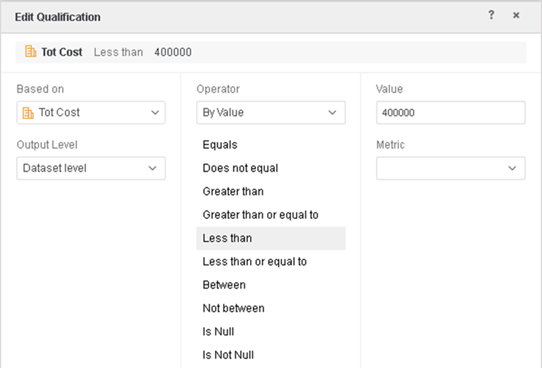
Depending on the data in the warehouse, the dossier will look similar to:
And the dossier will look like this:
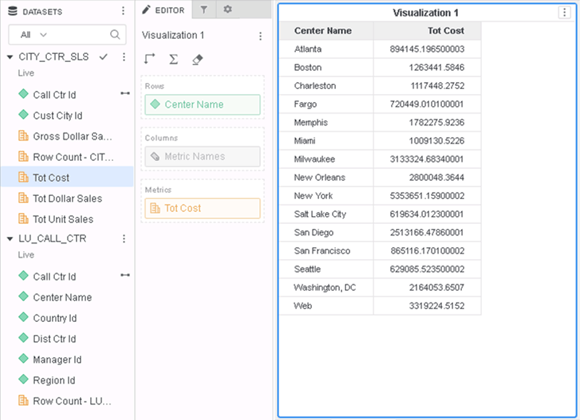
7. Check Query Detail:
Click the button on top right corner of the visualization, and click “Query Detail”.
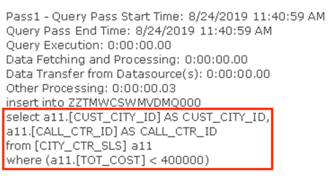
Based on the Query Detail, the metric qualification filter is evaluated in Step 2 CSI:
Step 1, SQL Query:
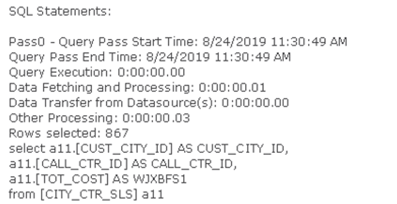
Step 2, CSI:
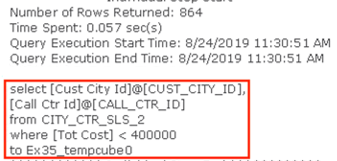
This is a known issue before Strategy 2020.
The existing Engine logic evaluates the metric filter in CSI, but it can be slow when the data volume is high. When a user is using ConnectLive datasets, the Engine is expected to push the calculation down to the warehouse, including the filter calculation.
To resolve this defect, please upgrade to Strategy 2020 or above, and set Data Engine Version setting to 12.
The project level setting Data Engine Version can only be enabled through Workstation. For more details on enabling the setting, see Change Data Engine Version .
In the new fix, the filter is evaluated in the beginning in the same Individual Step. So the attribute will directly be filtered based on the metric and performance could be improved.
The sample case in this article is rolled back in Strategy 2020 Update 1 due to a found regression defect. The behavior is back to Strategy 2019. However, the change made in this defect is only partially rolled back, so you may still be able to see the change in Strategy 2020 Update 1. One example can be found here .
Strategy Internal Reference number for this technical note is KB483573, KB484110, DE140604 and DE160497.
