Starting with the release of Strategy ONE (March 2024), dossiers are also known as dashboards.
The following example uses Strategy Tutorial warehouse.
1. Open Strategy Web.
2. Create a new dossier.
3. Create 2 new datasets in the dossier.
a. Create the new dataset DS1.
i. Add External Data > Databases > Type a Query.
ii. Select Strategy Tutorial as data source and type the following Query (adjust the WHERE clause condition based on the data):
SELECT MNTH_CATEGORY_SLS.MONTH_ID MONTH_ID,
          MNTH_CATEGORY_SLS.CATEGORY_ID CATEGORY_ID,
          MNTH_CATEGORY_SLS.TOT_COST TOT_COST
FROM   MNTH_CATEGORY_SLS MNTH_CATEGORY_SLS
WHERE (MNTH_CATEGORY_SLS.MONTH_ID > 201401 and MNTH_CATEGORY_SLS.MONTH_ID < 201406)
SELECT MNTH_CATEGORY_SLS.MONTH_ID MONTH_ID,
          MNTH_CATEGORY_SLS.CATEGORY_ID CATEGORY_ID,
          MNTH_CATEGORY_SLS.TOT_DOLLAR_SALES TOT_DOLLAR_SALES
FROM   MNTH_CATEGORY_SLS MNTH_CATEGORY_SLS
WHERE (MNTH_CATEGORY_SLS.MONTH_ID > 201501 and MNTH_CATEGORY_SLS.MONTH_ID < 201512)
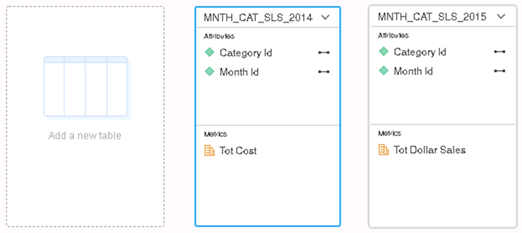
b. Create the new dataset DS2.
i. Add External Data > Databases > Select Tables.
ii. Select Strategy Tutorial as data source and choose table “LU_MONTH”.
iii. Click “Prepare Data” to enter the Preview window.
iv. Open the table menu and click “Define Relationships”.
v. Add 2 new relationships as follow:
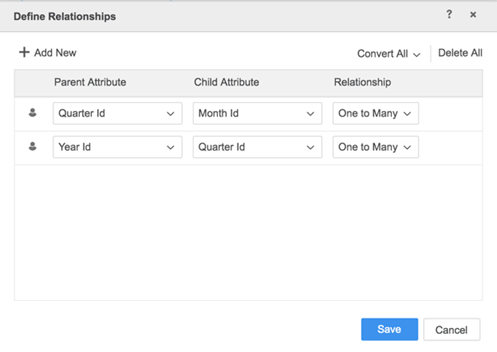
vi. Save the relationship and the dataset. Import as an In-memory Dataset.
4. Right click on attribute “Month Id” in DS1, click “Link to Other Dataset…” and link it to the attribute “Month Id” in DS2.
5. In DS1, create a new derived metric.
a. Rename the derived metric “#month - 2015”.
b. Type the following formula in formula section:
Count<Distinct=True, MetricID=[Row Count - MNTH_CAT_SLS_2015]>([Month Id]@ID){~+}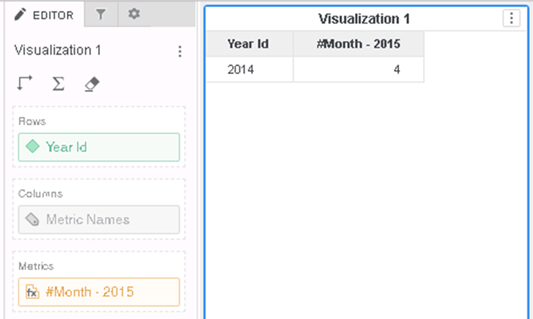
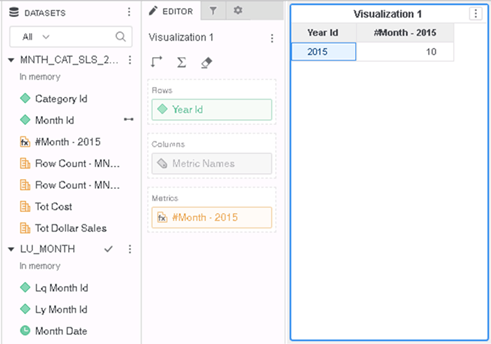
Remember that 10 month of data are imported from 2015, so we should expect this metric to show 10, and the Year Id to show only 2015.
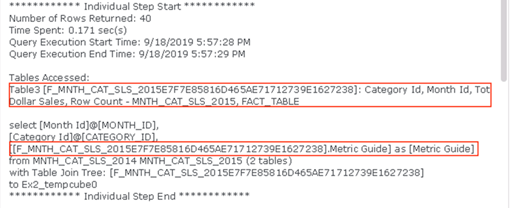
8. Open the visualization menu and check the Query Detail, note that it picks table MNTH_CAT_SLS_2014 to get the elements of Month Id instead of the one indicated in the Metric Guide which is MNTH_CAT_SLS_2015.
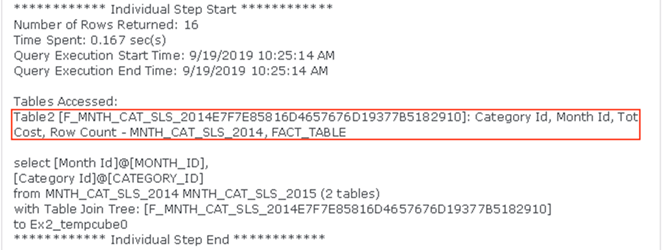
Before Strategy 2020, the Engine does not support Metric Guide for metrics that meets both criteria:
1) the metric is defined on an attribute or a Row Count Metric
2) the metric cannot be pushed down to calculate in the dataset, so it will have to be calculated in Data Blending
When it is not supported, Data Blending sometimes retrieve wrong attributes and generates CSI using these attributes.
To resolve this defect, please upgrade to Strategy 2020 or above, and set Data Engine Version setting to 12.
The project level setting Data Engine Version can only be enabled through Workstation. For more details on enabling the setting, see Change Data Engine Version .
In Strategy 2020, the metric guide is supported and will guide the Engine to retrieve the metric from the correct table.
In the Query Detail, the Engine is guided by the metric guide and pick the correct table.
Strategy Internal Reference number for this technical note is KB483638 and US144497.
