EducationSoftwareStrategy.com
StrategyCommunity

Knowledge Base

Product

Community

Knowledge Base

TopicsBrowse ArticlesDeveloper Zone

Product

Download SoftwareProduct DocumentationSecurity Hub

Education

Tutorial VideosSolution GalleryEducation courses

Community

GuidelinesGrandmastersEvents
x_social-icon_white.svglinkedin_social-icon_white.svg
Strategy logoCommunity

© Strategy Inc. All Rights Reserved.

LegalTerms of UsePrivacy Policy
  1. Home
  2. Topics

KB484080: Troubleshooting LDAP over SSL (LDAPS) in MicroStrategy 2019 and above


Danfeng Zhan

Principal Product Specialist • Strategy


This article explains how to troubleshoot LDAP over SSL in MicroStrategy 2019 and above.

Description


In March 2020, Microsoft Active Directory in an upcoming Windows security spdate will introduce more security for LDAP channels. Windows Active Directory integration with Strategy will require you to have SSL enabled.
For more details on the upcoming Windows security update, refer to KB484049: Impact of Microsoft Active Directory Changes on MicroStrategy Installations.
For instructions on how to implement LDAP over SSL (LDAPS), refer to the following KB articles:

  • KB12067: How to configure LDAP connectivity using Clear text (using OpenLDAP) or SSL (using OpenSSL) for MicroStrategy Intelligence Server 9.x-10.x on Linux
  • KB13041: How to configure LDAP connectivity using SSL authentication with MicroStrategy Intelligence Server 9.x and newer on Windows Operating System

Prerequisites

  • Cleartext needs to work. SSL will not work if cleartext does not work.
  • Openldap (64 bit) library must be available on the Linux machine.


For Red Hat Linux, the library file is

 libldap.so.
For example, the specific library name and version for a Red Hat 5.3 will look like:
/usr/lib64/libldap-2.3.so.0.

For Suse Enterprise Linux 11, the default library file name is
 /usr/lib64/libldap-2.4.so.2. 

Additionally, on Strategy Secure Enterprise 10.x, you should use libldap_r library. For details, see KB276747: MicroStrategy Secure Enterprise 10.x may shutdown unexpectedly when using LDAP authentication on Linux Operating Systems.

Check Points

Openldap available in system path (e.g. in /lib and/or /usr/lib directories)

  • If that is the case, no action is needed. If not, the path to the libraries can be added into the
    MSTR_LDAP_LIBRARY_PATH 
    variable in the
     LDAP.sh
    file located in the
    $MSTR_HOME_PATH/env directory.
  • Use locate command to find the Openldap library:
    # locate --basename 'LDAP'

Intelligence Server LDAP server configuration

  • 'Host' should be the machine name of the LDAP server. The IP addresses will not work in SSL-land. Ping this machine name from the Intelligence Server machine to make sure it is reachable:
    $ ping linuxldapserver.domain.com
  • Set 'Security connection' to 'SSL (encrypted).' This will change the 'Port' entry to the default LDAPS port, 636.
  • Make sure the 'Port' is correct for this LDAP server. Most servers use the LDAPS port, but the customer may have set it up different. Telnet to this port from the Intelligence Server machine to test the connectivity: $ telnet linuxldapserver.domain.com 636
  • Specify the path to the Certificate Authority(CA) certificate file '
    cacert.pem
    '. Ideally this should be an absolute path so there is no confusion about where the server is looking. For example,
    /var/opt/MicroStrategy/ldap/cacert.pem.

    NOTE: There is a button next to the field where you enter the path which allows to you to browse and select a file on the Desktop client machine. This is not correct. The path set here should be the path to the certificate file on the Server machine. Do not use this button.
  • In Strategy 2019 (without any update), the certificate (
    cacert.pem)
    has to be placed within the working directory of the Intelligence Server:
     <MSTR_HOME_PATH>
    Intelligence Server.
    For example,
    /var/opt/MicroStrategy/IntelligenceServer.

    For more details, see KB482868: LDAP over SSL may fail in MicroStrategy 2019 with the error "LDAP Server error (-1): Can't contact LDAP server."

Validity of the CA certificate

As highlighted in the following screenshot: 

  • Certificate Authority(CA) certificate must be named
    cacert.pem.
  • Must be in the Base64 encoded pem format.
  • Use openssl commands to check the validity of the CA certificate:
     $ openssl x509 -in 
     -noout -text

    If this command fails, try adding -inform DER or -inform PEM to the end of the command:
     $ openssl x509 -in /var/opt/MicroStrategy/ldap/cacert.pem -noout -text -inform PEM
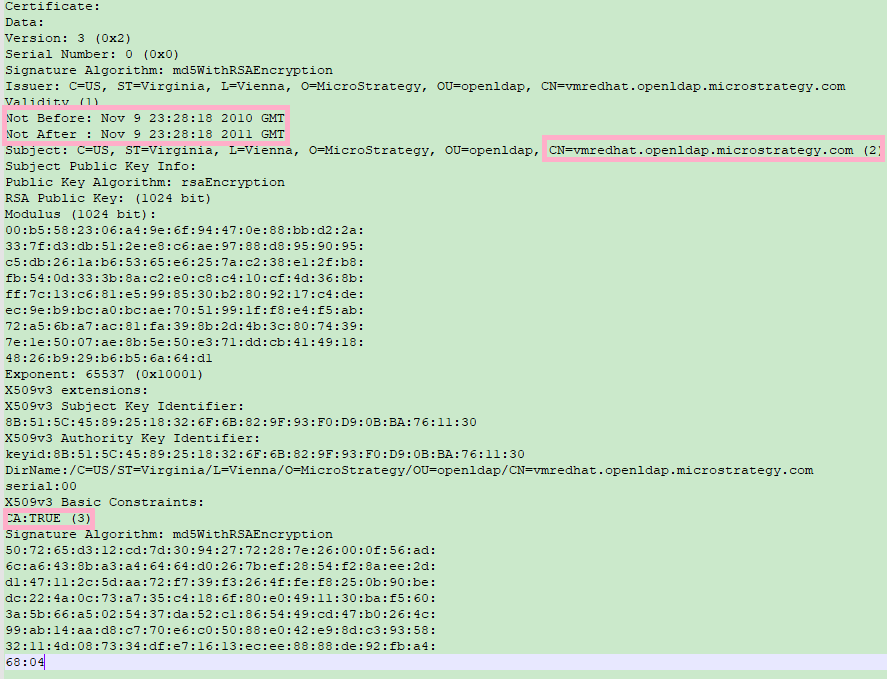
    The following points are highlighted in the screenshot below:
    • The time period for which this certificate is valid. Make sure the current time is within this window. Check the system time with the 'date' command.
    • The CN of the Subject line. Keep this in mind for later.
    • This flag determines whether this certificate is a CA certificate or not. This MUST be set to TRUE to be a valid CA certificate.
ka02R000000bt89QAA_0EM2R000000o0V5.jpeg

Verify the connection to the LDAP server over SSL

  • Use the OpenSSL client tool to test the connection to the LDAP server:
    $ openssl s_client -connect 
  • Use the OpenSSL client tool to test the connection by specifying the CA certificates to use during server authentication:
     $ openssl s_client -connect 
    :
     -showcerts -CAfile
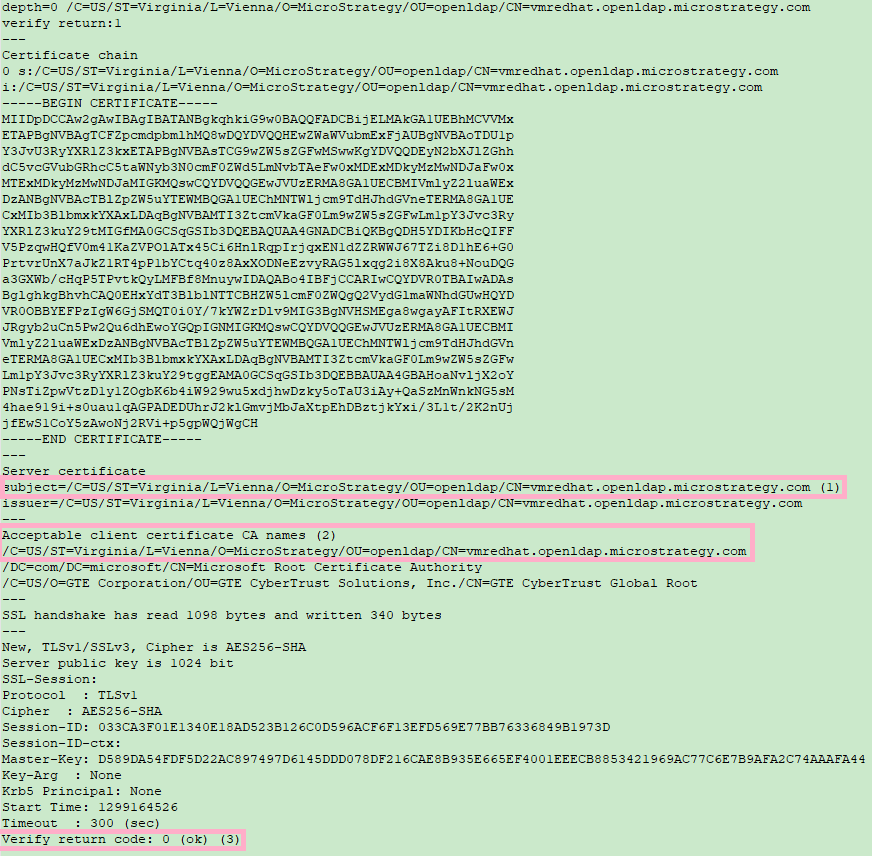
    The following points are highlighted in the screenshot below:
    • The CN of the subject line must match the hostname entered into the LDAP configuration.
    • The full subject of the CA Certificate (noted in the previous step) should appear in the list of Acceptable client CA Certificate names. Note this is not always required, but should be checked in the case the test connection returns an error.
    • The return code from the test: 0 indicates success and anything else indicates an error and a failed server connection. Review all the information above.
ka02R000000bt89QAA_0EM2R000000o0Vo.jpeg
  • The following are common OpenSSL connect return codes:
    • 0 - ok - Success. This is good.
    • 9 - certificate is not yet valid - The certificate received from the connection has validity start timestamp in the future. Check the system time or ask the customer to get a new valid certificate.
    • 10- certificate has expired - The certificate received from the connection has a validity end timestamp in the past. Check the system time or ask the customer to get a new valid certificate.
    • 18 - self-signed certificate - The certificate received from the connection was signed by itself. Ask the customer to talk to the LDAP server to set the server with a certificate signed by the CA certificate, or get an updated CA certificate.
    • 20 - unable to get local issuer certificate - The CA certificate used did not sign the certificate received from the connection. Ask the customer to get the CA certificate.
    • 24 - invalid CA certificate - the CA certificate is not a valid certificate. Check the CA certificate to see that it is valid, not expired, and the CA flag is set.
  • For the s_client SYNOPSIS, click here.

Comment

0 comments

Details

Knowledge Article

Published:

February 27, 2020

Last Updated:

July 9, 2020