Starting with the release of Strategy ONE (March 2024), dossiers are also known as dashboards.
If you encounter errors or issues with your metadata after upgrading, review the following troubleshooting techniques.
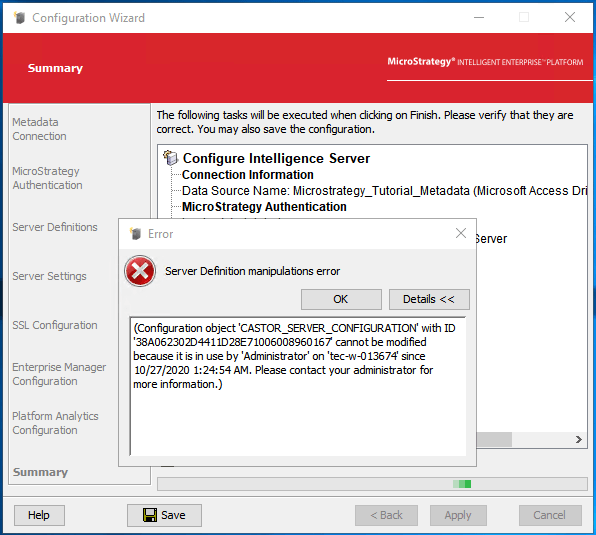
If a project source's configuration is locked, it can cause the metadata to lock after upgrading.
This is indicated by the following message found in the DSSERRORS.LOG file:
CASTOR_SERVER_CONFIGURATION` with ID `xxxxxxx` cannot be modified because it is in use by `Administrator` on `machinename` since d/dd/yyyy h:mm:ss. Please contact your administrator for more information.
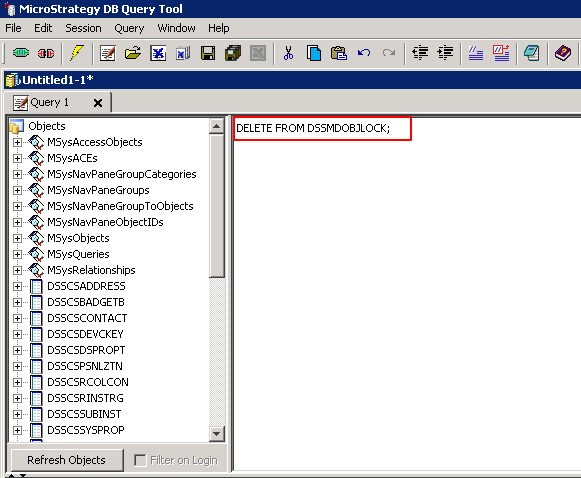
The quickest way to remove all locks is to delete all rows from the DSSMDOBJLOCK table directly.
Related Articles
If your object is not found in the metadata, it is possible it was deleted. If you cannot copy the dossier because it has exceeded your allocated storage space, this means you have used the allocated 100MB of storage space.
To resolve this error, expand your storage space.
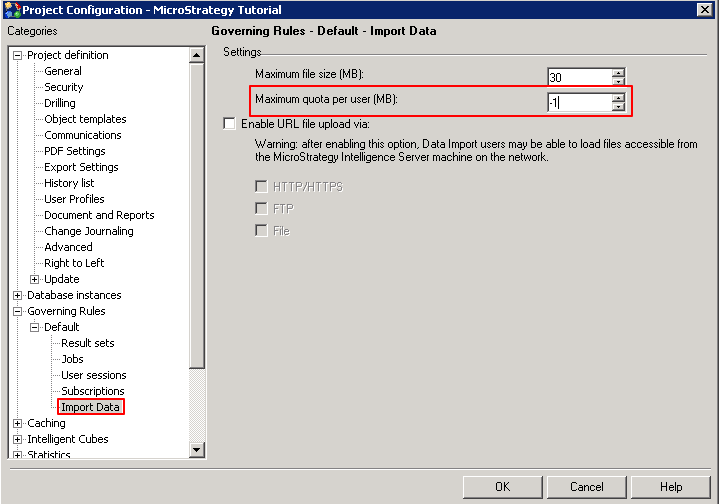
For more information on project configuration settings, see the System Admin Guide.
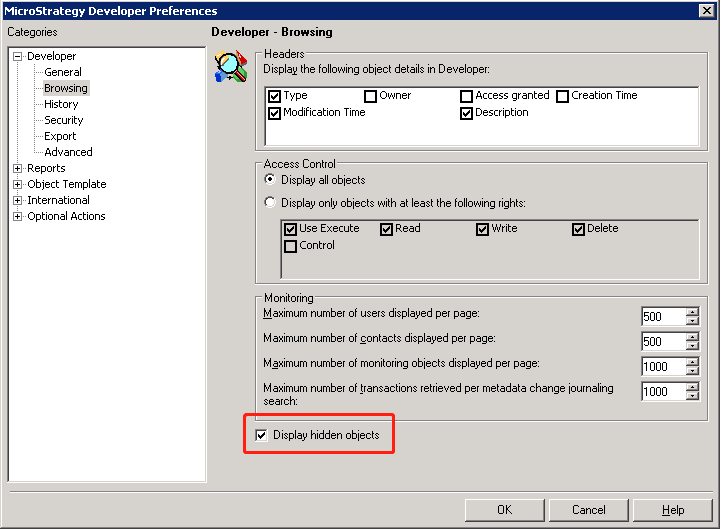
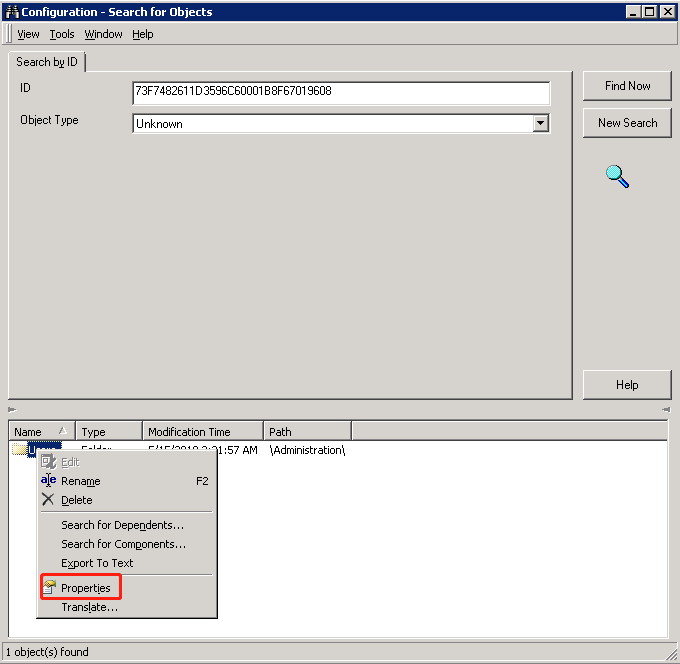
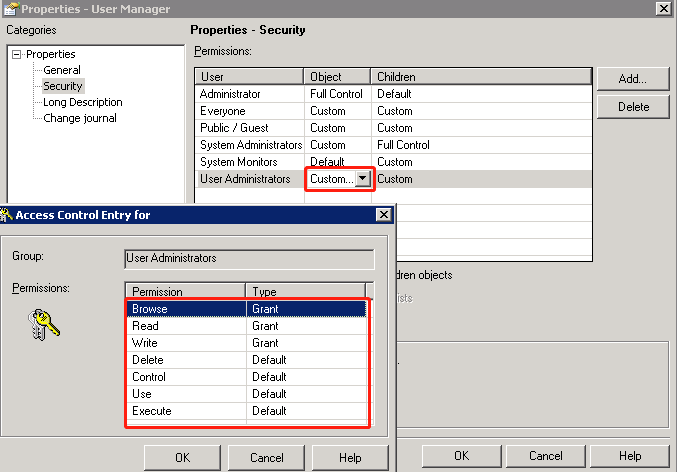
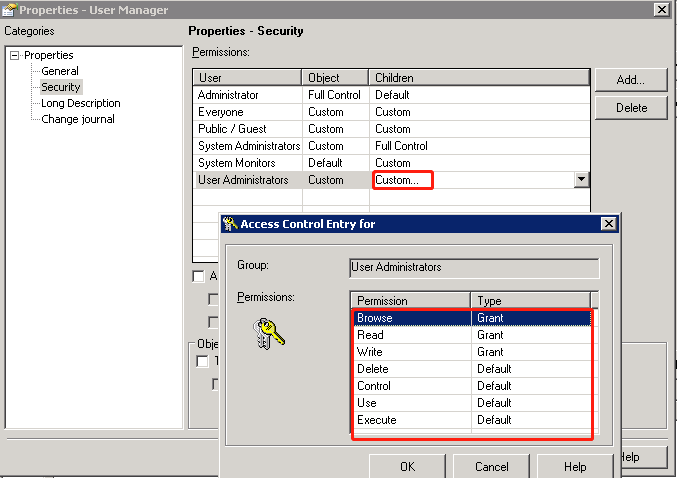
This occurs because updating causes the Access Control List (ACL) of group User Administrators to propagate to the folder Users. The ACL applies to all users in the Users folders and grants them access. This results in a large usage metadata if there are several users. For more information about ACLs, see Controlling Access to Objects: Permissions.
To workaround this time constraint, grant the access rights of the group User Administrators to the Users folder manually.
Note: If the group User Administrators already has Browse, Read, and Write access to the Users folder, skip the step of propagating the correct ACL to the Users folder when upgrading the metadata.
If the database role/user used to create the database connection is not the owner of the tmp0319func function, the connection validation fails with the following error message in the
DSSErrors.log:
2020-09-06 23:07:04.598-04:00 [HOST:tec-w-012382][SERVER:][PID:10768][THR:3052][Database Classes][Error][UID:0][SID:0][OID:0][ConnectionKeeper.cpp:77] Execute Query failed. Error type: Odbc error. Odbc operation attempted: SQLExecDirect. [S0002:6844177: on HSTMT] [Strategy][ODBC PostgreSQL Wire Protocol driver][PostgreSQL]ERROR: VERROR; table "tmp_0319" does not exist(File d:\pginstaller_12.auto\postgres.windows-x64\src\backend\commands\tablecmds.c; Line 1185; Routine DropErrorMsgNonExistent; ) Connection String: DSN=ACL;UID=acl_all;DB=postgres;HOST=10.23.6.98;PORT=5433;. SQL Statement: DROP TABLE TMP_0319. 2020-09-06 23:07:04.611-04:00 [HOST:tec-w-012382][SERVER:][PID:10768][THR:3052][Database Classes][Error][UID:0][SID:0][OID:0][ConnectionKeeper.cpp:77] Execute Query failed. Error type: Odbc error. Odbc operation attempted: SQLExecDirect. [37000:6818257: on HSTMT] [Strategy][ODBC PostgreSQL Wire Protocol driver][PostgreSQL]ERROR: VERROR; must be owner of function tmp0319func(File d:\pginstaller_12.auto\postgres.windows-x64\src\backend\catalog\aclchk.c; Line 3625; Routine aclcheck_error; ) Connection String: DSN=ACL;UID=acl_all;DB=postgres;HOST=10.23.6.98;PORT=5433;. SQL Statement: CREATE OR REPLACE FUNCTION TMP0319FUNC() RETURNS trigger AS ' BEGIN SELECT * FROM TMP_0319; RETURN OLD; END; ' LANGUAGE 'plpgsql' VOLATILE.
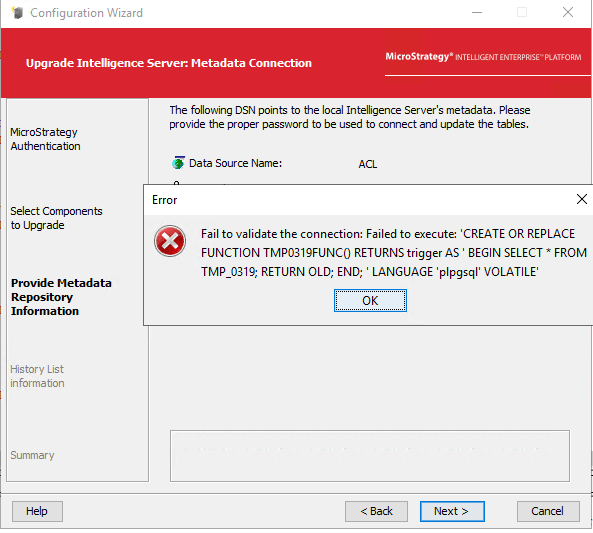
To resolve this issue, use the role/user who created the metadata to do the metadata upgrade, or alter the ownership to this user, or just DELETE the function by the power user.
On the database server (for example, PostgreSQL), run either one of the two workarounds:
DROP FUNCTION tmp0319func();
ALTER FUNCTION tmp0319func OWNER TO username;
Here are some suggestions:
When upgrading an old metadata to 2021 Update 1 via Configuration Wizard, the error is returned.
This error occurs because upgrading an old metadata (versions prior to Strategy 10.0) to version 2021 Update 1 or later is not supported.
To avoid this error you should upgrade the metadata to an intermediate version first. The intermediate version should be a version between Strategy 10.0 and 2021 (including 10.0 and 2021). Then, you should update the metadata to 2021 Update 1 or a later version.
If the above troubleshooting does not assist you in your troubleshooting, contact Technical Support for assistance.
When upgrading the metadata to version 2021, the error can be found in the MDUPD-x-xx.log file. Update the project via Configuration Wizard. The following error is returned.
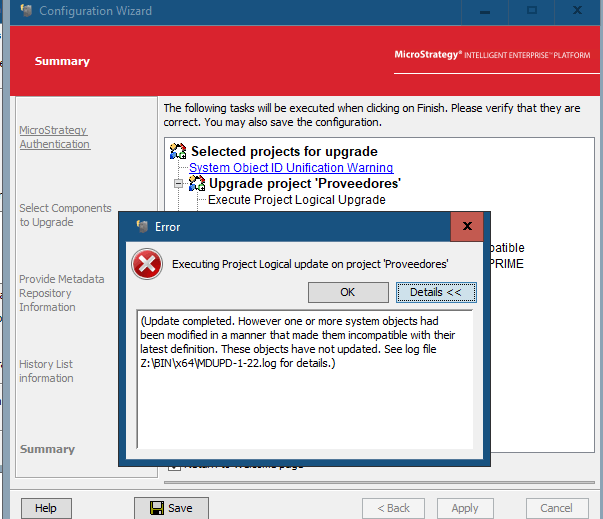
In the MPUDPD-x-cxx.log file, the following can be seen:
2021-01-12 11:33:20.356+01:00 [HOST:xxxxxx][SERVER:CastorServer][PID:94960][THR:140341466408704][MD Update][Error][0x800424A3][UID:54F3D26011D2896560009A8E67019608][SID:9C5CE7F6A97DEF705E9AF5D3328A0610][OID:0][CDSSMDUpdate.cpp:11780] Cannot merge from package file ReportTemplateLookupSourcingCube.bin due to error 0x800423D4.
2021-01-12 11:33:25.896+01:00 [HOST:xxxxxx][SERVER:CastorServer][PID:94960][THR:140341466408704][MD Update][Info][UID:54F3D26011D2896560009A8E67019608][SID:9C5CE7F6A97DEF705E9AF5D3328A0610][OID:0] Fall back to individual load.
The System object, System Hierarchy object id has not been unified yet. Its GUID is not FD107ADDE8A948AE80F794A288FA70F4.
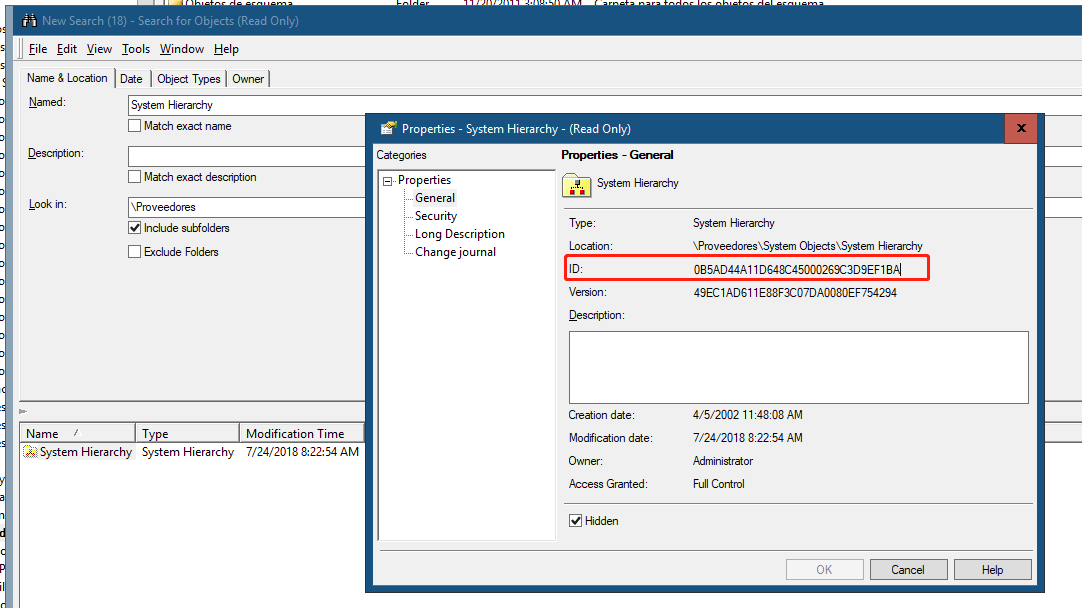
This occurs because the System Hierarchy object's GUID was not unified and in Strategy 2021, we introduced a new Intelligent cube called, "Default Attribute Form Caching Intelligence Cube," and it depends on the System Hierarchy object.
The error is thrown because the dependent object with object ID FD107ADDE8A948AE80F794A288FA70F4 cannot be found.
Solution:
Starting from Strategy 2021 Update 4, we provide a solution to such issues, please follow the steps below to fix the issue. For earlier versions, please contact Strategy Technical Support to get some assistance.
Steps:
1. Back up your metadata.
2. Connect to the metadata DSN from DB Query Tool.
3. Run the following SQL to insert a new system property:
INSERT INTO DSSMDSYSPROP VALUES('IDUNIFYREMEDYPOLICY', '1');
If the row is already existing, run the following SQL to update the row:
UPDATE DSSMDSYSPROP SET prop_val='1' WHERE name='IDUNIFYREMEDYPOLICY';
4. Upgrade your project again in Strategy Configuration Wizard.
