Starting with the release of Strategy ONE (March 2024), dossiers are also known as dashboards.
Best Practices
Cache Management
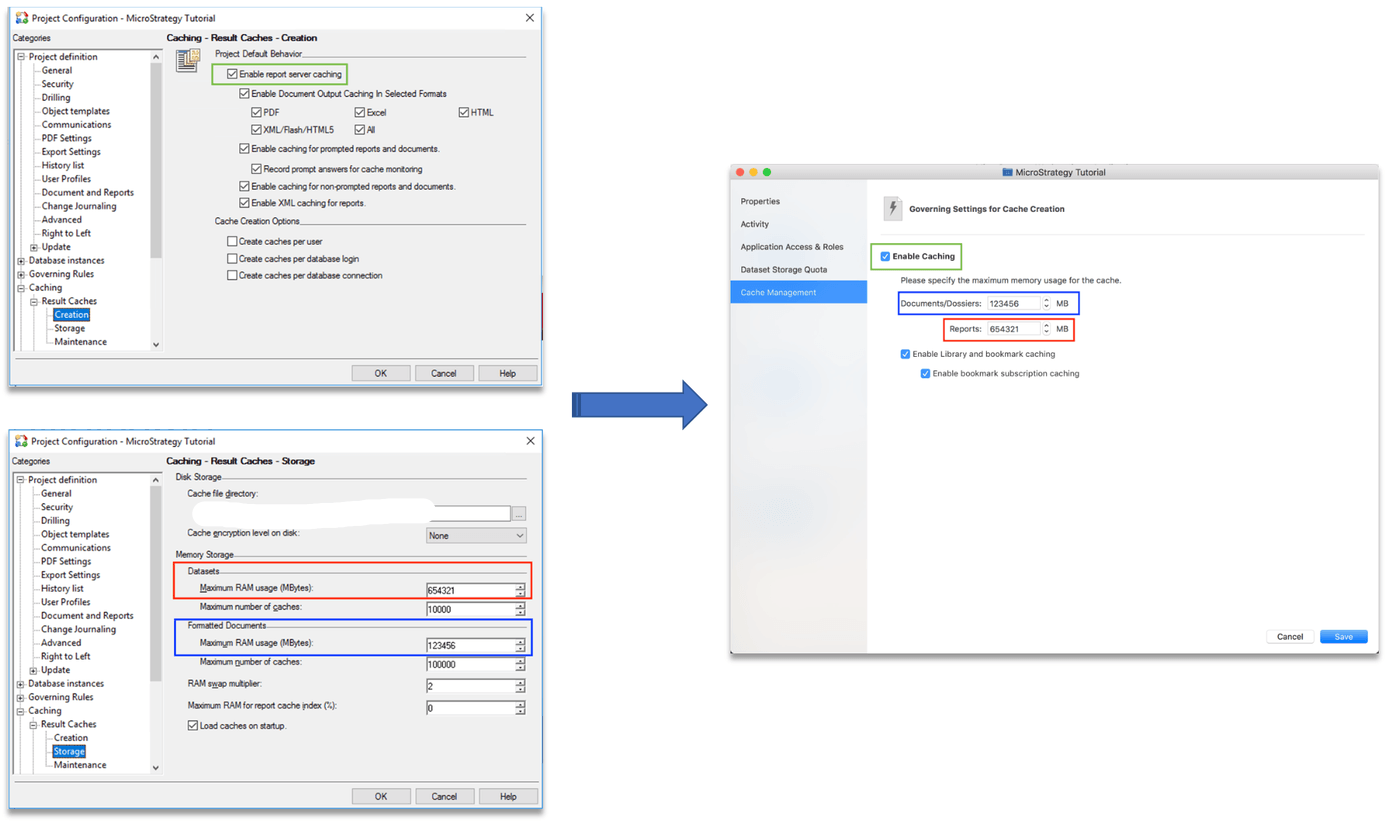
As an administrative tool, Workstation should provide the ability to manage cache creation and governance on an Application level. Caching is important for performance, and Workstation should enable administrators to set cache options and sizes for each of their Applications. Previously, Developer provided this functionality with various options, many of which were determined to not be primary to users (for example, selecting the formats for the caching). The redesigned interface in Workstation provides straightforward options for cache settings.
Administrators can enable or disable caching overall, as well as specify cache sizes for the two different caches: the report cache, and the document/dossiers cache. In addition, administrators can enable caching of Library dossiers (dossiers that belong to the Application, that are in any users' Library) and bookmarks (an 11.0 feature that allows you to bookmark dossiers), as well as bookmark caching for subscriptions.
Value
Disabling caching for an Application
The user is experiencing overall performance issues in programs running on the server that does caching for a particular Application. The caching is using too much of the machine's resources, and the particular Application isn't heavily used by many users, executing many different dossiers. Therefore, the administrator would like to disable all report and dossier caching for this particular Application.
Increasing the cache size
The user wants improved performance of execution in a particular Application. This Application is more heavily used by more users, with frequent dossier executions. Therefore, the administrator would like to increase the cache size for dossiers up to 10,000 MB, for a particular Application.
Enable Bookmark Subscription caching
There are performance issues for subscriptions to dossiers that originate in a particular Application. It seems that these dossiers have bookmarks in them. To improve this performance, the administrator would like to enable bookmark caching for subscriptions in this particular Application.
Architecture
Workstation provides the option to disable or enable caching completely, as well as specify cache sizes for the two different caches: the report cache, and the document/dossiers cache. In addition, administrators can enable caching of bookmarks, as well as bookmark caching for subscriptions. By default, all of these options are enabled.
These options are stored as properties of a particular application. They are stored independently in the server, though they are presented in a hierarchal structure in Workstation. Workstation enforces this hierarchical structure. For example, in the Enable Bookmark Subscription caching use case above, the user must first have selected Enable caching as well as Enable Library and bookmark caching to complete the Workflow.
Requirements
Here are some of the requirements that must be met in order to successfully see the telemetry.
Action Steps
*If you do not see the Cache Management tab, this is because you do not have the "Configure Governing" privilege for this Application
Using Developer and Workstation?