The goal is to build a highly formatted pixel perfect document from a dataset that has data on multiple levels of a hierarchy. You want to visualize:
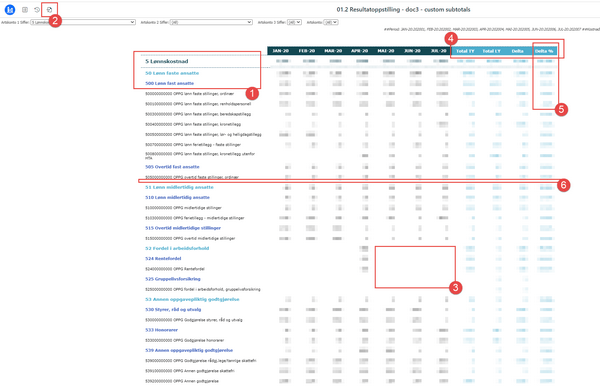
Screenshot of the final document – red numbers mark requirements that are particularly tricky and require special approaches or work arounds
This example has been built in Strategy Tutorial project (MSTR version 2021 U5) in which I’ve built the following objects (underlined objects exist in Tutorial already, the others were created by me):
When you run Financial Dataset report you will notice that there are data gaps – not all the Items were sold on all the days. You can suspect those gaps would become a problem in the document preventing you from getting a clean, consistent structure.
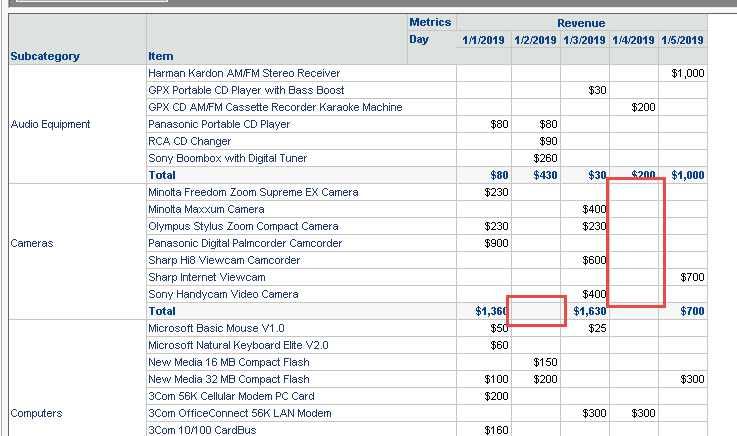
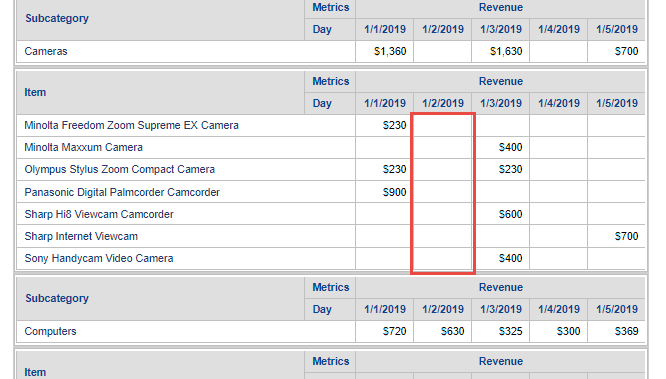
Create your document, position grids on different grouping sections and you can see that you were right with the suspicions. Days with no sale are removed from the grid. Grids on different levels have different number of columns and it doesn’t look clean. For example, there was no sale of Cameras Items on 2019-03-02.
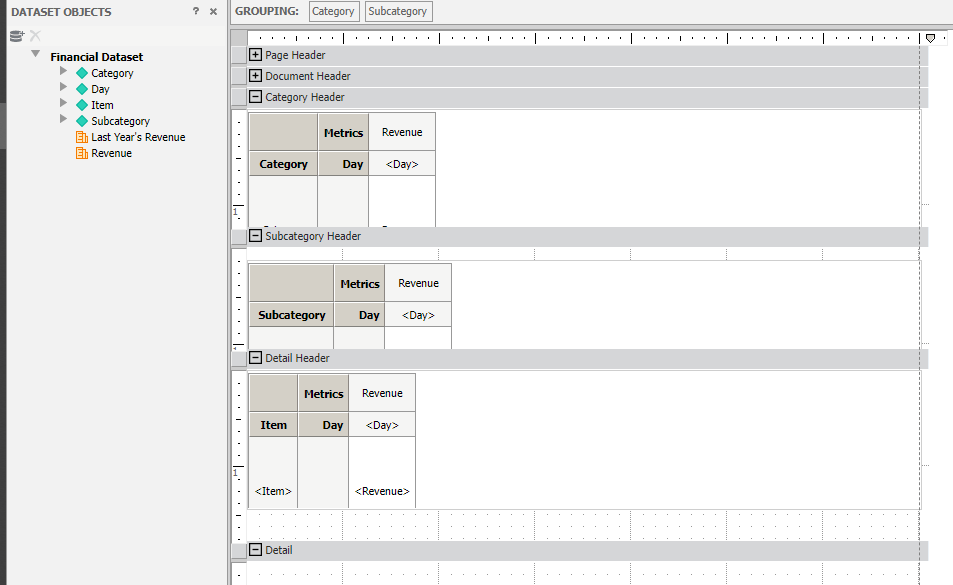
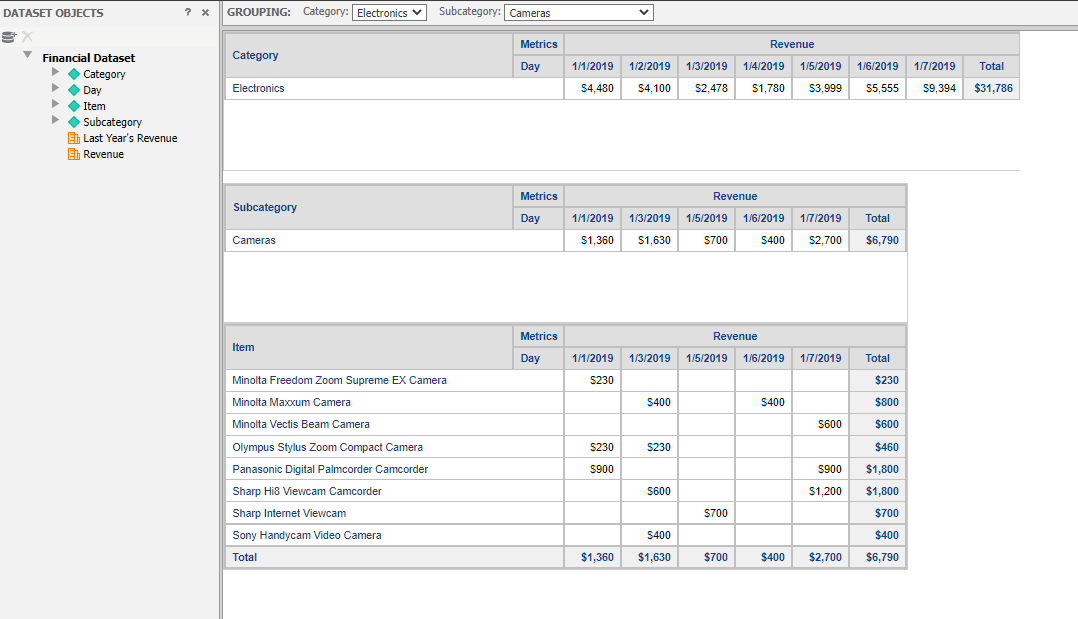
The way to resolve it is to create a second dataset that would contain a cross join of all attributes from your document Group by (in my case Category and Subcategory) + the lowest level from Detail Section (in my case Item) + Day attribute. Depending on your data structure this dataset can be very large (many thousands of rows). It is advised to create a cube to guarantee sufficient performance.
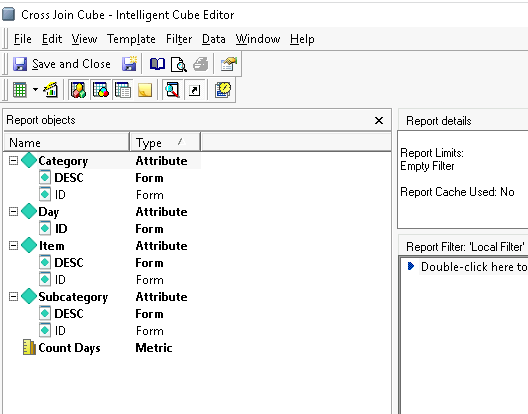
You need to create and add to the cube a new metric that would show a value for every cross section, for example Count Days. Here is it’s simple formula:
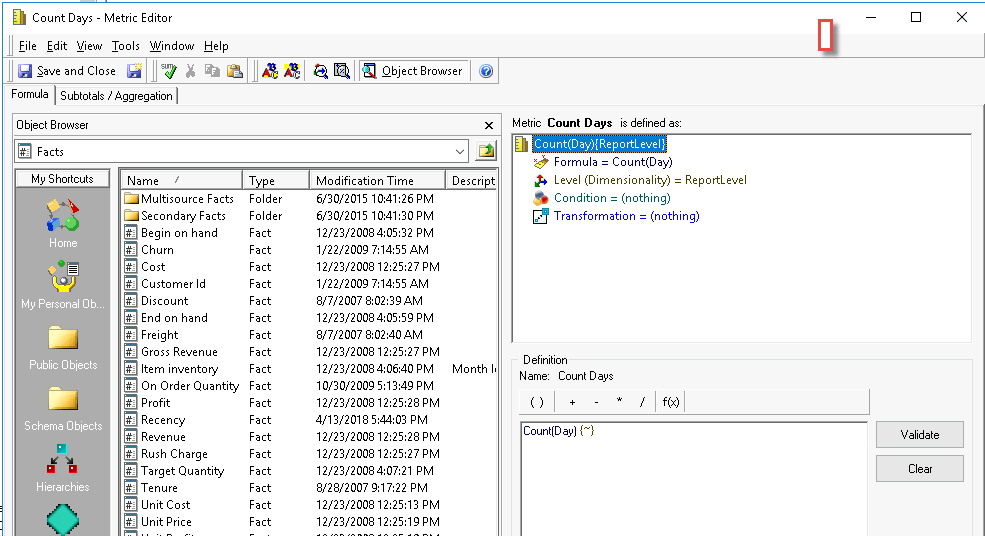
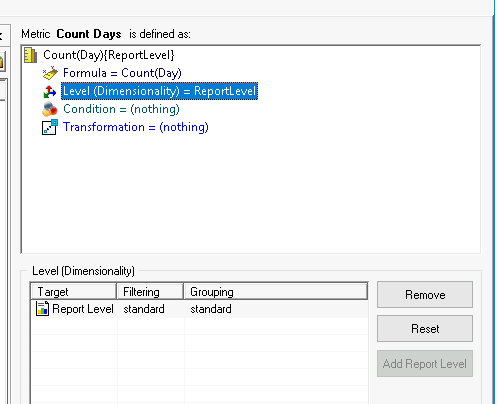
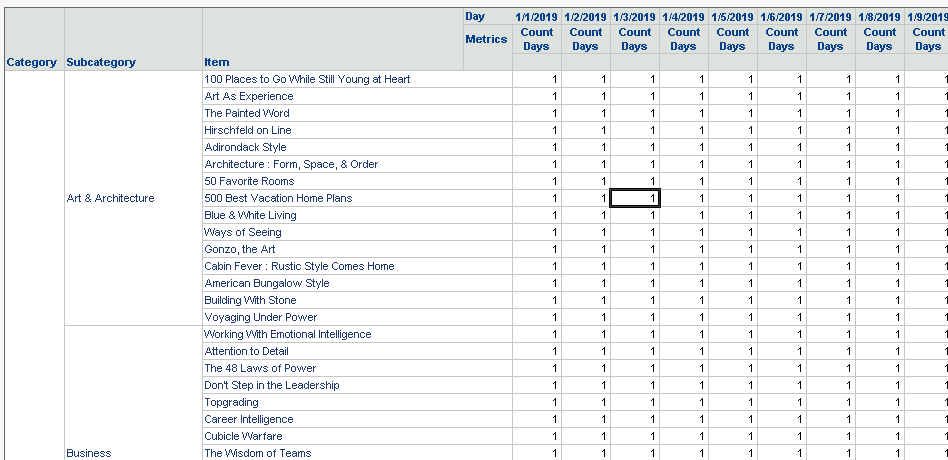
After publishing the cube you can test that, indeed, there is a value for every cross section of attributes. The actual value doesn’t really matter – only the presence of value is important.
My final “Financial Document” will be prompted (Select Days). I want my cross join dataset to be prompted with the same prompt object, because:
Unfortunately, prompts cannot be used in cube definition. In order to solve that I’ve built a “Cross Join Report” on top of “Cross Join Cube”. The report contains all the attributes and metrics from the cube + the same prompt that I also use in my “Financial Document”. This Community post contains information about adding prompts to reports based on cubes (it is not obvious how it’s done!): https://community.strategy.com/article/KB44364-How-to-build-a-prompt-in-a-report-created-from-an?language=en_US
I can add the new “Cross Join Report” to my “Financial document”. They are using the same attributes, so no attribute mapping is necessary.
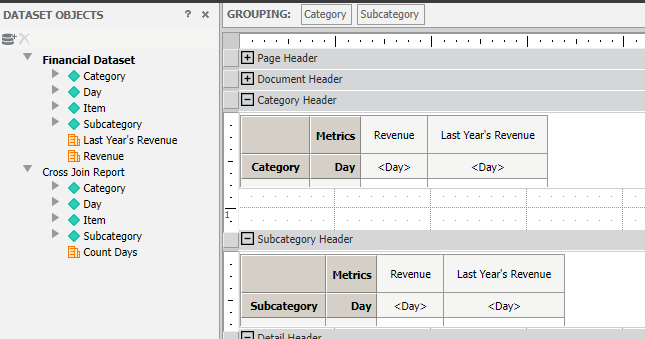
I need to create a new derived metric by combining Revenue with Count Days. This will force analytics engine to fill in gaps in data and that would guarantee equal number of columns on each level. A simple formula like Revenue + (Count Days – Count Days) will work. As you can see, this formula returns Revenue value. I use function ZeroToNull() to get rid of zeros in my grids.
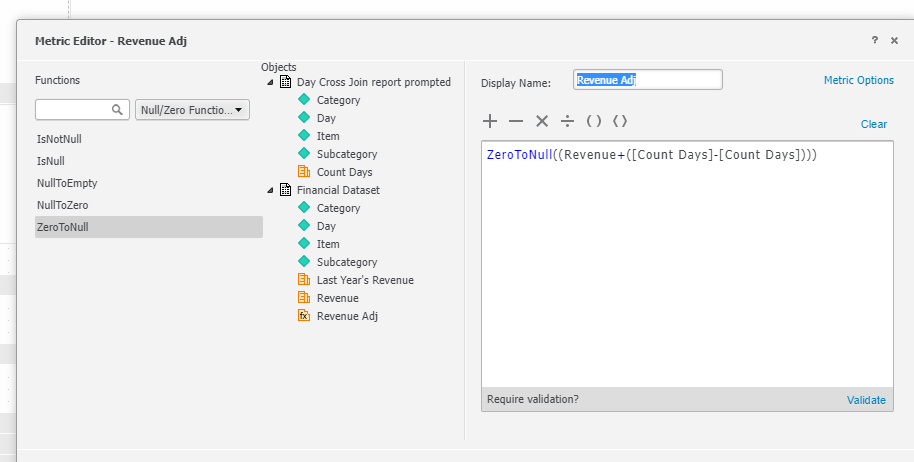
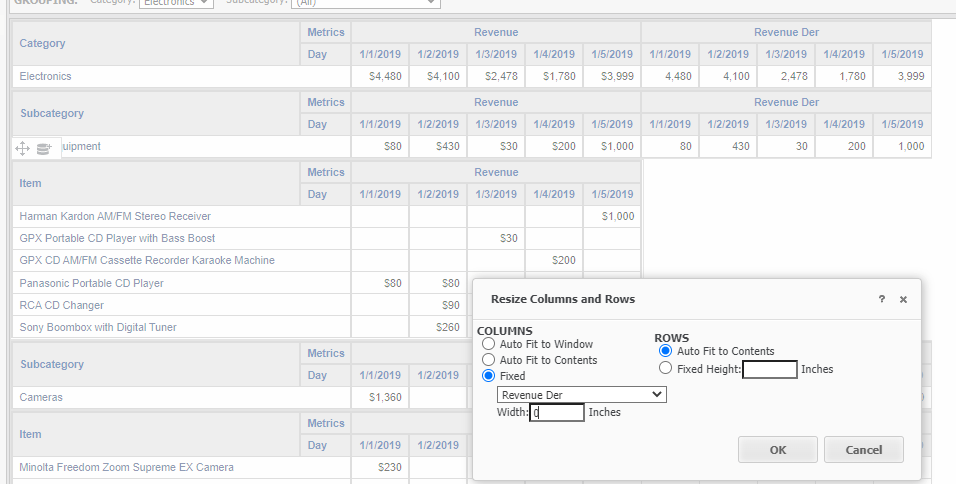
For my document to work properly I need to add all three metrics to all the grids (it’s important for metrics calculation and subtotals), but in fact I don’t really want to display values of Revenue Der and Last Year’s Revenue. I want to hide them.
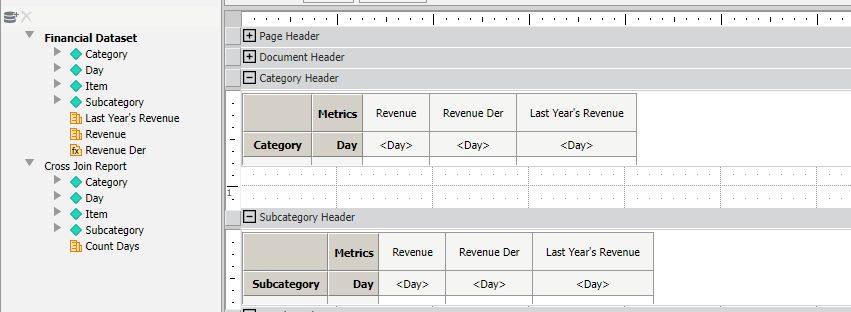
The solution is to resize the width of unwanted metrics to 0
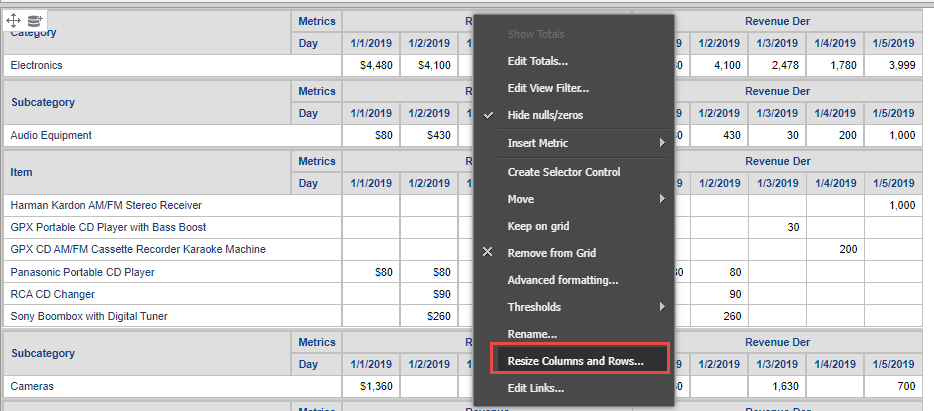
The other problem is caused by empty grids in my document. The usage of Count Days metric (from cross join dataset) forces Strategy to display an empty grid even if there is no data for Item-Day combination.
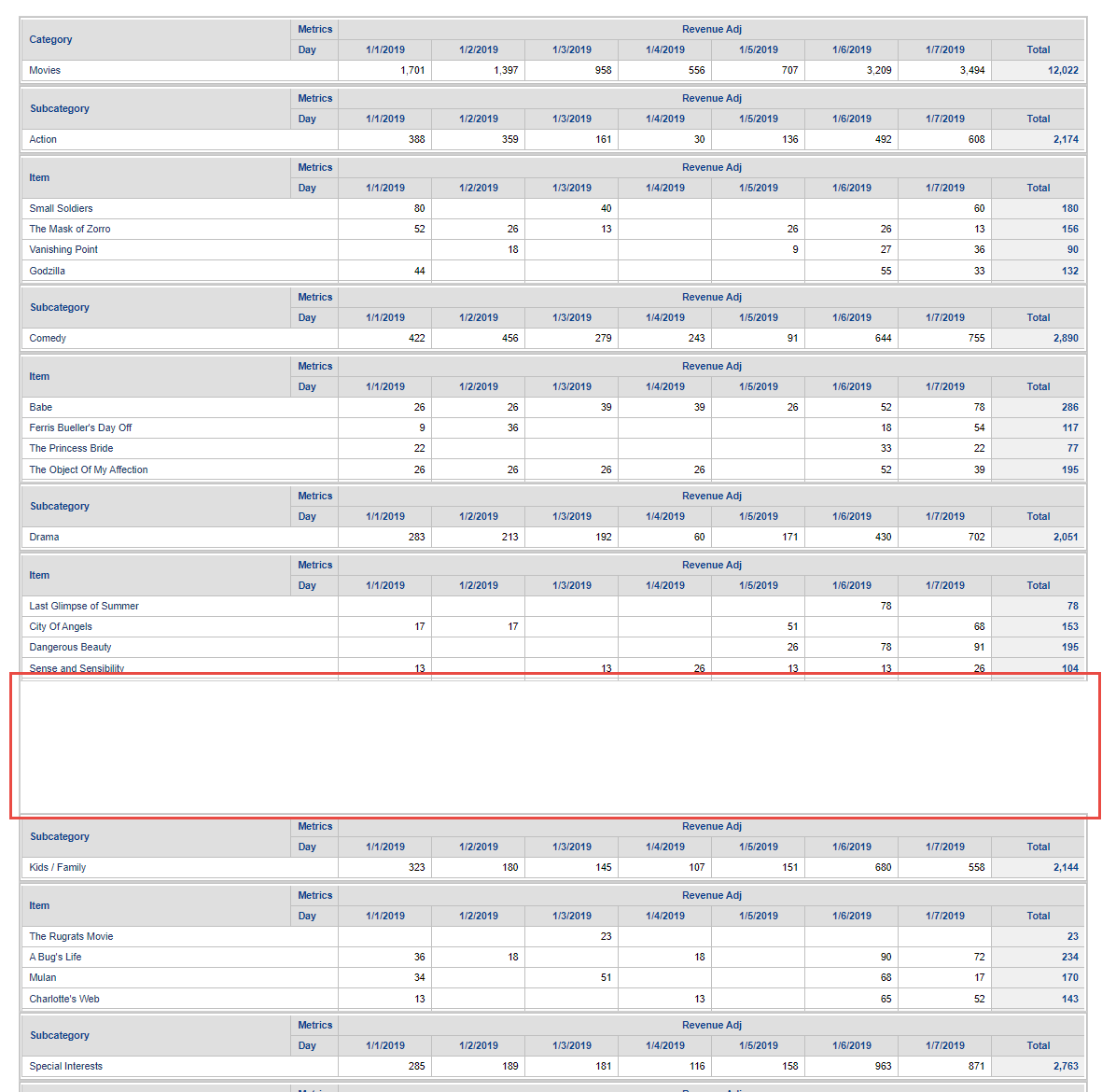
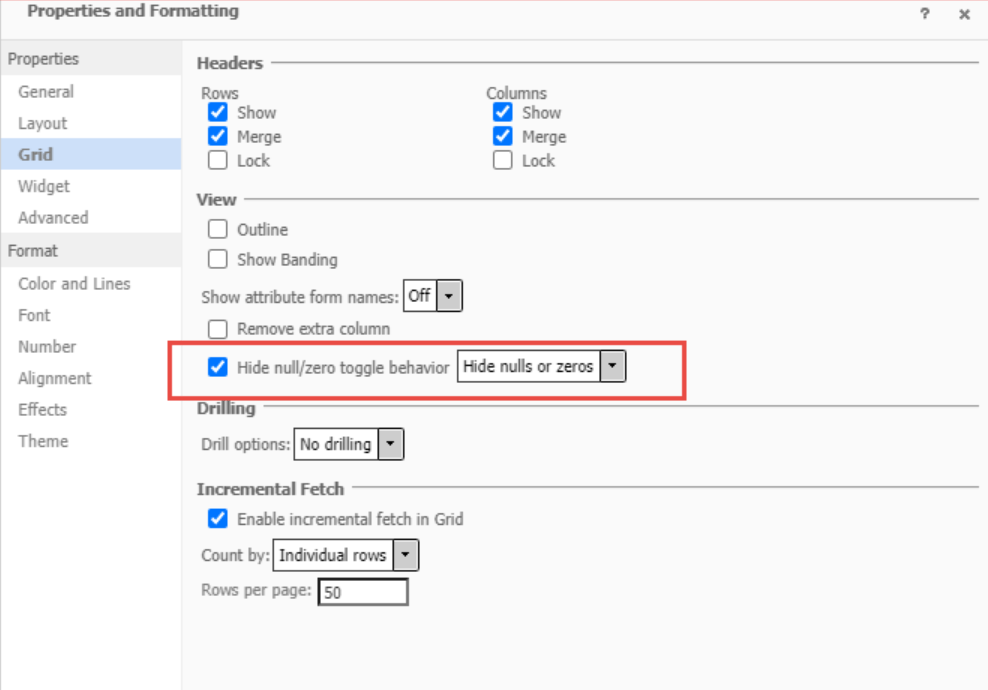
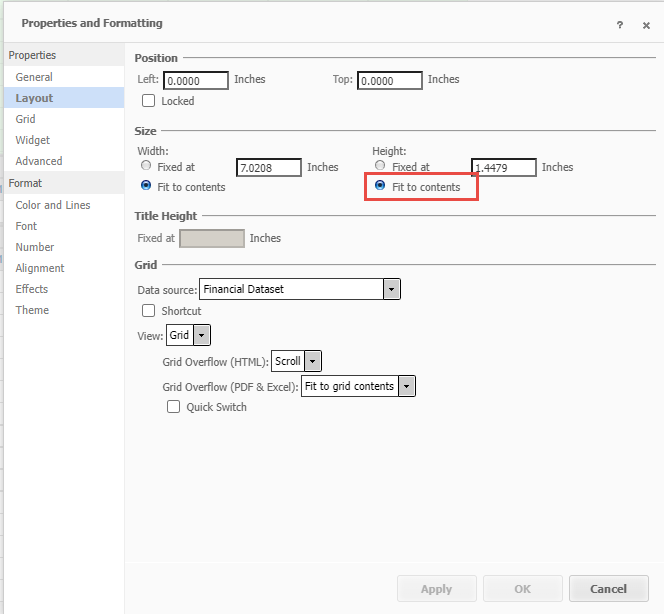
There are three settings that must be changed to solve it
For each section: In document properties check „Hide null/zero toggle behavior”
For each grid: make sure Height is set to “Fit to contents”
On Project level: Change project level setting “No data returned” to “Hide document grid”.
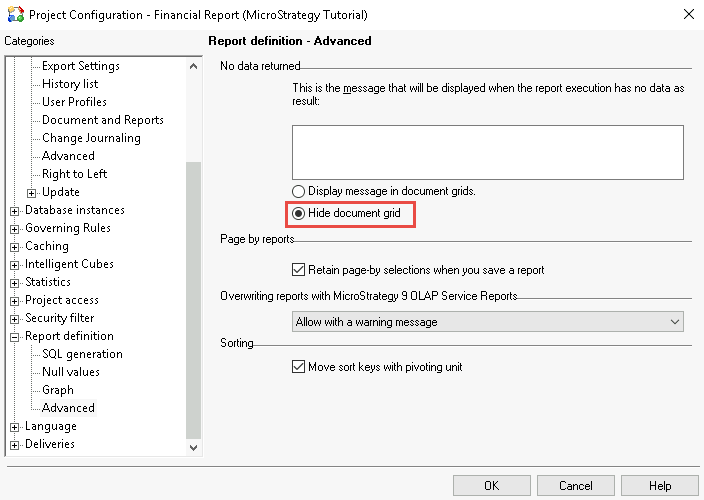
Intelligence Server restart might be required at this point. After that the empty grid will disappear and the sections will collapse if empty.
All those efforts were needed to achieve our requirement to display an empty column in case there were no sale recorded in particular day.
The requirement was to display 4 subtotals on the right side of the grid in this particular order with particular formatting:
We can achieve that by creating custom subtotal objects and assigning them to metric Revenue. I created those subtotals with the following formulas:
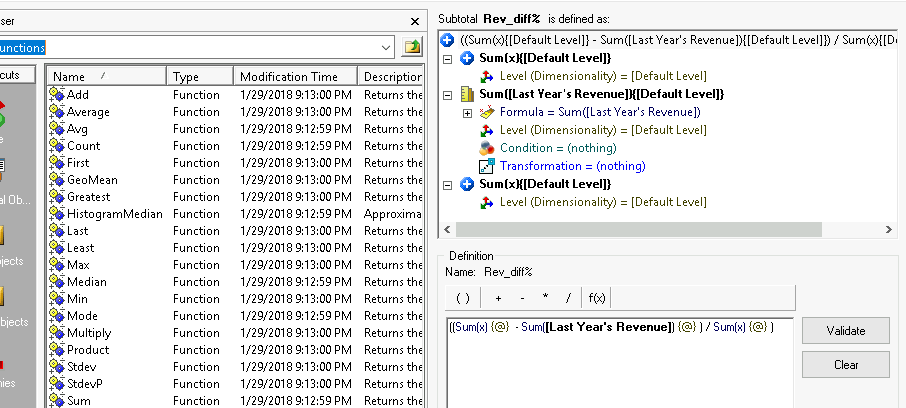
You need to create subtotals as objects first and then add them to grid report in specific order starting from the subtotal that will be placed leftmost. If you confuse the order of adding subtotals you will need to remove all subtotals and add them again. Also, pay attention to the names of subtotals because it is almost impossible to change them after they are added to the grid. Set the proper subtotal names right in the beginning to avoid deleting metrics, subtotals or even the whole grids from your document.
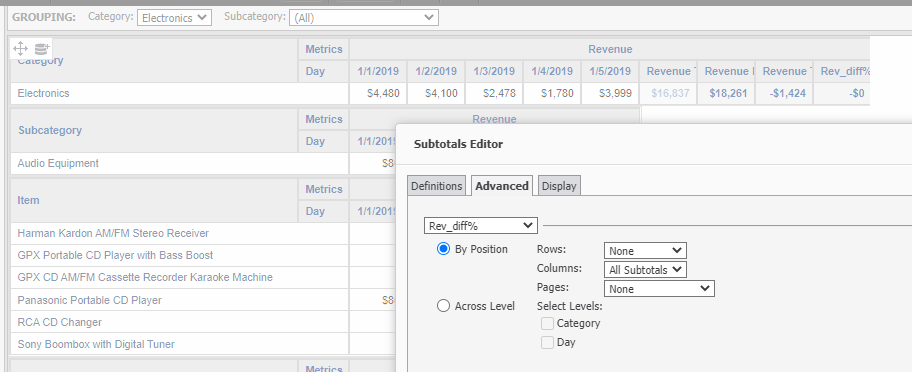
Creating custom subtotal objects: https://community.strategy.com/article/KB9688-How-to-create-a-custom-subtotal-using-a-custom-expression?language=en_US
Sorting subtotals: https://community.strategy.com/article/KB8547-How-to-change-the-order-of-different-subtotals-in-a?language=en_US
The next challenge is related to different data types in subtotals. First three subtotals are of numeric data type, the last one is percentage. Custom subtotals in one grid are formatted together as “Subtotal Values” and must have the same data type format. So, either all currency or all percentage.
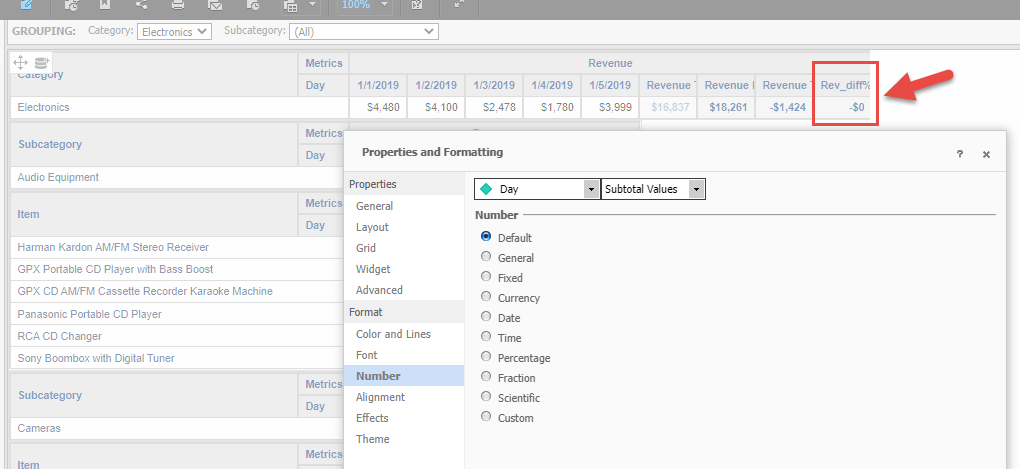
Solution: have two almost identical grids; one hidden underneath the other. The difference is that the top grid contains 3 subtotals only (all numeric format) and the bottom grid contains all 4 subtotals (all % format). Since the top grid is more narrow we can see the fourth subtotal of the bottom grid on the right.
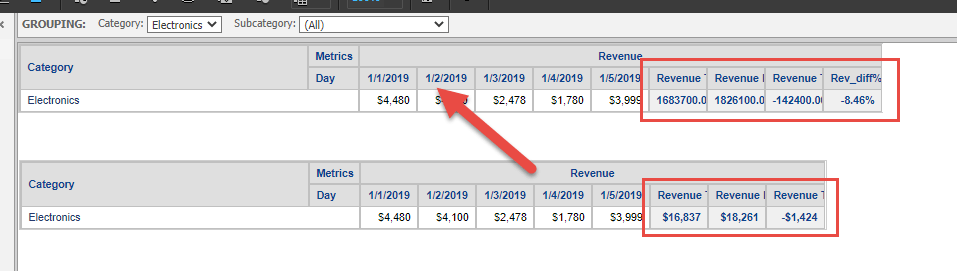

Only in the document structure you will be able to see that there are two grids in Category section. To the end user it will look like one grid.

Everyone with experience in building Report Services Documents knows that in order to achieve great results and beautiful end documents you need to spend substantial amounts of time on fine tuning. The best approach in this case is to start with formatting the first grid on Category level with 4 subtotals (% data format).
Most of those settings can be changed in Web interface, but some are only exposed in Developer.
After the first grid is ready, copy the grid, remove the fourth subtotal, change subtotal format to numeric, place the new grid exactly on top of the first grid.
Copy both grids to Subcategory section and apply formatting changes to font color and size
Copy both grids to Item section and apply formatting changes to font color and size
